Install WideQuick Web Client
WideQuick® Web Client Config Tool
Since WideQuick version 8 the web client ships with a graphical tool for
configuring the .ini file installed alongside the web client. The tool provides
a graphical interface for editing all settings in the .ini file.
File menu
- New — creates a new configuration
- Open — opens an existing configuration
- Save — saves the current configuration
- Save as... — saves a copy of the current configuration
Note
If the configuration file requires elevated privileges to be saved, a UAC dialog may appear.
- Exit — exits the program
Settings menu
- Store relative paths — when enabled, all paths in the configuration are converted to relative paths, relative to the location of the configuration file
- Restart service — restarts the WideQuick Web Client service. Only available on Windows when the loaded configuration is in use by the service. The service must be restarted after any configuration change for the changes to take effect.
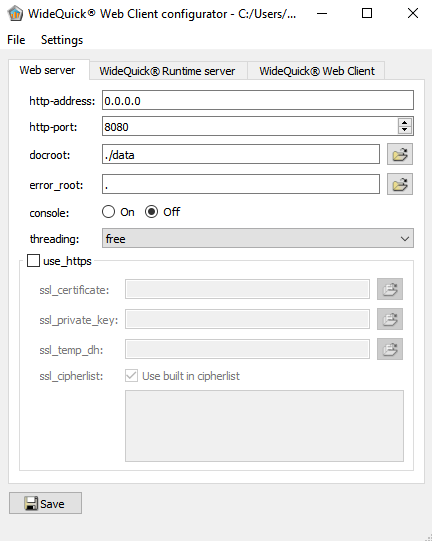
Web server tab
The Web server tab contains the initialization values for WideQuick® Web
Client, stored in the [web-server] section of the .ini file.
-
Http-address — the IP address WideQuick® Web Client will listen on. Defaults to
0.0.0.0, which corresponds to all available IP addresses on the computer. Setting this to127.0.0.1orlocalhostmakes the server unavailable to other computers on the network. -
Http-port — the HTTP port used for incoming connections. If left empty, port
80is used for HTTP connections and443for HTTPS connections. -
Console — when enabled, WideQuick® Web Client runs with a visible console window for debugging.
-
Threading — controls the threading model.
freeallows the web client to create as many threads as needed.strictuses a fixed number of threads throughout the runtime of the process. -
docroot — the directory for web client resources. Defaults to
./data. Change this if you want to use custom resources. -
error_root — the directory containing custom error pages (
.html). Defaults to.to display the standard built-in error pages. To add a custom error page, place files with the following names in the specified directory:
.
├─ 200-ok.html
├─ 201-created.html
├─ 202-accepted.html
├─ 204-nocontent.html
├─ 300-multiple-choices.html
├─ 301-moved-permanently.html
├─ 302-found.html
├─ 303-see-other.html
├─ 304-not-modified.html
├─ 307-moved-temporarily.html
├─ 400-bad-request.html
├─ 401-unauthorized.html
├─ 403-forbidden.html
├─ 404-not-found.html
├─ 413-request-entity-too-large.html
├─ 500-internal-server-error.html
├─ 501-not-implemented.html
├─ 502-bad-gateway.html
└─ 503-service-unavailable.html
For a specification of HTTP error codes, see www.w3schools.com/tags/ref_httpmessages.
- use_https — when enabled, the web server uses HTTPS for all connections.
Note
If use_https is enabled, ssl_certificate, ssl_private_key, and
ssl_temp_dh must all be specified, otherwise the server cannot start.
-
ssl_certificate — the SSL certificate used for secure communication. Required only when use_https is enabled.
-
ssl_private_key — the private server key used for secure communication. Required only when use_https is enabled.
-
ssl_temp_dh — the random Diffie-Hellman parameters used for secure key exchange. Required only when use_https is enabled.
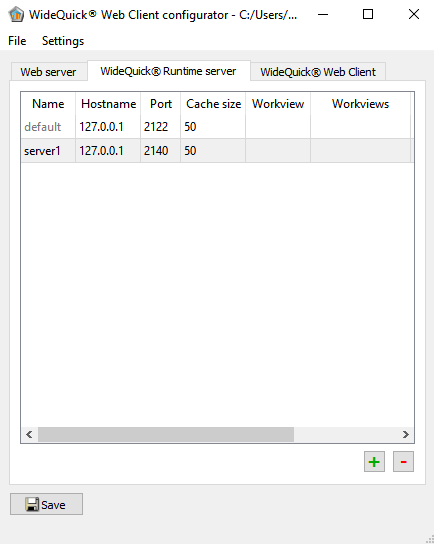
WideQuick® Runtime Server tab
The WideQuick® Runtime Server tab configures the WideQuick® Runtime
instances that WideQuick® Web Client can connect to, stored in the
[wqre-server] section of the .ini file.
-
Name — the name of the server. Can be used as a URL argument, for example
localhost/?wqruntime=server1connects to the server namedserver1. All non-default servers are stored under their own[name]node in the.inifile. -
Hostname — the IP address of the computer running WideQuick® Runtime.
127.0.0.1means WideQuick® Runtime and WideQuick® Web Client are running on the same machine. -
Port — the connection port specified for view access in the WideQuick® project properties.
-
Cache size — the size of the file cache in MB. Set to
0to disable caching entirely. -
Workview — the Workview displayed when connecting via a web browser. Leave empty to use the start view specified in the WideQuick® Runtime project.
-
Workviews — list of Workviews that can be used as URL arguments, for example
localhost/?view=Workview2.kvie. Separated by spaces, stored asview_argsin the.inifile. -
Export variables — list of variables exposed through the URL, for example
localhost/?export_var1=11&export_var2=22. Separated by spaces, stored asexport_varsin the.inifile.
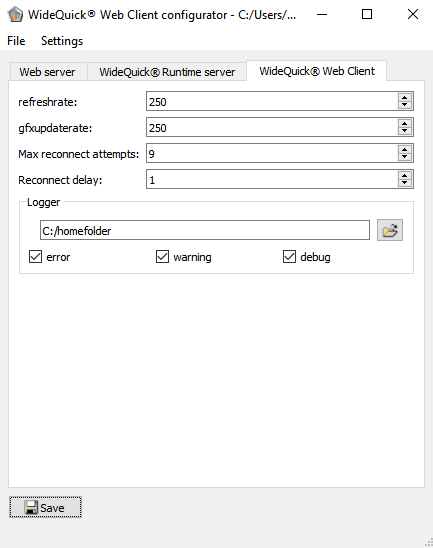
WideQuick® Web Client tab
The WideQuick® Web Client tab configures update and synchronisation rates,
stored in the [wqweb] section of the .ini file.
-
refreshrate — how frequently WideQuick® Web Client synchronises data with WideQuick® Runtime.
-
gfxupdaterate — how frequently WideQuick® Web Client updates the graphical interface in the browser.
-
Max reconnect attempts — the maximum number of reconnect attempts. Set to
0to disable reconnection. Set to-1to retry indefinitely. -
Reconnect delay — how many seconds to wait between reconnect attempts.
-
File path — the directory where log files are stored. WideQuick® Web Client requires write access to this folder.
-
Error, warning and debug — toggles for which log levels are written to the log file.
Configuring the .ini file manually
The .ini file can also be edited manually using a text editor with administrative
rights. The default file location is:
- Windows (64-bit) —
C:\Program Files (x86)\Kentima AB\WideQuick Web Client - Debian —
/etc/wqweb/
The default content of wqweb.ini after installation:
[web-server]
http-address=127.0.0.1
http-port=80
docroot=.
error_root=.
console=true
use_https=false
ssl_certificate=cert.pem
ssl_private_key=server.key
ssl_temp_dh=dh2048.pem
[wqre-server]
hostname=127.0.0.1
port=2122
Workview=
view_args=
export_vars=
[wqweb]
refreshrate=250
gfxupdaterate=250
[logger]
filepath=C:/ProgramData/Kentima AB/WQWebClient/Log
error=true
warning=true
debug=true
Configuring the WideQuick® project
For WideQuick® Web Client to connect to a project, the project must be configured in the same way as for WideQuick® Remote Client.
View access
The project must have an active port for view access, specifying the TCP/IP port
for communication between WideQuick® Runtime and WideQuick® Web Client.
The port is configured in the project properties, for example port 2122.
Read and write access to Data Store variables
For all variables and alarms whose values should be transmitted to or from the client, the view access must be set to Read and/or Write as required.
Start view
Any view in a project can be set as the start view for WideQuick® Web Client, independent of the start view for WideQuick® Runtime. All other windows are sub views to the main view and are automatically closed when their parent is closed.
To set a start view for the web client, right-click any view and select Set as Start View for WQWeb.
Connecting with a web browser
Once WideQuick® Web Client, the WideQuick® Runtime project, and the web server are configured, the project can be displayed in any web browser without installing any additional plug-ins.
The URL format is: http://ServerName:ConnectionPort
Where ServerName is the web server's IP address, computer name, or full URL.
Supported properties
Variables and data types — all variable types are supported.
Dynamics — all forms of dynamics are supported, with some exceptions. See Not supported properties for details.
Workviews — the view specified in the configuration file is displayed on
connection. Navigation is then possible through the link() function or a
multiviewer.
Groups and instances — full support for groups and instances.
Database connections — virtual databases are supported.
Remote systems — supported, including information retrieved from multiple
remote systems, linkRemote() functionality, and remote system configuration in
the multiviewer.
Users and privileges — users can log in and out, change passwords, and edit users via script and dialogs.
Language — translation of both project and application is supported.
Script — most script features are supported. See Not supported properties for exceptions.
EthirisView — full support.
History object — supported as an advanced analytical tool for studying individual signals or their interrelationships across one or several loggers.
Mail — the mail system is supported. Mails are sent from the server that WideQuick® Web Client is connected to.
The following objects are supported for the most part, with some functionality missing:
- Alarm – Blocking list
- Alarm – Frequency list
- Alarm – List
- Alarm – Log
- Alarm – Row
- Arch
- Bar Chart 2
- Box
- Button – temporary (does not display unique text when clicked)
- Check box
- Combo box (not editable)
- Custom Button
- Custom Spin box
- Datetime Edit
- Ellipse
- EthirisView
- Event List 2
- History
- History2
- HTML
- Image
- Line
- Line Chart 2
- Map View
- Multiviewer
- Object list
- Polygon
- Radio button
- Report view
- Slider
- Spin box
- Table
- Text
- Text box
- Trend
- Triangle
- Tree view
Not supported properties
Dynamics
The following dynamic property is not supported:
- Bring Workviews to front
Workviews
WideQuick® Web Client does not present any menus in Workviews.
Objects
Some shared properties are not supported by WideQuick® Web Client for any object:
- Borders other than solid or none
- Font does not support strikethrough or underline
- If the browser does not have access to the specified font, it will use a similar font instead
Note
To ensure the project looks as similar as possible, only fonts with good web support should be chosen if the project is intended to be used with WideQuick® Web Client.
The following objects are not supported via WideQuick® Web Client:
- ActiveX
- Bar Chart
- Camera
- Combo box (Editable)
- Event list
- Gauge
- Knob
- Line Chart
- Tab
Note
Tab indexes for object navigation are not supported.
Unit System
WideQuick® Web Client does not support unit conversions.
Script
The following features are not supported by WideQuick® Web Client:
- Bitmap object —
print() - COMObject object
- Debugger object
- File object
- Run external application
- Messenger object
- Process object
- SerialPort object
- UnitSystemCollection object
- Workview object — the following functions are not supported:
grab()print()translate()mapTo()mapFrom()mapToScreen()mapFromScreen()