Calendar - Get Started
Requirements
The following scripts are required to use Calendar and all related functionality covered in the Calendar guides:
scCalendarscDayViewManagerscWeekViewManagerscMaintenancescDatabasescThemesscAlert
The Calendar is available in the main menu under Calendar. It opens in month view and loads events and maintenance deadlines for the current period automatically.
Views
The calendar has three view modes. Switching between them is done directly in the calendar:
- Click a month tab at the top to switch to month view for that month.
- Click the background of a day to switch to week view for that week.
- Click an event to switch to day view for that day.
- In week view, click the day name to switch to day view for that day.
Use the arrow buttons in the top bar to move forward or backward one period at a time.
Month
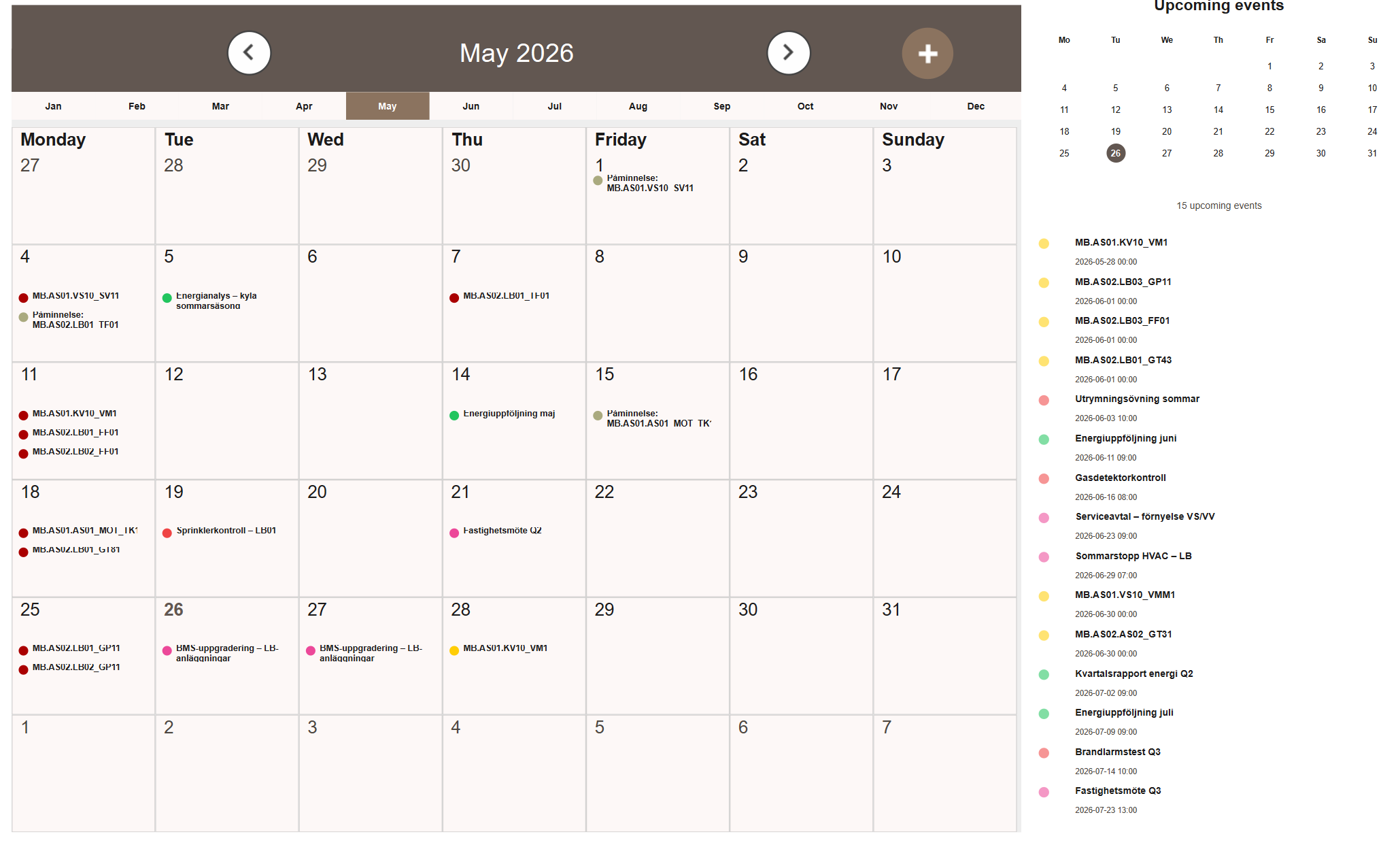
The month view shows a full calendar grid for the current month. Events appear as colored indicators on each day. If more events exist on a day than can be displayed, an overflow badge shows how many are hidden.
Week
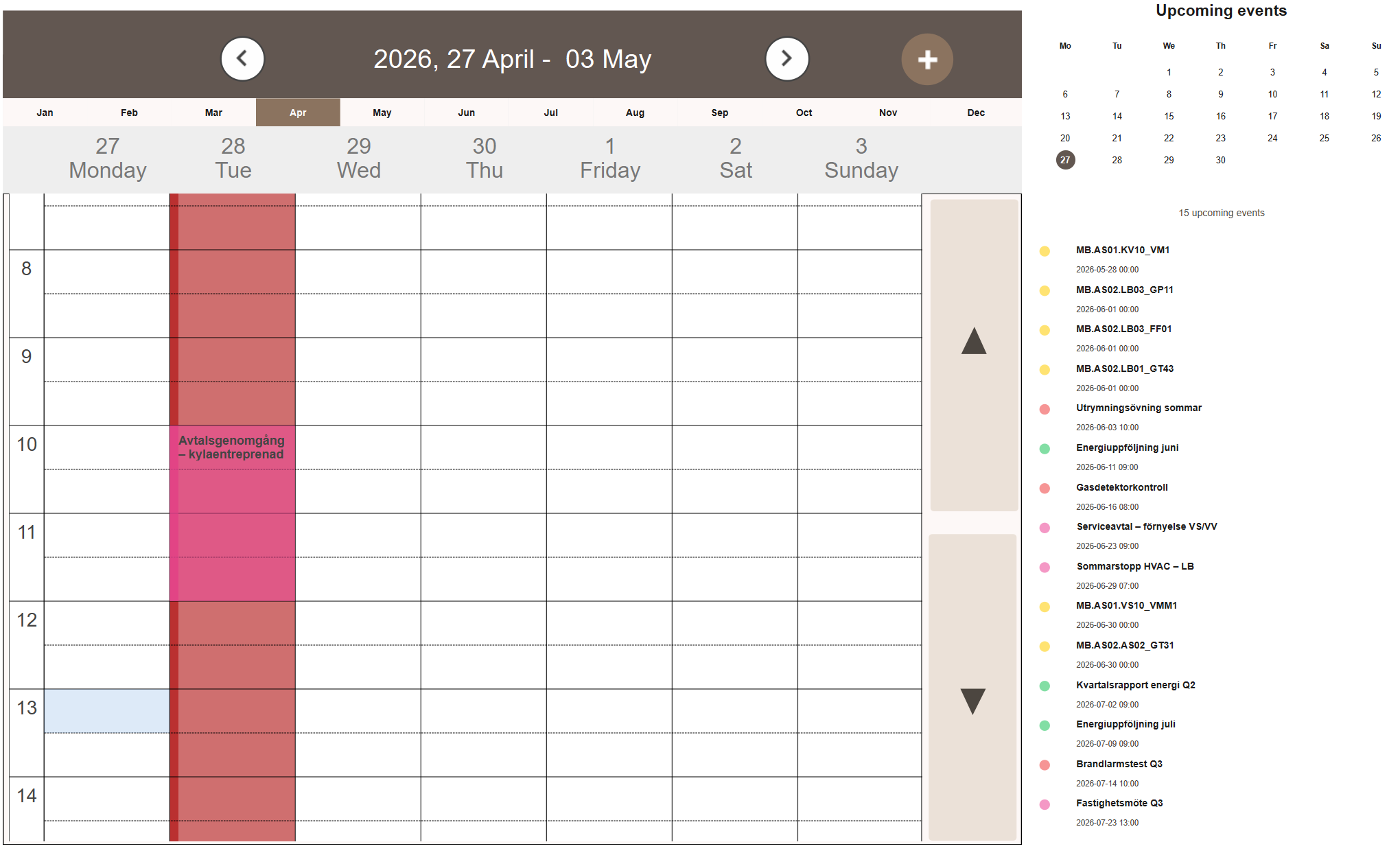
The week view shows the current 7-day period as a time grid. Events are rendered as blocks with their start and end times visible.
Day
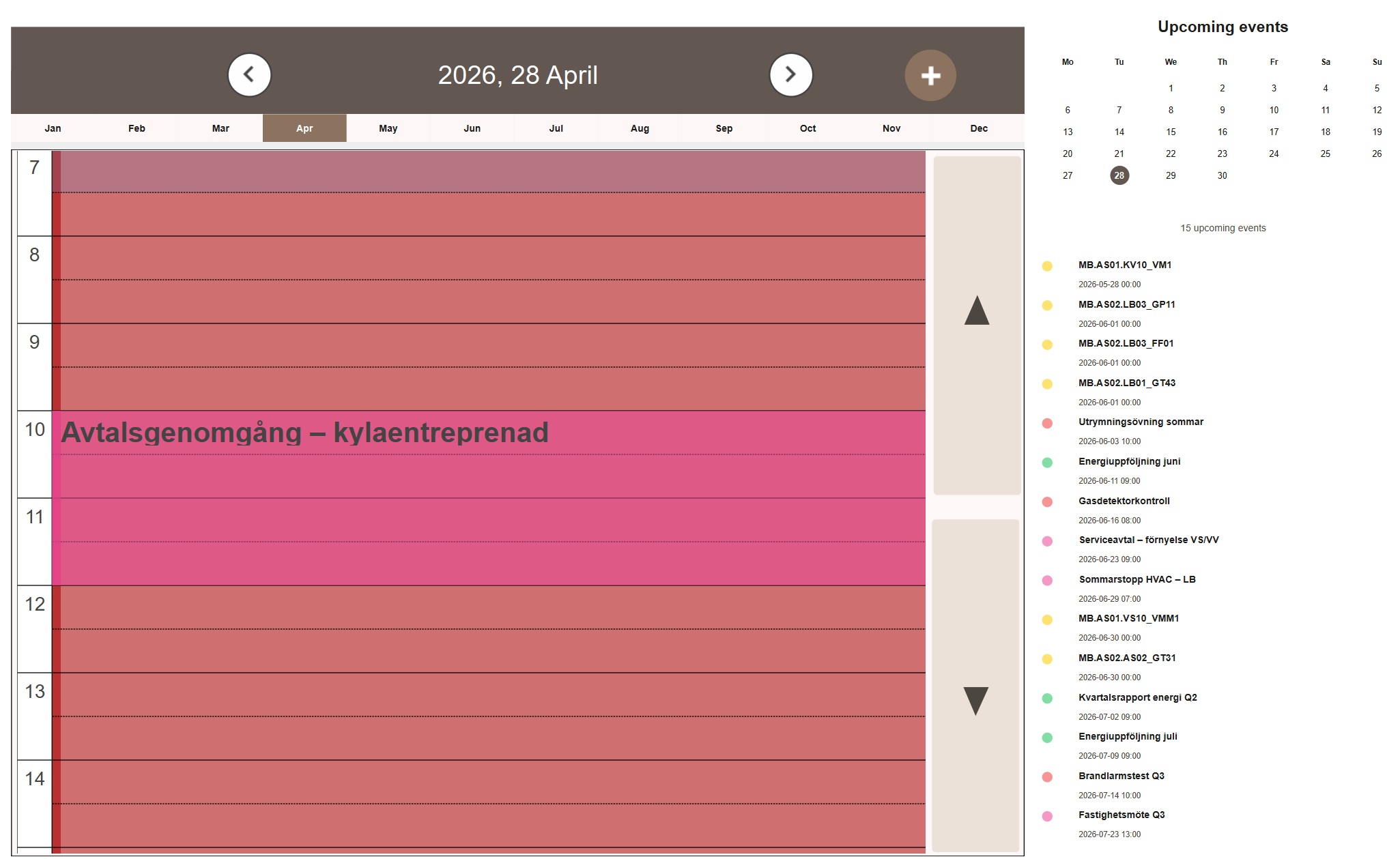
The day view shows a single day as a time grid. It works the same as the week view but focused on one day at a time.
Sidebar
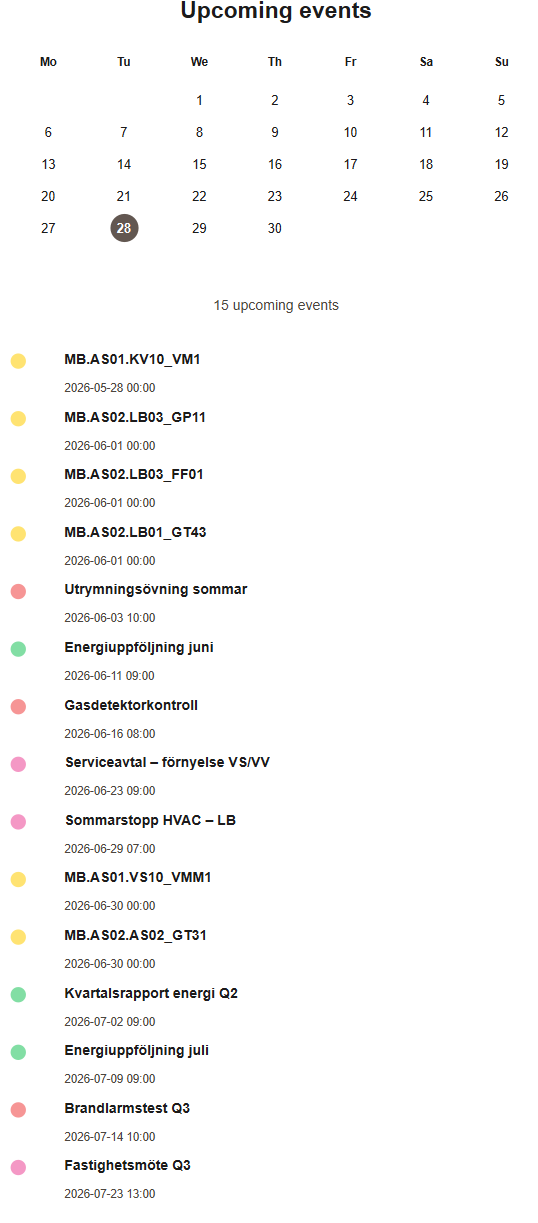
The sidebar shows two things: a mini calendar for the current month and a list of upcoming events.
The mini calendar highlights the currently selected day.
The upcoming events list shows the next events and maintenance deadlines sorted by date, merging both event sources into a single list.
Creating an Event
New events can be created in two ways:
- Click + in the top bar to open the Add/Edit Calendar Event popup directly.
- In Week or Day view, click once on the time grid to set the start time, then click again to set the end time. The popup opens with Start and End pre-filled.
Fill in the fields:
- Title — a short label shown on the event.
- Start and End — the date and time of the event. Can be adjusted after opening the popup.
- Color — sets the display color of the event in the calendar.
- Category — groups the event under a named category.
- Description — optional additional details.
Click Save to add the event to the calendar.
Next Steps
- Configuring — editing events, maintenance colors and reminder settings
- Extending — troubleshooting