Remote Systems
Requirements
The following scripts are required to use Remote Systems and all related functionality covered in the Remote Systems guides:
scRemoteAlarmsscRemoteSystemsscAlarmscPrototypesscAlert
Remote Systems lets a WideQuick application connect to one or more other WideQuick Runtime instances. Once connected, each remote system appears in the navigation menu and can be opened directly. Alarms from all connected systems are aggregated into the local alarm list, giving operators a single view across the full installation.
Receiving connections
For a WideQuick application to accept incoming connections from other applications, a connection port must be configured in its project settings. In WideQuick® Designer, open Project Properties (by right clicking the top node of the project tree) and set View access under Connection Port. The default port is 2122.

Both applications must be reachable over the network on the configured port.
Configuring a remote system
A remote system can be added during development in WideQuick® Designer or at runtime in WideQuick® Runtime.
Via WideQuick® Designer
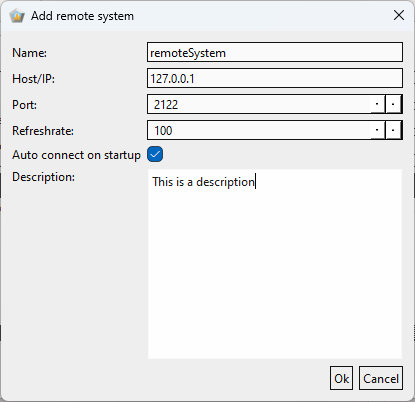
Remote systems are managed under the Remote Systems node in the project tree. Right-click the node and select Add Remote Systems.... Fill in the following fields:
- Name — display name for the remote system. Shown in the Remote Systems menu.
- Description — optional description. Shown below the name in the Remote Systems menu.
- Host/IP — IP address of the remote system.
- Port — must match the connection port configured on the remote system. Default is 2122.
- Refreshrate — how often variable updates are fetched from this system, in milliseconds. Lower values give faster response but increase network load.
- Auto connect on startup — when enabled, the application connects to this system automatically on startup.

Via WideQuick® Runtime
Navigate to Settings → Settings in the main menu and click Manage remote systems.
The Remote Systems dialog lists all configured systems. Click Add to add a new one, Edit to modify an existing one, or Remove to delete it.
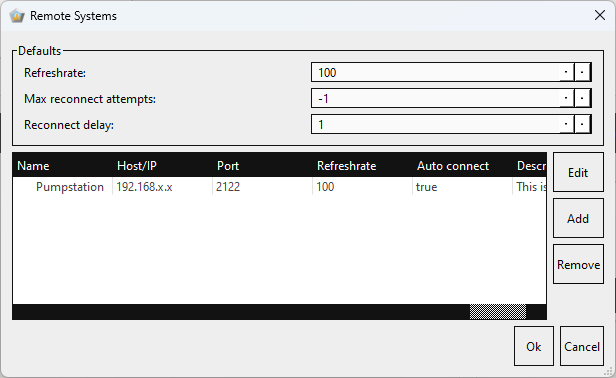
The Defaults section at the top sets global fallback values for all systems:
- Refreshrate — default refresh rate used when adding a new system.
- Max reconnect attempts — how many times to retry after a lost connection. -1 means retry indefinitely.
- Reconnect delay — seconds between reconnect attempts.
Clicking Add opens the same fields as in WideQuick® Designer.
Navigation
Configured remote systems appear in the Remote Systems section at the bottom of the main navigation. Click Remote Systems to open the list.
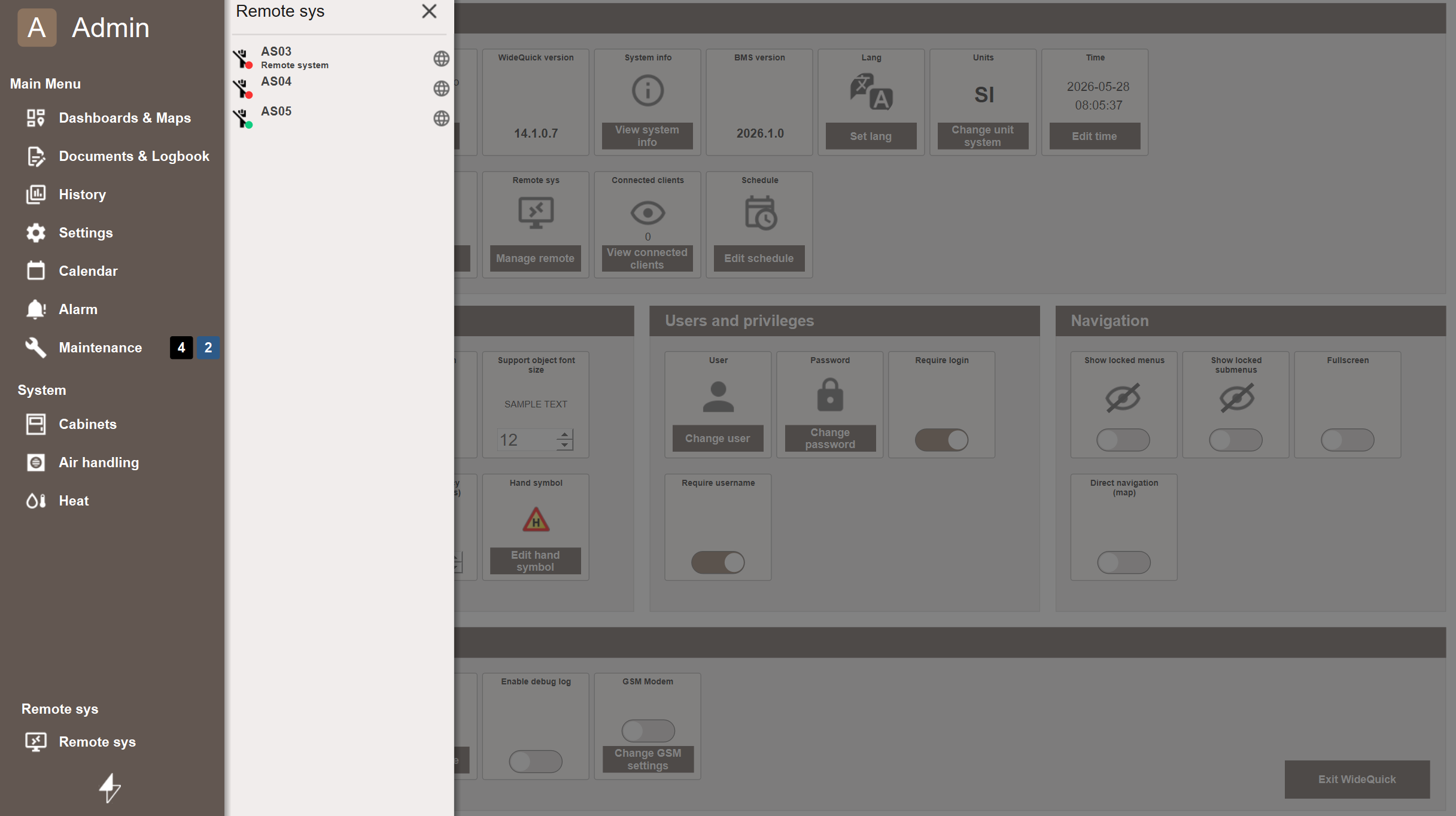
Each entry shows the system name, description, and a connection status icon. The status icon updates in real time — green means connected, red means not connected. If Auto connect on startup is enabled, the application reconnects automatically on disconnect according to the Max reconnect attempts and Reconnect delay settings.
Opening a remote system launches it in a separate client window. The local application remains fully accessible while the remote system is open.
Accessing a remote system
Each system in the Remote Systems menu can be opened in two ways:
- Click the system name — opens the remote application in WideQuick® Remote, a native client with full view access and interactive controls.
- Click the globe icon — opens the remote application in the web client, a browser-based interface that requires no separate installation.
WideQuick® Remote is the preferred option for operator use. The web client is suited to situations where installing the Remote client is not practical — for example, access from a personal device or an external network.
Remote Alarms
When scRemoteAlarms is running, alarms from all connected remote systems appear in the local alarm list alongside local alarms. Each alarm entry shows which system it originates from. The alarm list can be filtered by system to focus on a specific remote installation. Acknowledging an alarm sends the acknowledgement directly to the originating system — no separate login is required.
If a remote system disconnects, its alarms are removed from the list automatically and reappear once the connection is restored.
Integrating a non-MOD application
Alarm aggregation works with any WideQuick application — not just MOD — as long as the remote application exposes the following variables in its Data Store:
activeAckAlarms— current count of active acknowledged alarms.activeNoAckAlarms— current count of active unacknowledged alarms.alarmNames— a comma-separated list of alarm group names. Each name in the list must also exist as anAlarmGroupobject in the Data Store.
These are the variables that scAlarm maintains in MOD. A non-MOD application that keeps these up to date will be picked up by scRemoteAlarms automatically once the remote system connection is established.