Dashboards - Extending
Custom Widgets - Building New Widgets from Existing Templates
To base a new widget on an existing one, drag it from the Dashboard Widgets library onto a workview in WideQuick® Designer. Right-click the placed widget and select Disconnect from template. The widget can now be edited freely. Adjust the layout, add or remove objects, and modify the script logic.
Once the changes are done, drag the widget from the workview back into the library list. It is stored there as a new object. To rename it, right-click it in the library list and set a new name.
The same last step applies when building a widget from scratch: once complete, drag it into the library and rename it there.
It is also possible to edit already existing widgets by double clicking one in the library. This opens up a new workview, containing only an editable version of the widget.
Grid Dimensions
Use these dimensions to ensure new widgets align with the dashboard grid. Combine the width and height for the desired span — a 2×1 widget uses width 2 and height 1.
| Units | Width | Height |
|---|---|---|
| 1 | 385 px | 240 px |
| 2 | 780 px | 490 px |
| 3 | 1175 px | 740 px |
| 4 | 1570 px | 990 px |
Inspecting Existing Widgets
To understand how a widget handles signals, properties or layout, double-click it in the library list. This opens an editable version of the widget where the script and dynamics for each part can be inspected and used as a reference.
Tip
Right-clicking a placed widget in a workview and selecting Show template opens the library and highlights the source object — useful for finding which template a widget on the dashboard came from.
Role-Based Dashboards - Controlling Access and Default Views
Setting View Privileges
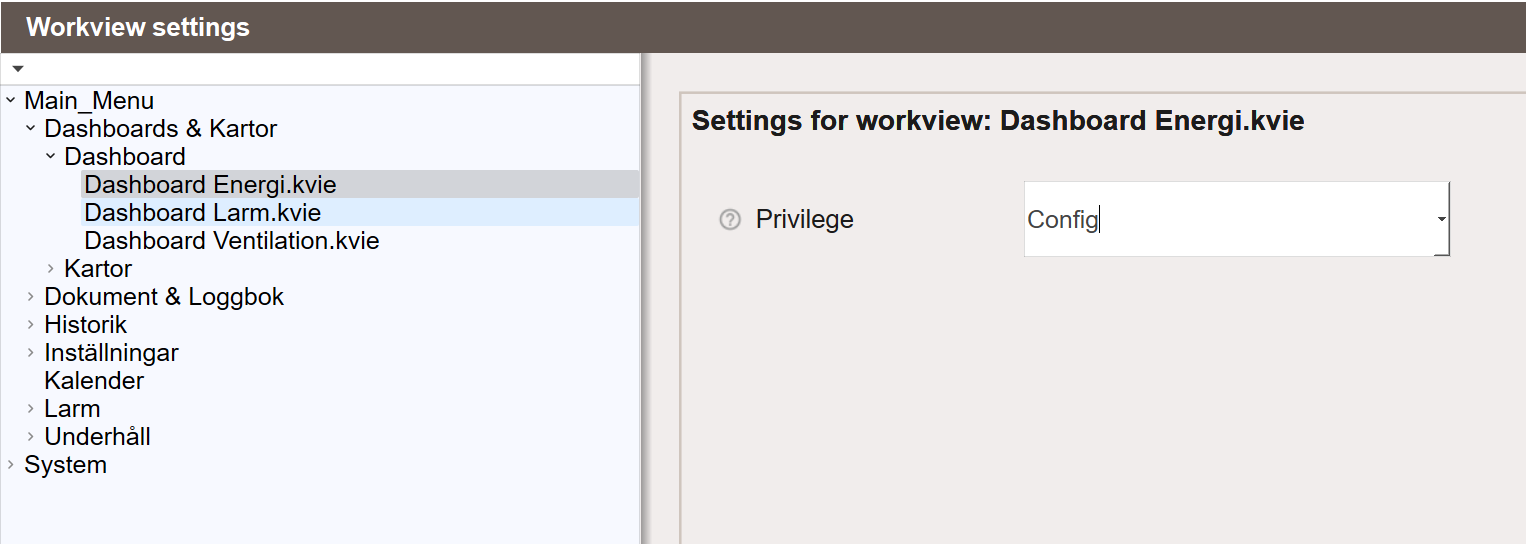
View privileges restrict which users can access a given dashboard. Set them at runtime by navigating to Main Menu → Settings → Workview Privileges. Select the workview from the tree on the left, then set the required privilege level in the Privilege dropdown on the right.
Setting Default View per Role
To set a different default dashboard per role, add the logic to the onLoad script of the Workspace.kvie workview in WideQuick® Designer. Use _sys_user_name to match a specific user or System.currentUser().hasPrivilege() to match a privilege level.
app.MultiViewer = this.MultiviewerPage;
if (_sys_user_name == "Admin"){
    app.MultiViewer.setView("Main_Menu/Dashboards & Kartor/Dashboard/Dashboard Larm.kvie");
}
if (System.currentUser().hasPrivilege("Config")){
    app.MultiViewer.setView("Main_Menu/Dashboards & Kartor/Dashboard/Dashboard Ventilation.kvie");
}