History - Configuring
Tracking a Signal
The Track signal panel keeps the chart centred on a specific signal as its value changes over time.
To track a signal:
- Select a signal from the dropdown.
- Click Track. The tracked signal has a wider line and the other lines are muted in color.
To stop tracking:
- Click Unfollow. The chart returns to its normal display.
Saved Signal Groups
Signal groups can be saved and reloaded to avoid re-selecting the same signals each time. Saved groups are managed from the Saved groups section in the Track signal panel.
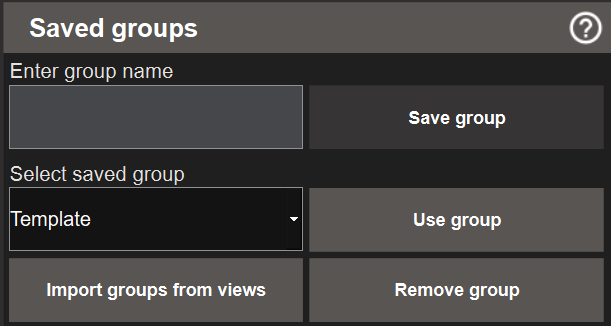
To save a signal group:
- Select the signals and click Apply so they are visible in the chart.
- Type a name in the Enter group name field.
- Click Save group. The group is saved and appears in the Select saved group dropdown.
To load a saved group:
- Select the group from the Select saved group dropdown.
- Click Use group. The signals from the group are selected and applied to the chart.
To delete a saved group:
- Select the group from the Select saved group dropdown.
- Click Remove group. The group is removed. This does not affect the logged signal data.
Importing Groups from Other Views
Both the project-wide History and the view-specific History let you import saved groups that were created in other views. This lets you reuse a group saved in one view without having to recreate it.

To import groups from other views:
- Click Import groups from views in the Saved groups section. A dialog opens.
- The left panel (All saved) lists every saved group in the project — both project-wide groups and groups saved in other views, organised by their source.
- Select a group and click → to move it to the right panel (Selected).
- Repeat for each group you want to import.
- Click Import and close. The groups are added to the current saved group list.
To remove a group from your selection before importing, select it in the right panel and click ←. Click Clear added to empty the right panel entirely.
Note
Importing a group copies it into the current context. Changes to the original group after importing are not reflected.
Next Steps
- Extending — opening the view-specific popup from a script and troubleshooting