Themes - Get Started
Requirements
The following scripts are required to use Themes and all related functionality covered in the Themes guides:
scThemesscAlert
Light and dark mode
WideQuick MOD ships with both a light and a dark theme. The two variants share the same color structure but invert the surface hierarchy. Backgrounds that are light in one become dark in the other, and text colors adjust accordingly.
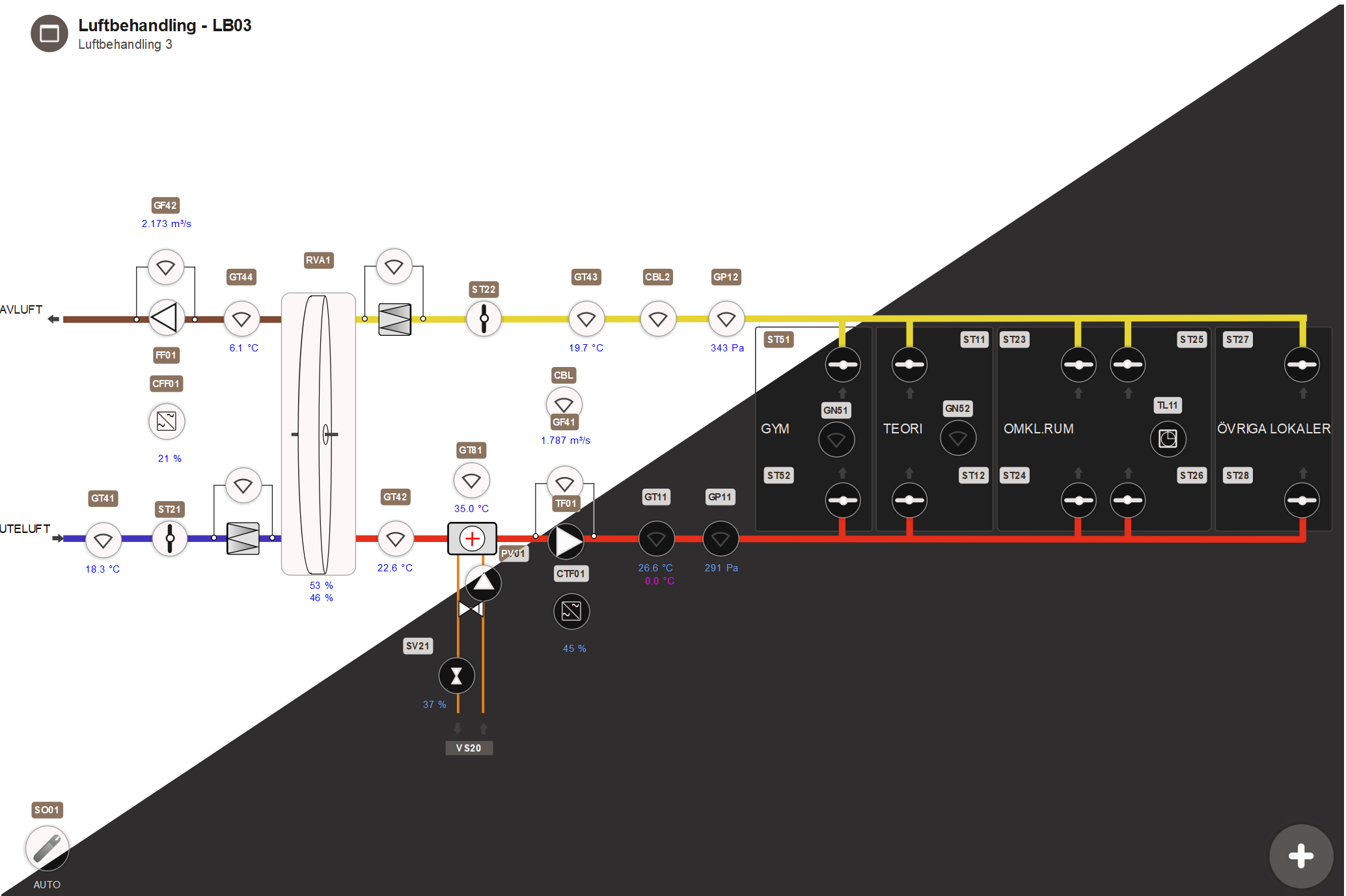
Switching themes
In WideQuick® Designer
The start theme is the theme the application uses when it first loads. It is set in WideQuick® Designer. Open the Themes branch in the project tree to see all available themes. Right-click the desired theme and select Set as start theme.
In WideQuick® Runtime
The theme can be switched between light and dark at runtime without restarting the application. In WideQuick® Runtime, navigate to Settings and use the theme toggle. The preference is saved and persists across restarts.
How objects follow themes
All objects in the project use theme color roles rather than fixed colors. When the theme changes, every background, text color, border, and surface updates automatically. No manual adjustment is needed per object.
This includes alarm state colors. Objects with active alarms display colors such as the alarm and warning indicators defined in the theme, ensuring visual consistency across themes. See Workview Animations for how alarm state animations are configured.
Next Steps
- Configuring — changing individual colors and assigning color roles to objects
- Extending — creating a custom theme that follows a graphical profile