Languages
WideQuick supports multiple languages and runtime language switching. The MOD demo project comes with 20 languages already configured. All existing translations can be altered or removed, and new translations and languages can be added in WideQuick® Designer.
Adding a new language requires translating a large number of strings, but the process is AI-compatible.
Managing Translations
Open the Translation Dialog by right-clicking ProjectTranslations in the project tree and selecting Properties...
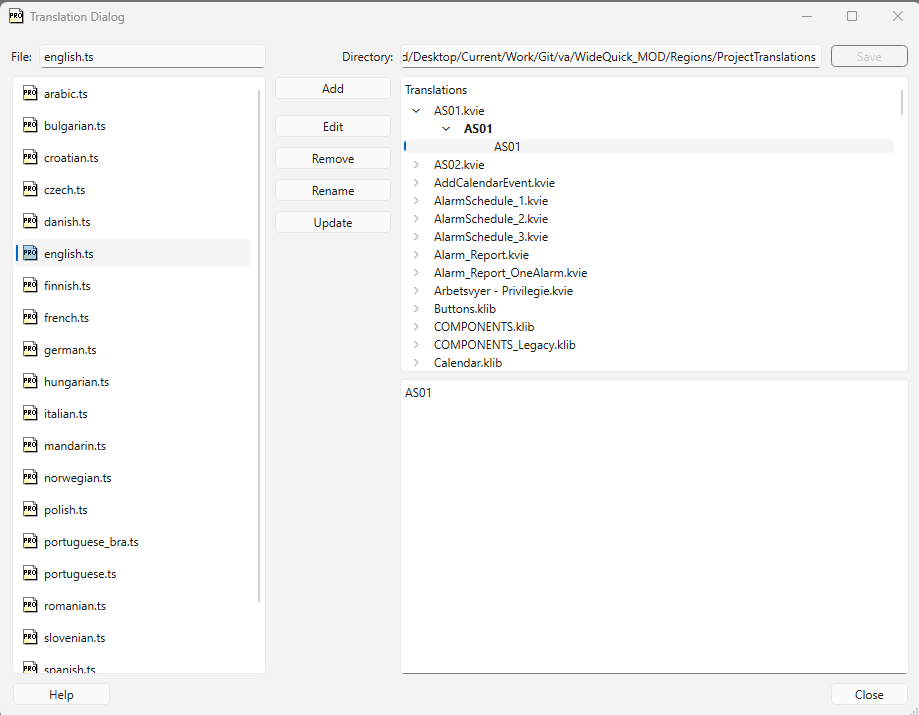
The left panel lists all .ts files stored in Regions/ProjectTranslations/, one per language. The right panel shows all translatable strings in the project, organized by view and component library.
Translation Files
The buttons in the middle manage .ts files:
- Add — create a new
.tsfile for a language. After adding, click Update to populate it with all current source strings. - Edit — open the selected
.tsfile for editing. - Remove — delete the selected
.tsfile. - Rename — rename the selected
.tsfile. - Update — scan all workviews (
.kvie) and component libraries (.klib) in the project for text properties and add any new source strings to all.tsfiles. Strings that no longer appear in the project are marked as obsolete.
Editing Individual Translations
To edit a specific string, browse the tree on the right to locate it. Double-click the translation row (the non-bold text) and edit directly in that row.
Tip
.ts files are plain XML and can also be edited in a text editor. Restart WideQuick® Designer after making changes outside the dialog so that both the .ts and .qm files are updated.
Translating Strings Set by Scripts
Labels, texts and button captions placed directly on a workview in Designer are picked up automatically when running Update Translations. These strings translate without any script code.
Strings that a script writes or sets at runtime are different. If a script assigns a label's value, builds a message, or returns display text, those strings need Language.translate() to follow the active language.
Using Language.translate()
Language.translate() takes two arguments: the name of the file that holds the string, and the source string itself.
If no translation exists for the active language, the source string is returned unchanged.
Adding Strings to Translations.klib
For Language.translate() to work, the string must exist as a text property in the project and in MOD they are placed in Translations.klib. To add a new string:
- Add a text object to any workview in WideQuick® Designer and set its text to the string that should be translated.
- Drag the object into Translations under the Object Library.
- (Optional) Rename the object to match the string. This makes it easier to find later.
Once the string is in Translations.klib, run Tools → Update Translations. This adds the new string as a source entry in all .ts files. The translation can then be added as described in Managing Translations.
Adding and Editing a Language
To add a new language, right-click Languages in the project tree. To edit an existing language, right-click the language instead and select Properties. Both open the same dialog.

| Field | Description |
|---|---|
| Language Name | The name shown in the language selector at runtime. |
| Keyboard locale | The locale used for keyboard input. |
| Region | The region associated with this language. |
| Application Translation File | The .ts file used for WideQuick's built-in strings, such as alarm status labels, filter options and system dialogs. |
| Project Translation File | The .ts file used for project strings. |
Tip
An AI assistant can speed up the process of adding multiple languages significantly, from filling in translations to adding strings to Translations.klib and updating scripts.
Switching Language at Runtime
Users switch language by pressing the Set lang button in WideQuick® Runtime, found under Settings → Settings. This opens a popup listing all available languages.
Note
After switching language the user will be required to log in again.
Setting the Starting Language
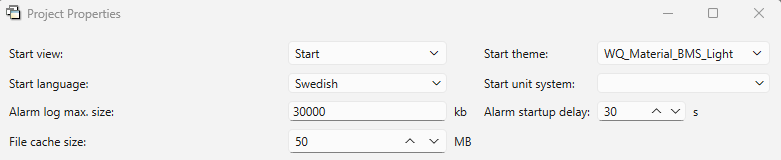
The starting language is configured in WideQuick® Designer. Right-click the project name in the project tree and select Properties. In the Project Properties dialog, set the Start language dropdown to the desired language.