Audit Trail - Get Started
Requirements
The following scripts are required to use Audit Trail and all related functionality covered in the Audit Trail guides:
scAuditTrailscAlert
The Audit Trail records changes to selected DataStore variables and maintenance tasks. It is available under History → Logs → Audit Trail.
Viewing the Log
Navigate to History → Logs → Audit trail → Audit trail.
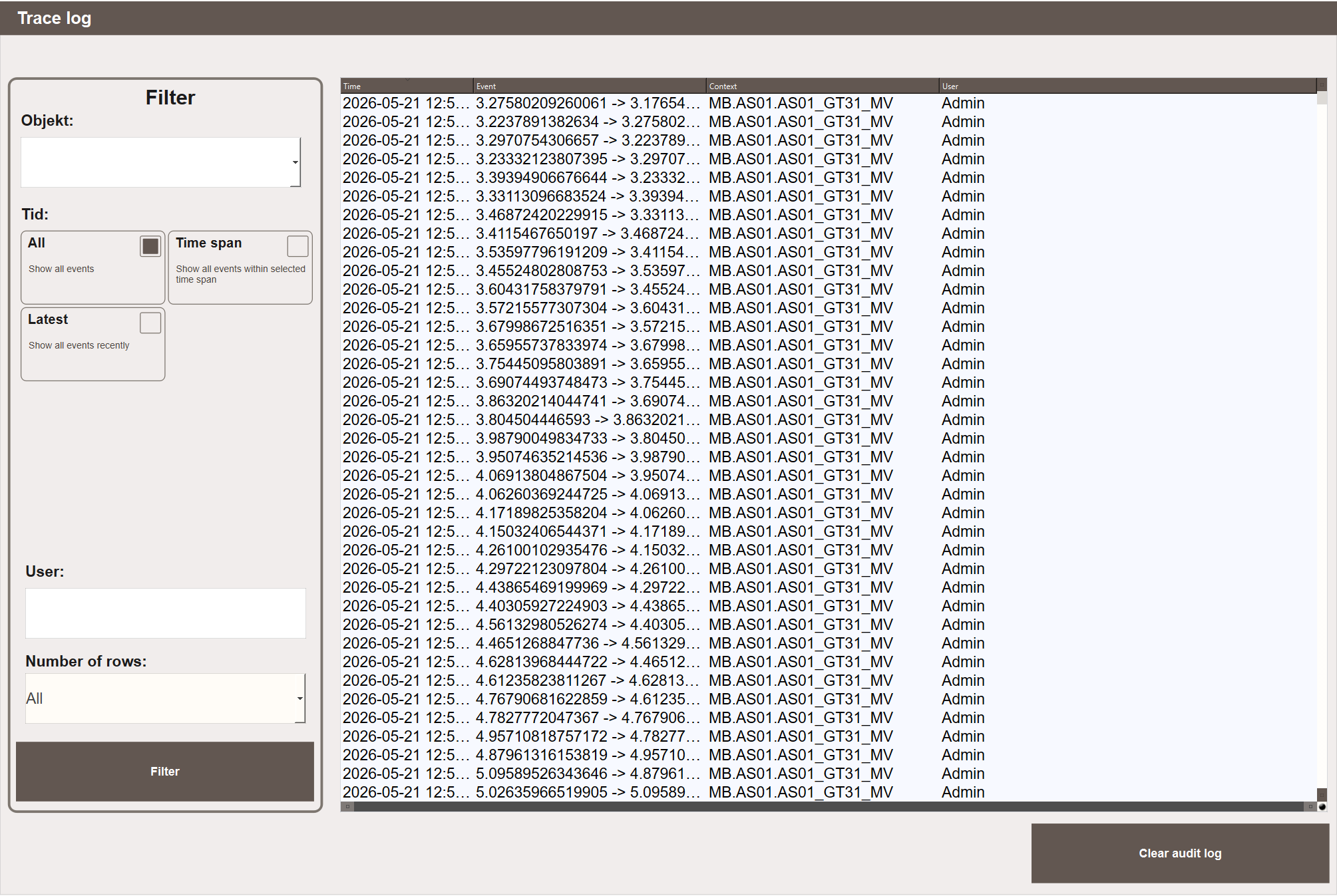
The log shows all recorded changes with the following columns:
- Time — when the change occurred.
- Event — the old value and new value, shown as
old → new. - Context — the full variable path in the Data Store.
- User — the user logged in when the change was made.
Use the Filter panel on the left to narrow down the log:
- Object — filter by a specific object or variable path.
- Time — show all events, events within a selected time span, or the most recent events only.
- User — filter by a specific user.
- Number of rows — limit how many entries are shown.
Click Filter to apply. Click Clear audit trail to permanently delete all log entries.
Maintenance Change Log
Navigate to History → Logs → Audit trail → Audit Trail - Maintenance.
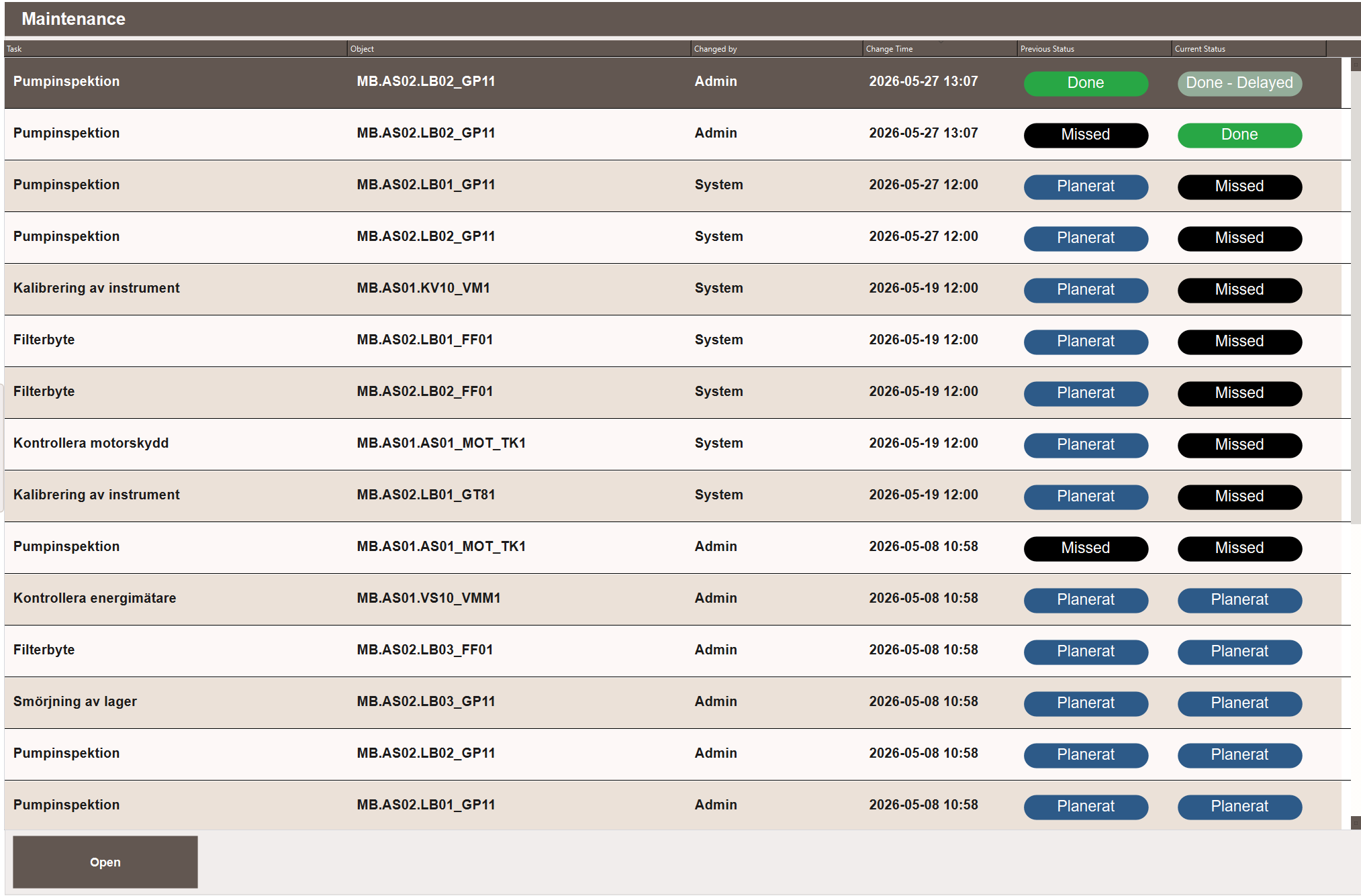
This view shows a full history of changes to maintenance tasks. Every status change, deadline update, priority change, assignee change and description edit is recorded automatically. No configuration is needed.
Each row shows:
- Task — the maintenance type.
- Object — the object the task belongs to.
- Changed by — the user who made the change, or System for automatic changes such as missed deadline transitions.
- Change Time — when the change occurred.
- Previous Status — the status before the change.
- Current Status — the status after the change.
Select a row and click Open to see the full before/after detail for that change, including assignee, priority, deadline and description.
Next Steps
- Configuring — choosing which variables to track