Backup and Restore - Get Started
Requirements
The following scripts are required to use Backup and Restore and all related functionality covered in the Backup and Restore guides:
scBackUpAndRestore
The Backup and Restore feature saves the current values of selected Data Store variables as a named backup. It is available under Settings → Backup.
What Can Be Backed Up
The variable tree shows Data Store variables available for backup — internal variables and logged signals from process views. System variables prefixed with _sys_ are excluded. Any variable with a value of type string, number, or boolean can be backed up.
A backup captures the values of the selected variables at the moment Create backup is clicked. It is a point-in-time snapshot. Values that change after the backup is created are not tracked.
Creating a Backup
Navigate to Settings → Backup → Create.
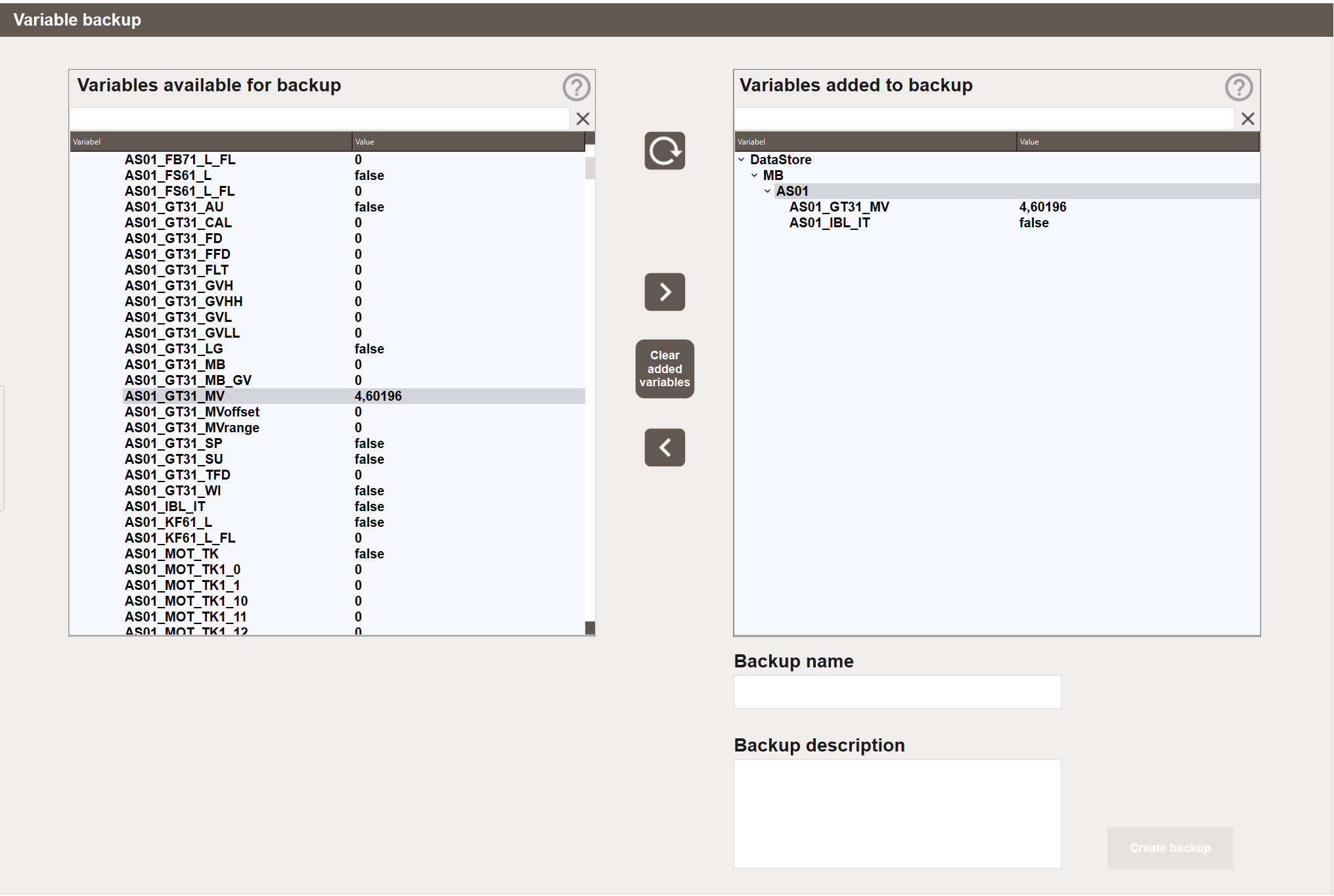
The view has two panels. The left panel lists all available Data Store variables with their current values. The right panel shows the variables that will be included in the backup.
Type in the filter field at the top of the left panel to narrow the variable tree. Click X to clear the filter.
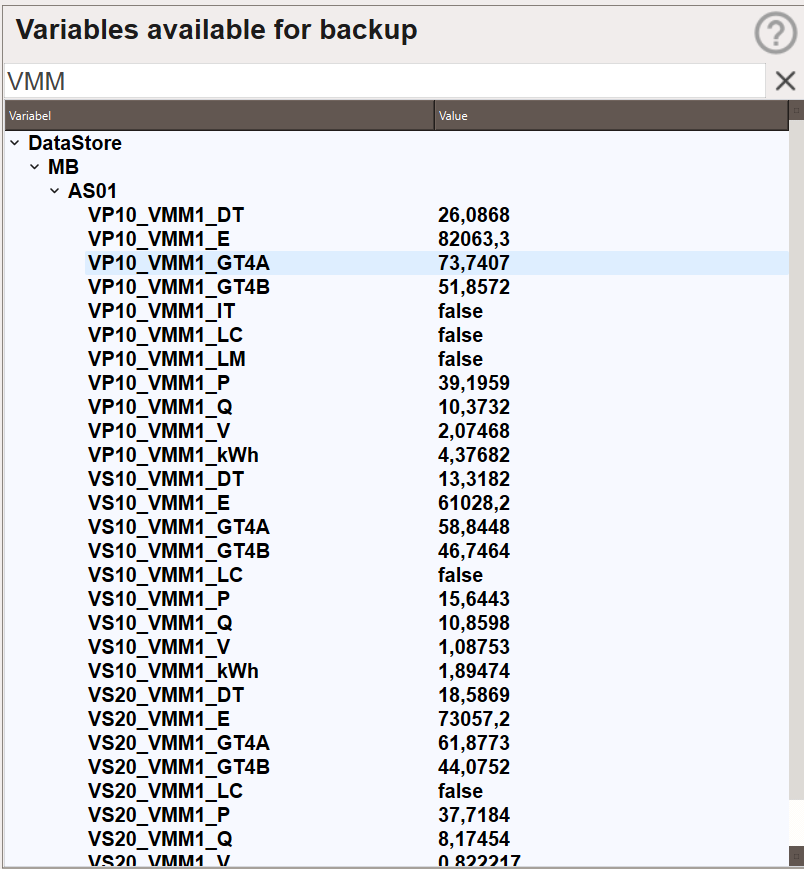
- Browse or filter the left panel to find the variables to include.
- Double-click a variable, or select it and click >, to move it to the right panel.
- Enter a name in the Backup name field. The name must be unique.
- Optionally enter a description in the Backup description field.
- Click Create backup.
Tip
The view remembers which variables were included in the previous backup, making it easy to create multiple backups with the same variable selection.
To clear the right panel without creating a backup, click Clear added variables.
Next Steps
- Configuring — restoring and deleting backups