Navigation - Get started
Requirements
The following scripts are required to use Navigation and all related functionality covered in the Navigation guides:
scNavscSubNavPopupscLinkingscSubNavscObjectFinderscPrototypesscSuffixscThemesscUsersscAlert
This section covers the basics of the Navigation module, including how to add Workviews to the navigation menu and how the Fullscreen Menu works. The Navigation module automatically builds the menu structure based on the folder structure in WideQuick® Designer, making it easy to manage and extend as the project grows.
For access control and display settings for restricted views, see Navigation — Configuring. For advanced functionality such as GoTo shortcuts and custom icons, see Navigation — Extending.
Adding Workviews to the navigation
The automatic navigation consists of two parts: the Main_Menu folder and the System folder. Any Workview placed in either of these folders will automatically appear in the menu.
It is strongly recommended that all Workviews are placed in the System folder rather than Main_Menu. Future updates to Modular Framework may add additional menu groups to Main_Menu, which could complicate upgrades if it has been modified.
To create a new view in the menu, place a new Workview inside a folder under the System folder, as shown in the example below. Clicking this node in the menu will open the view directly.
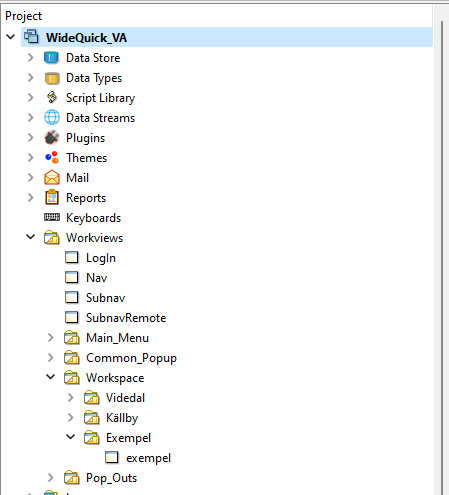
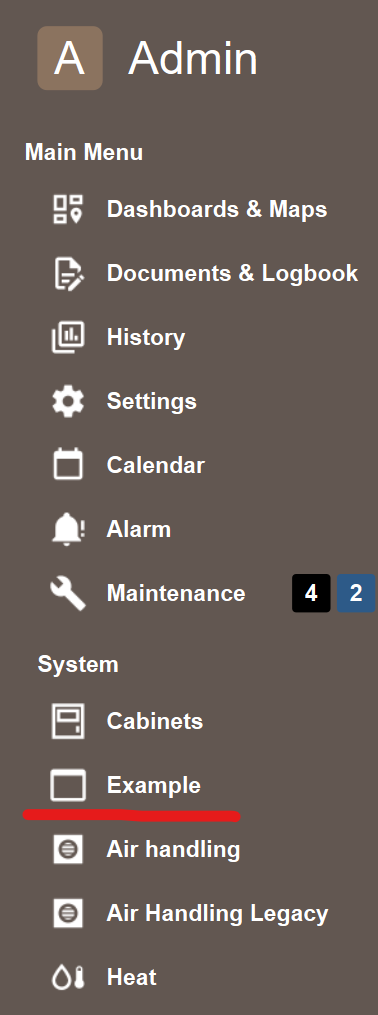
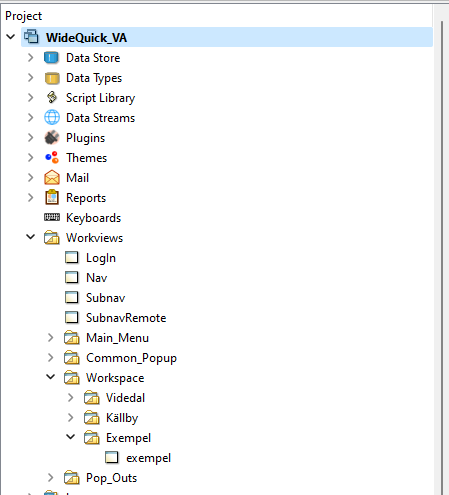
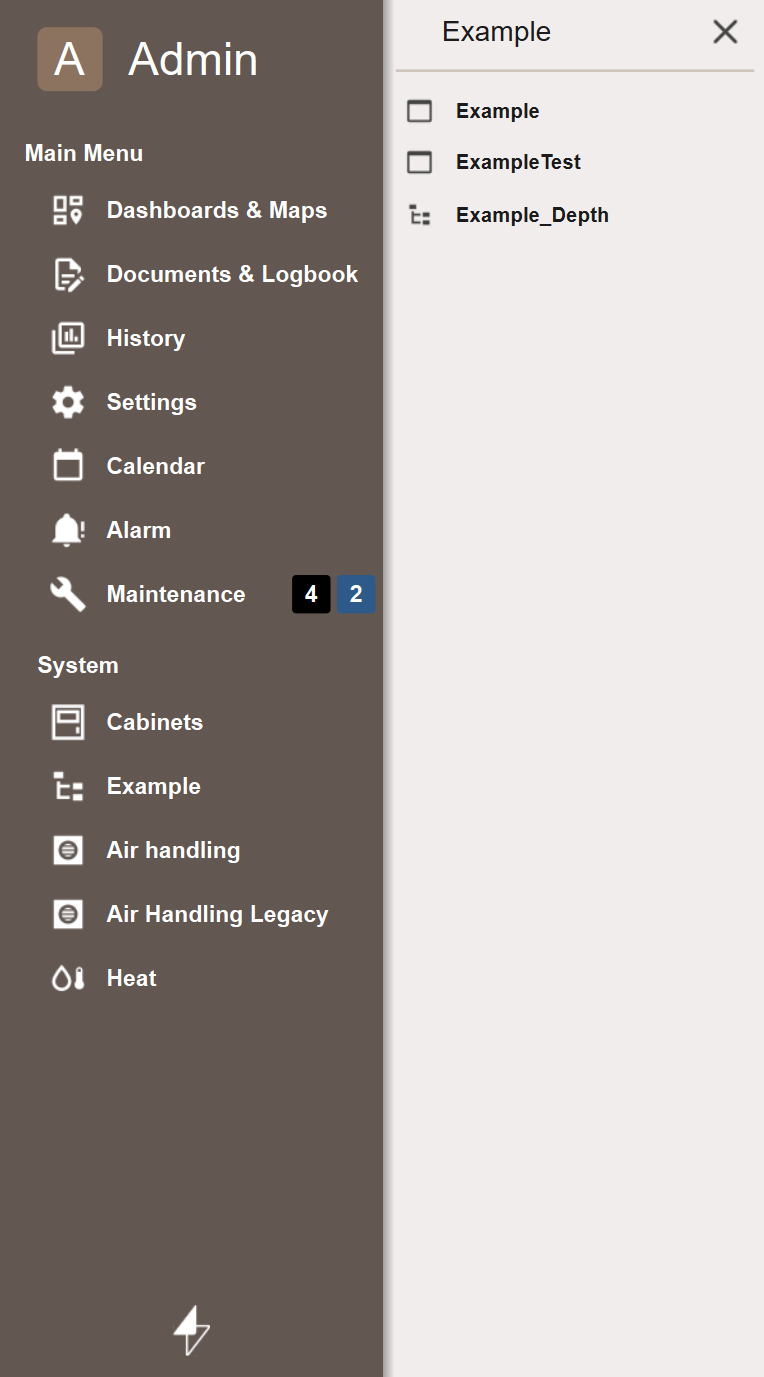
If multiple Workviews are added to the same folder, the icon in the menu will change — clicking it will open a submenu instead, as shown below. Additional folders can be nested inside to build even deeper navigation structures.
Fullscreen Menu
The Fullscreen Menu gives users an immediate overview of the directory structure and allows quick navigation to nested views. It can be toggled in WideQuick® Runtime by navigating to Settings, so users can switch based on their preference.
The menu is built automatically from the directory structure in WideQuick® Designer, meaning design decisions made there are reflected directly in runtime.

The Fullscreen Menu is designed to display as many Workviews as possible while remaining organized. The layout follows these rules:
- Workviews only — If a directory contains only Workviews with no subdirectories, the Workviews are arranged in rows.
- Directories only — If a directory contains only subdirectories, the top-level directories are arranged in columns, with their children displayed in the same column.
- Mixed content — All top-level Workviews are placed in the first column, followed by directories arranged column-wise.
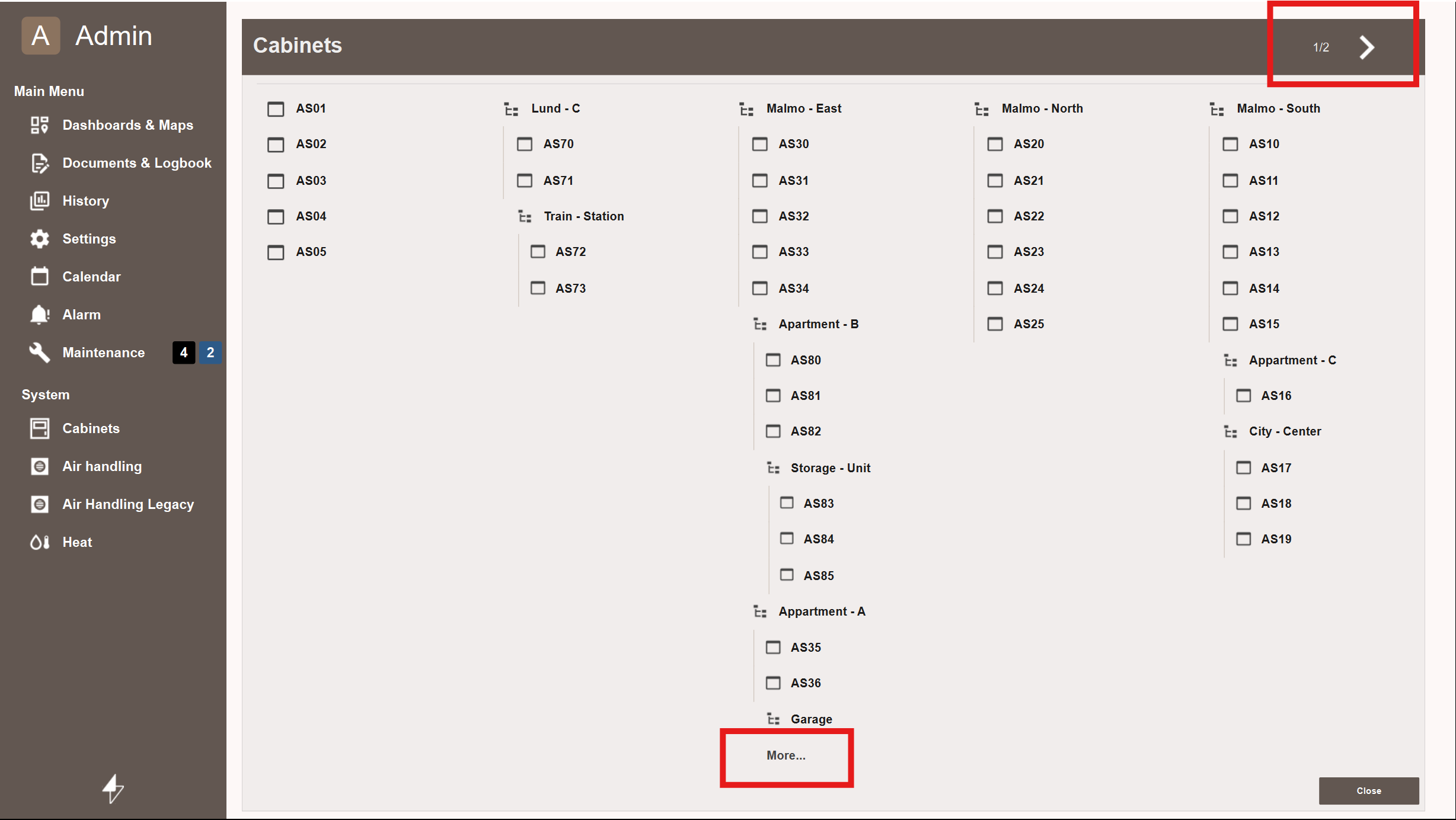
The Fullscreen Menu can display up to 90 directories and Workviews at once. If this limit is exceeded, the menu adapts automatically in two ways:
- Column overflow — If a single column exceeds the maximum number of rows, a More... button appears at the bottom of that column. Clicking it re-roots the navigation to the folder at the top of that column, allowing the user to browse its contents.
- Page overflow — If there are too many top-level directories to fit on a single page, a navigation arrow appears in the top left corner to navigate to the next page.
Together these two mechanisms allow the Fullscreen Menu to scale to systems of any size — no matter how many views or directories a project contains, the menu will always remain navigable.
Next Steps
- Configuring — privilege requirements on views and display settings for restricted views
- Extending — GoTo function and custom navigation icons