Users and Privileges
Requirements
The following scripts are required to use Users and Privileges and all related functionality covered in the Users and Privileges guides:
scUsersscAlert
WideQuick allows user profiles to be created with specific privileges, enabling role-based access control across the application. Profiles can be configured to restrict or grant access to specific views and actions.
Adding and editing users
Users can be managed in either WideQuick® Designer or WideQuick® Runtime.
WideQuick® Designer
In the project tree, double-click Users and Privileges. To add a new user, right-click Users and select Add Users.... To edit an existing user, double-click Users, right-click the user and select Properties....
WideQuick® Runtime
Navigate to Settings in the main menu and open the Settings view. Under Users and privileges click Change user. Click Add... to create a new user or select an existing user and click Edit... to modify it.
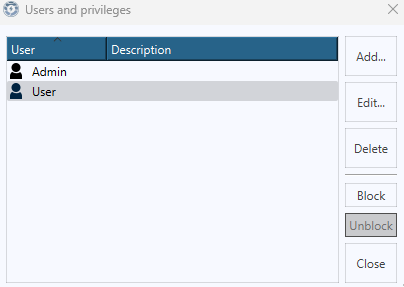
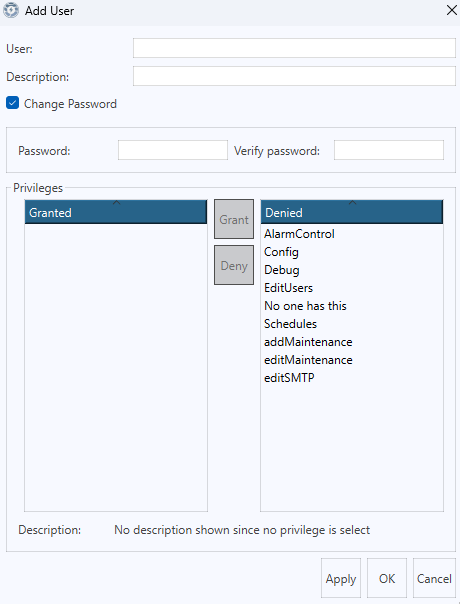
User settings
- User — the username for the profile
- Description — an optional description of the user
- Password / Verify password — an optional password for the user
- Privileges — grant or deny privileges by double-clicking a privilege, or selecting it and clicking Grant or Deny
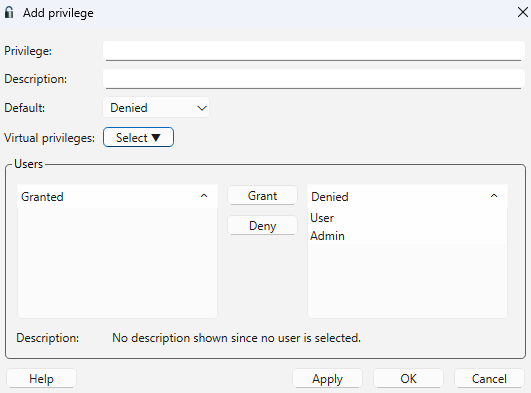
Adding and editing privileges
In the project tree, double-click Users and Privileges. To add a new privilege, right-click Privileges and select Add Privilege.... To edit an existing privilege, double-click Privileges, right-click the privilege and select Properties....
- Privilege — the name of the privilege
- Description — an optional description of the privilege
- Default — whether the privilege is Granted or Denied by default
- Virtual privilege — if a user is granted this privilege, they will also be granted all privileges selected here
- Users — grant or deny users by double-clicking a user, or selecting it and clicking Grant or Deny
Virtual privileges
A virtual privilege allows a single privilege to automatically grant one or more additional privileges. When a user is assigned a privilege that contains virtual privileges, they are also granted all the privileges listed under it — without needing to assign each one individually.
Example: If the privilege EditUsers has EditName and EditPassword as
virtual privileges, any user assigned EditUsers will automatically also have
EditName and EditPassword.
Virtual privileges are configured in the privilege properties in WideQuick® Designer. In the project tree, privileges that contain virtual privileges are marked with a special icon.
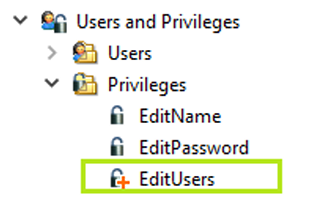
To add virtual privileges to a privilege, open the privilege properties and click the Virtual privilege button to select which privileges should be included.
Restricting Workviews by privilege
Access to specific Workviews can be restricted based on privileges. Navigate to Settings → Workviews → Workviews - Privilege in the main menu.
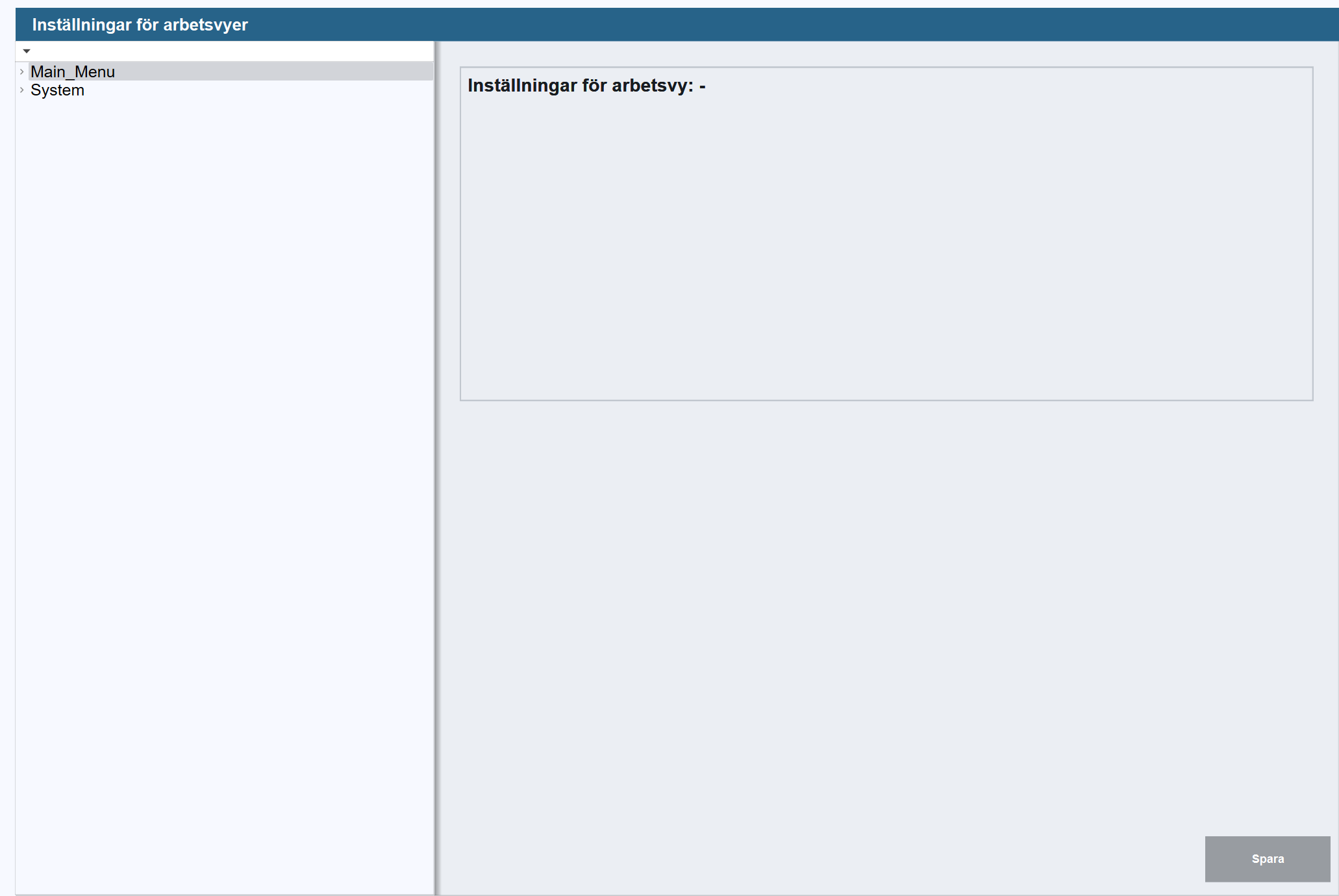
Select the Workview where the restriction should be applied. Configuration options will appear on the right side of the view.
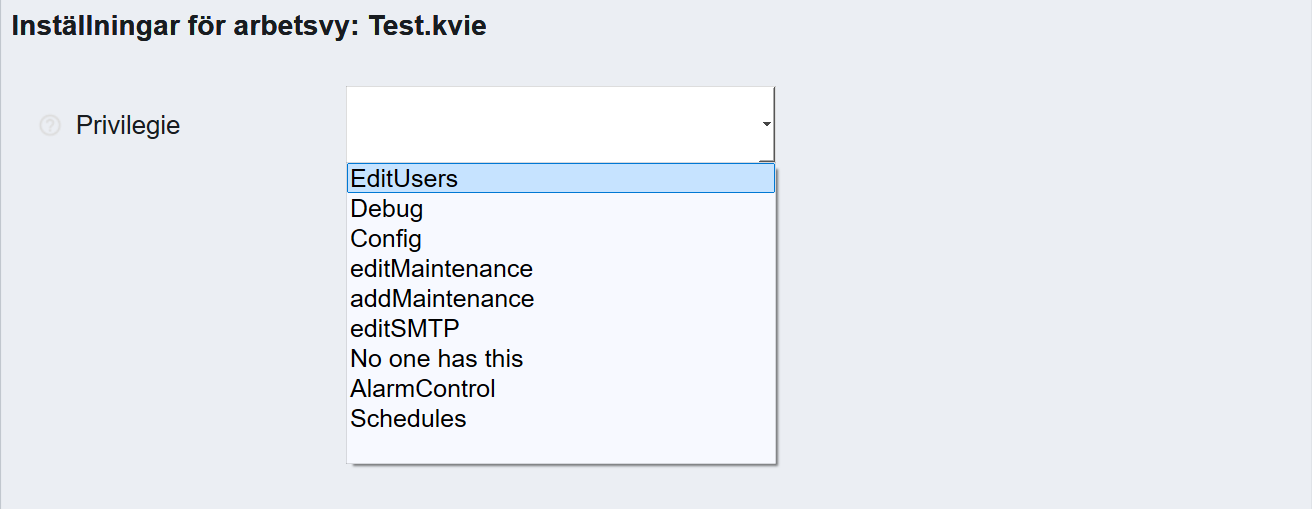
Select the required privilege from the dropdown and click Save to apply the change.
For information on how restricted Workviews appear in the navigation menu and how to configure the two display styles for locked views, see Navigation — Configuring.