Alarms - Get Started
Requirements
The following scripts are required to use Alarms and all related functionality covered in the Alarms guides:
scAlarmscPrototypesscAlert
The Alarms module provides real-time alarm monitoring across the WideQuick MOD installation. Alarms are defined in WideQuick® Designer and monitored at runtime through a set of dedicated views accessible from the main navigation.
Alarm views
The alarm views are accessible from the Alarms section in the main navigation.
Alarm - List
The Alarm - List is the primary view for monitoring active alarms. Each row shows the alarm class, alarm text, activation time, alarm name, and which system the alarm originates from. If a Measure is configured on the alarm, a link appears in the last column — for example a Go to alarm link that navigates directly to the object in the process view.
If scRemoteAlarms is running and remote systems are connected, alarms from those systems also appear in the list alongside local alarms.

Alarm - Overview
The Alarm - Overview gives a broader picture of alarm activity. A bar chart shows the number of alarms per day over the last seven days, broken down by alarm class. A pie chart shows the distribution of alarm classes among currently active alarms, with a top-five list of the most frequent alarms. A stats panel on the right shows the current active alarm counts and historical totals for the last 30 days, year to date, and last year.
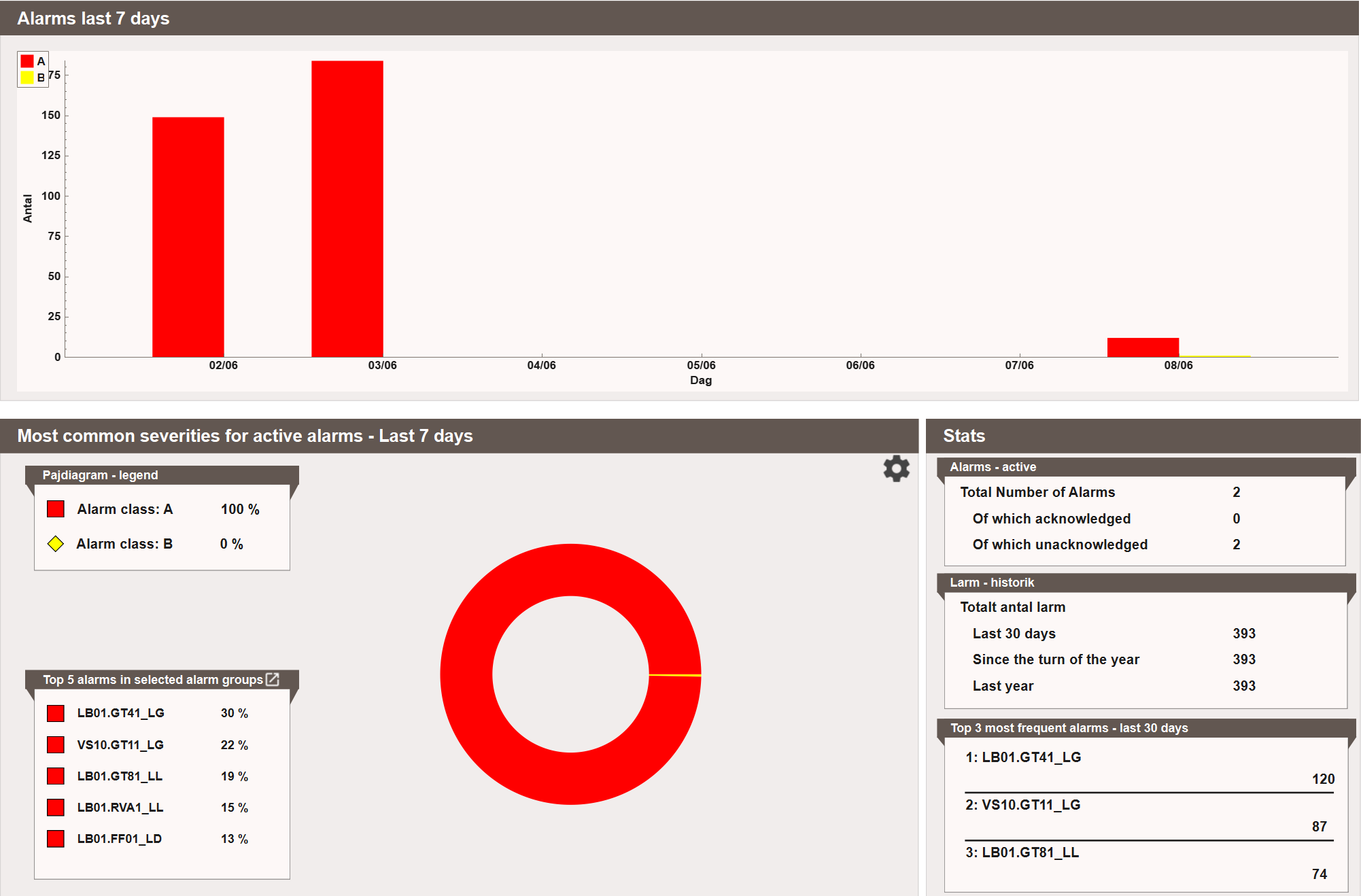
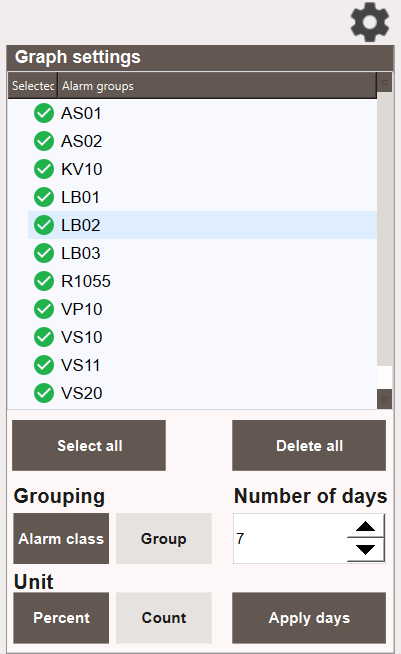
The pie chart can be configured by clicking the gear icon. Select which alarm groups to include, set the number of days to display, choose whether to group by alarm class or group, and switch the unit between percent and count.
Alarm - Log
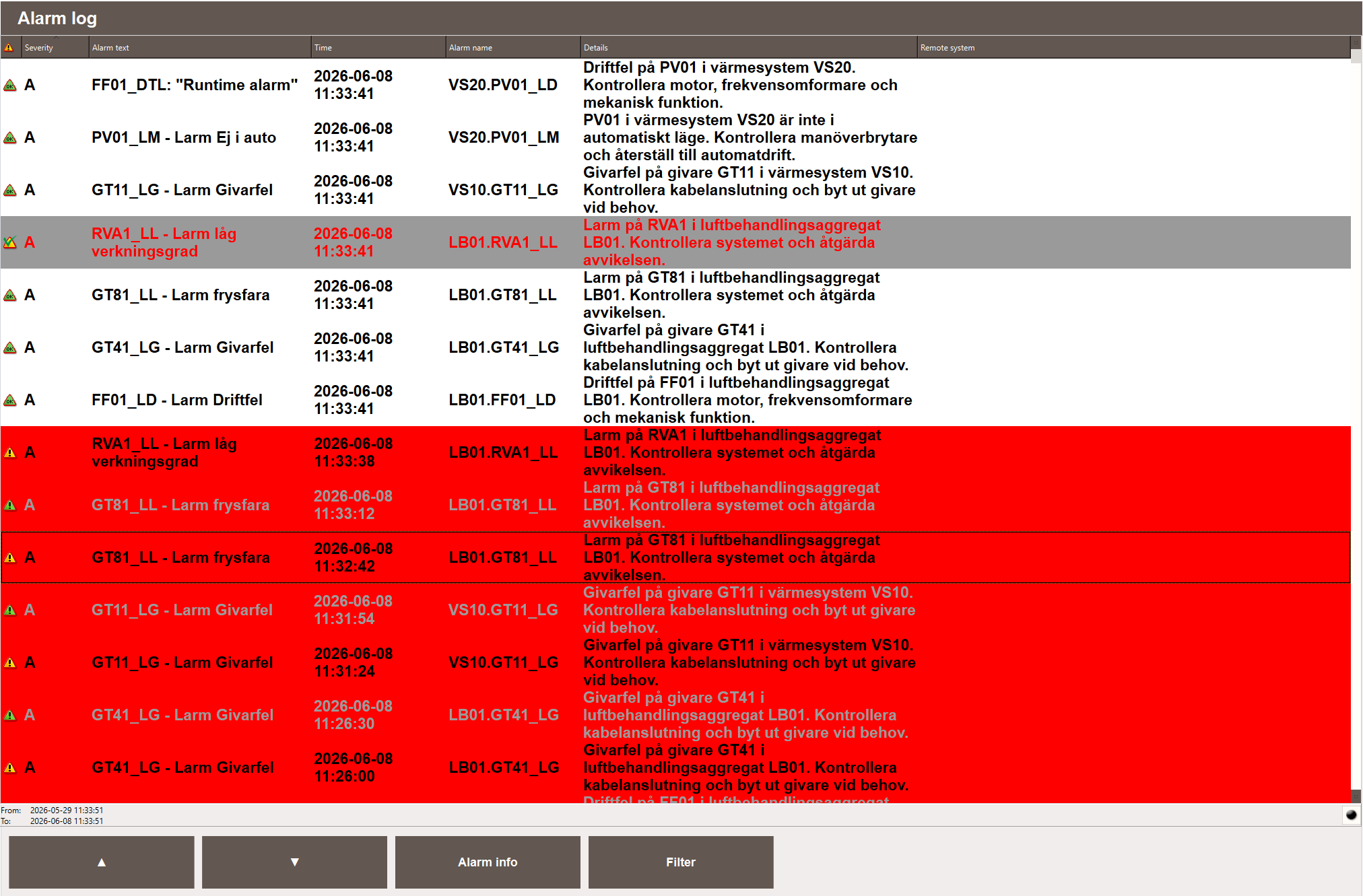
The Alarm - Log is a historical record of all alarm events, showing alarm class, alarm text, time, alarm name, details, and remote system. Active alarms are highlighted in red.
Alarm history can also be exported as a report. See Reports.
Alarms - Frequency
Alarms - Frequency lists all alarms ranked by how often they have triggered over a selected time period. Each row shows the total active time and the frequency count alongside the alarm name, text, and class. This helps identify persistent or frequently recurring alarms that may need attention.

Acknowledging alarms
Alarms are acknowledged from the Alarm - List. Select an alarm and click Acknowledge, or use the acknowledge action directly on the row.
Each alarm has an acknowledgement rule that controls when it can be acknowledged:
- Normal — can be acknowledged at any time, whether the alarm is active or inactive.
- Strict — can only be acknowledged after the alarm has gone inactive.
- Auto — acknowledged automatically when the alarm goes inactive. Can also be acknowledged manually while still active.
For alarms from remote systems, the acknowledgement is sent to the originating system — no separate login to that system is required.
Process view alarm list
A dedicated alarm list can be opened from a specific process view, showing only the alarms relevant to that view. It opens as a separate window over the process view, giving operators a focused alarm overview for the equipment shown on screen without navigating away.
Dashboard widgets
Alarm data can also be surfaced on a dashboard using alarm widgets — Alarm Status, Alarm Row, Alarm List, Alarm Log, Alarm Frequency, and Alarm Graph. This is useful for building custom overview screens that combine alarm information with live values, history, or maintenance status. See Dashboards — Configuring.
Object animations
Objects with active alarms can be configured to display visual feedback — for example blinking red when an alarm is triggered. This is handled by the animation system and covered in Workview Animations.
Next Steps
- Configuring — creating alarm groups, defining alarms, and setting up notification schedules
- Extending — configuring email and SMS for alarm notifications