History - Configuring
Tracking a Signal
The Track signal panel highlights a specific signal in the chart.
To track a signal:
- Select a signal from the dropdown.
- Click Track. The tracked signal has a wider line and the other lines are muted in color.
To stop tracking:
- Click Unfollow. The chart returns to its normal display.
Saved Signal Groups
Signal groups can be saved and reloaded to avoid re-selecting the same signals each time. Saved groups are managed from the Saved groups section in the Track signal panel.
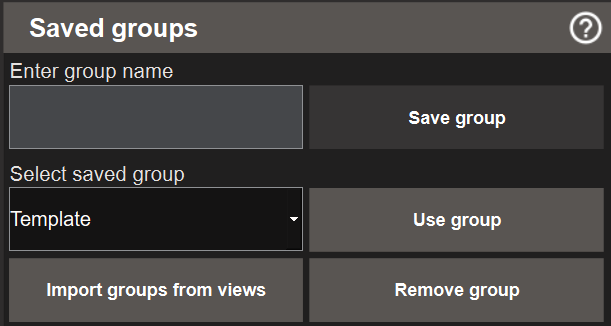
To save a signal group:
- Select the signals and click Apply so they are visible in the chart.
- Type a name in the Enter group name field.
- Click Save group. The group is saved and appears in the Select saved group dropdown. If a group with the same name already exists, a confirmation asks whether to replace it.
To load a saved group:
- Select the group from the Select saved group dropdown.
- Click Use group. The signals from the group are selected and applied to the chart. In the project-wide History they are added to the signals already selected. In the view-specific History they replace the current selection.
To delete a saved group:
- Select the group from the Select saved group dropdown.
- Click Remove group. The group is removed. This does not affect the logged signal data.
Importing Groups from Other Views
Both the project-wide History and the view-specific History can fetch the signals of saved groups created in other views, so a group saved in one view can be reused without recreating it.

To import groups from other views:
- Click Get signals from groups in views (project-wide History) or Get signals from other groups (view-specific History) in the Saved groups section. A dialog opens.
- The left panel (All saved) lists saved groups organised by their source. In the project-wide History it lists the groups saved in views. In the view-specific History it lists the project-wide groups under Project and the groups saved in other views.
- Select a group and click → to move it to the right panel (Selected).
- Repeat for each group to import.
- Click Get and close. The signals of the selected groups are selected in the Signals tree, and the Apply button shows the new count. A message shows how many signals were fetched, and the dialog closes when it is acknowledged.
- Click Apply to plot the signals.
To remove a group from the selection before importing, select it in the right panel and click ←. Click Clear added to empty the right panel entirely.
Note
Importing fetches only the signals. The groups are not added to the Select saved group dropdown. To keep the selection as a group here, save it with Save group.
In the project-wide History, a fetched signal whose object is not in the Signals tree is skipped without a message. The tree lists only objects from views that have been opened at least once. The count in the message includes skipped signals, so it can be higher than the number of signals actually selected.
Next Steps
- Extending — opening the view-specific popup from a script and troubleshooting