Documents - Configuring
Linking documents to objects
Documents can be connected to specific objects in the project. When a document is linked to an object, it becomes accessible in the Documents tab of that object's popup.
Navigate to Documents → Object Refs to manage links.
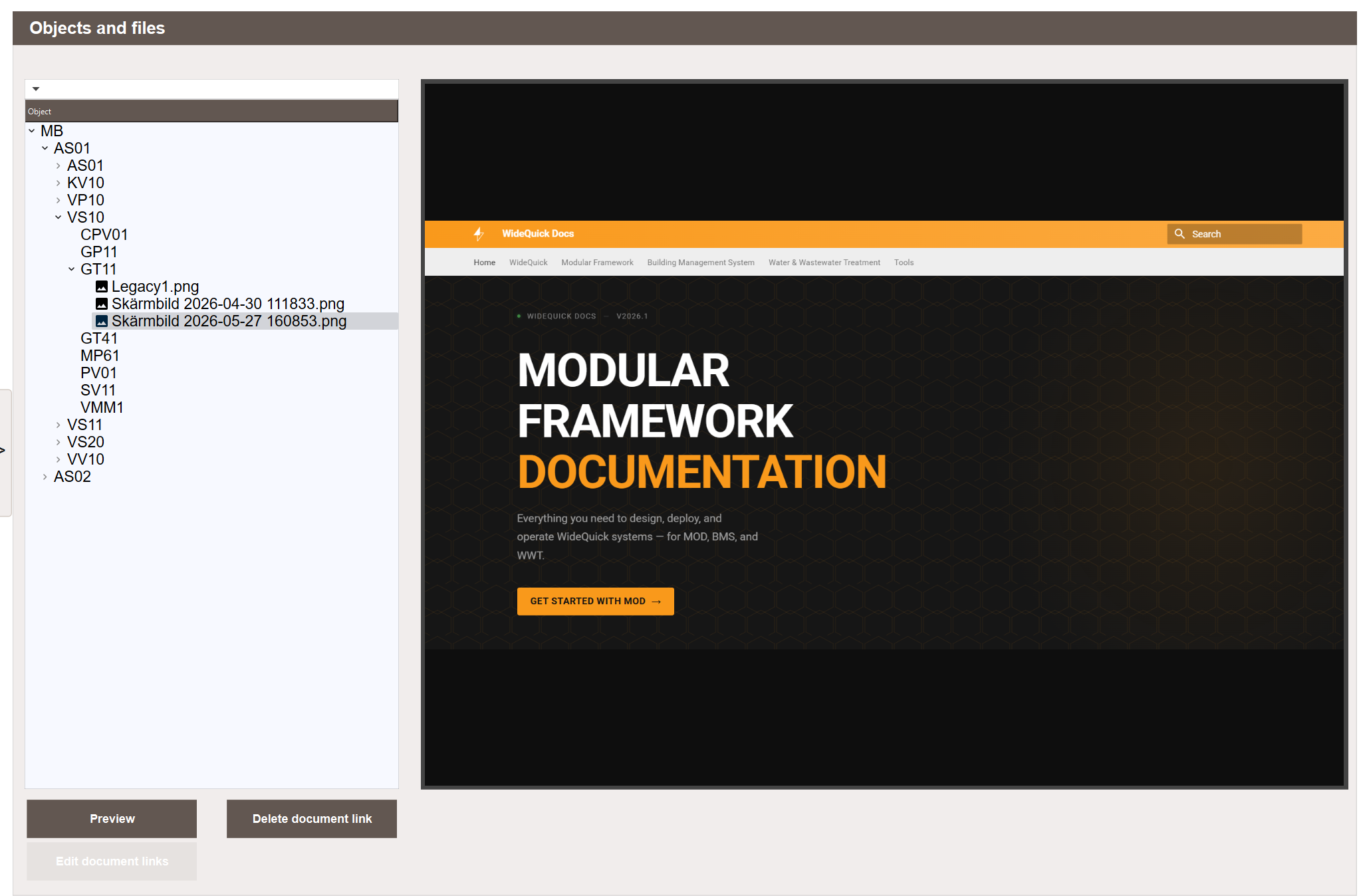
To link documents to an object:
- Find the object in the list.
- Click Edit document links.
- Double-click a file to add it. A + indicator shows it will be linked.
- Click Update document links to save.
A document can be linked to multiple objects. The same object can have multiple documents linked to it.
Object popup
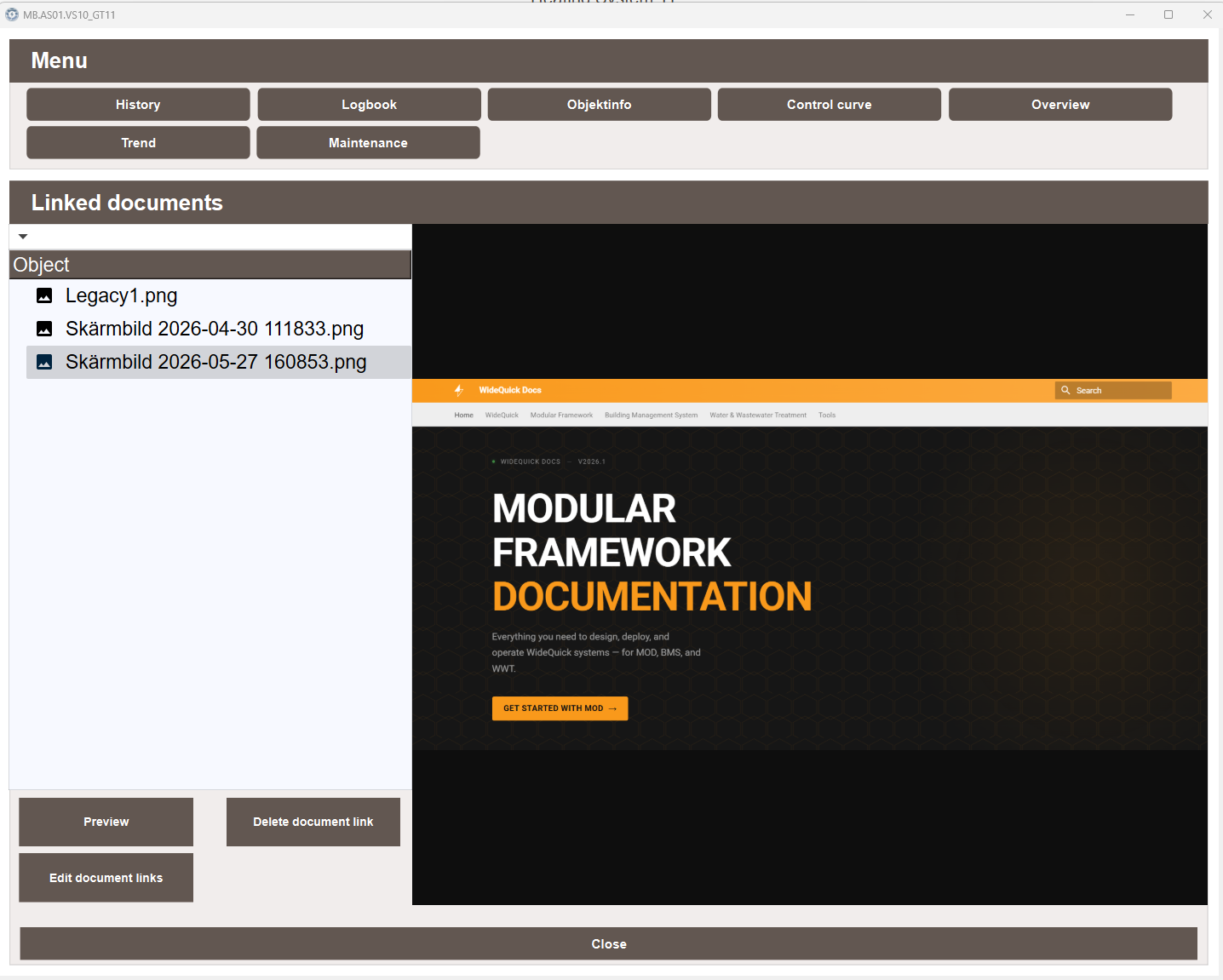
Every object in the project has a Documents tab available through its popup. Open the popup by clicking on an object and selecting the Documents tab. This shows all documents linked to that specific object. Selecting a document and clicking Open opens a preview directly in the popup.
Syncing with the filesystem
Local files are stored in the HTML/documents/ folder on the server. The document list reflects what is registered in the database, not what is physically on disk. If files are added to or removed from the folder directly — for example by copying files over a network share — they will not appear in the list until a sync is performed.
Click Sync with local files on server to scan the folder and update the database:
- Files found on disk but not in the database are added to the list.
- Database entries for files no longer on disk are removed.
- Online resources are never removed by the sync.
The sync runs automatically when scDoc starts.
Next Steps
- Extending — privilege reference