BACnet
BACnet is a communication protocol that allows devices and systems in a building to communicate. This can be setup in WideQuick Designer®
BACnet Connection
The first thing that has to be done is set up a BACnet connection. Right click "Data Store" under the project tree and select "Add BACnet Connection...". This will bring up the following window:
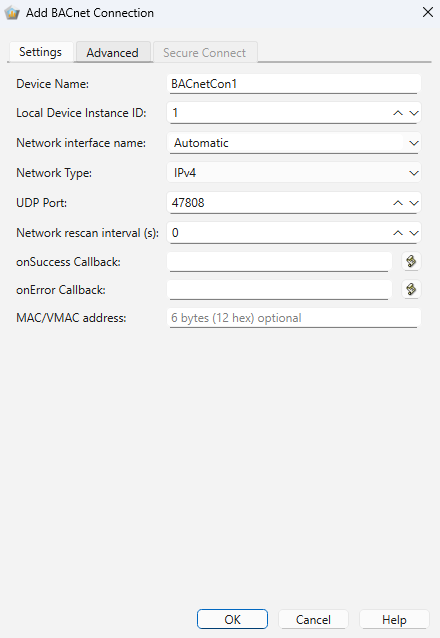
Configure the settings for the connection, according to instructions below and press OK. Multiple BACnet connections can be added but each need it's own network interface and port. The connection can also be edited later on by right clicking the connection in the project tree and select "Properties...".
- Device Name - Prefix for all variables created under this device
- Local Device Instance ID - Unique number for each device
- Network interface name - Chose pre-existing or type in custom
- Network Type - IPV4, IPV6 or Secure Connect
- UDP Port - Port that has the communication with BACnet
- Network rescan interval (s) - Used to configure the driver to automatically scan for new BACnet devices after every rescan interval
- onSuccess Callback - This script function will be called when we receive simple ack from another device
- onError - This script function will be called when we receive Error PDU from another device
- MAC/VMAC address - This field can be used to set the VMAC address for IPv6 and Secure Connect network types. It is disabled for IPv4 with DHCP enabled
More information
For a more specific guide on what to put in each box, see "Helper" in WideQuick Designer®
Communicating With External Devices
BACnet allows for communication with external devices. In order to set up these communication there are two options. Either by scanning or manually, below are guides for both options
Scan
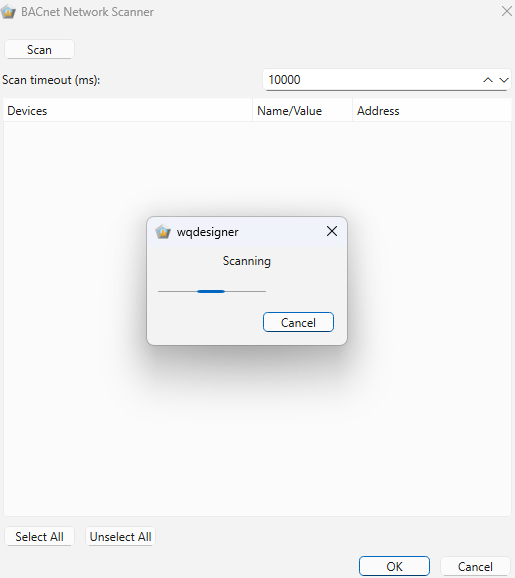
Double click the BACnet connection in the project tree and then right click "External BACnet Devices(s)". Select "Scan for Device". In the new window press Scan to discover devices on the network. Available devices will be shown in the list. Select the device that should be added and press OK.
Note
When scanning devices, especially on Secure Connect networks, ensure the scan has fully completed before confirming. If you close the scanner dialog too quickly after selecting devices, property scanning may not have finished, resulting in objects being added without their properties. Always verify that property scanning has completed before clicking OK on the scanner dialog.
If no devices are found, ensure:
- Network connectivity is properly configured
- Devices are powered on and on the same subnet
- The correct network interface is selected
Manually
Double click the BACnet connection in the project tree and then right click "External BACnet Devices(s)". Select "Add Device", select the device instance id and click OK.
Locate Objects on External BACnet Devices
Right click on a discovered device and select "Scan for Objects". All objects will be displayed, grouped by object types. Select objects by checking their boxes. This can also be done without scanning. Right click on a discovered device but select "Add Object" instead. Choose object type and instance number and then click OK.