OPC UA Server
A OPC UA Server is used to set up communication between devices and systems. All data types that can be stored in Data Store can also be read or written to the OPC UA Server.
Add/Edit OPC UA Server
To setup a OPC UA Server right click on "Data Store" in the project tree and select "Add OPC UA Server...". If the server is already added and should be edited instead right click the node of the server and press "Properties...".
This will open a new window that looks like this
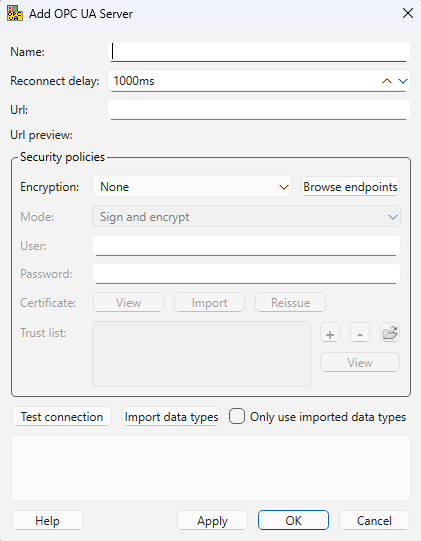
Fill in the information that is asked for, a short summary can be find below. None, Basic256Sha256, Basic256, Basic128Rsa15 and Aes128Sha256RsaOaep are all supported by WideQuick as encryption. Set up encryptions settings can be found under Browse endpoints. When the encryption is set up try Test Connection. Here it's also possible to import data types.
Encryptions
Basic256 and Basic128Rsa15 have known vulnerabilities and should not be used if a stronger encryption is available
- Name - Specify the name of the OPC UA Server
- Reconnect Delay - Specify the delay before reconnection attempt is made
- URL - The OPC UA Server URL
- Security policies - Select encryption
- Browse endpoints - Available endpoints for the URL
- Mode - Select security policy
- User - Enter username
- Password - Password for the user
- Certificate - View/Import/Reissue
- Trust list - Specify all certificates trusted by the application instance
Import data types
Imports data types from OPC UA Server and stores them in the project. It's not strictly needed to import data types in order to use complex types since WideQuick will retrieve the data types from the OPC UA server when it starts (unless "Only use imported data types" is checked), but it might be a good idea to import them anyway and keeping them up to date in case the OPC US server is unavailable when WideQuick starts, so it can use imported data types as a fallback.
Add/Edit Group
Add a group by right click on the OPC UA Server and select "Add Group...". If the group is already added and should be edited instead right click the node of the group and press "Properties..."
This will open a window
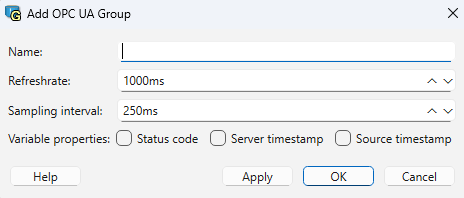
Fill in the information in the boxes according to the information below, and then press OK. The group now exist in the project tree and variables can be added by pressing Add in the bottom left corner.
- Name - Name of the group
- Refresh rate - Refresh rate for the group
- Sampling interval - The rate of which the server sample values of subscribed values
- Variable properties
- Status code - Specifies last known status of data
- Server timestamp - Reflect the time the server received or knew a value to be accurate
- Source timestamp - Timestamp applied to a variable value by the data source
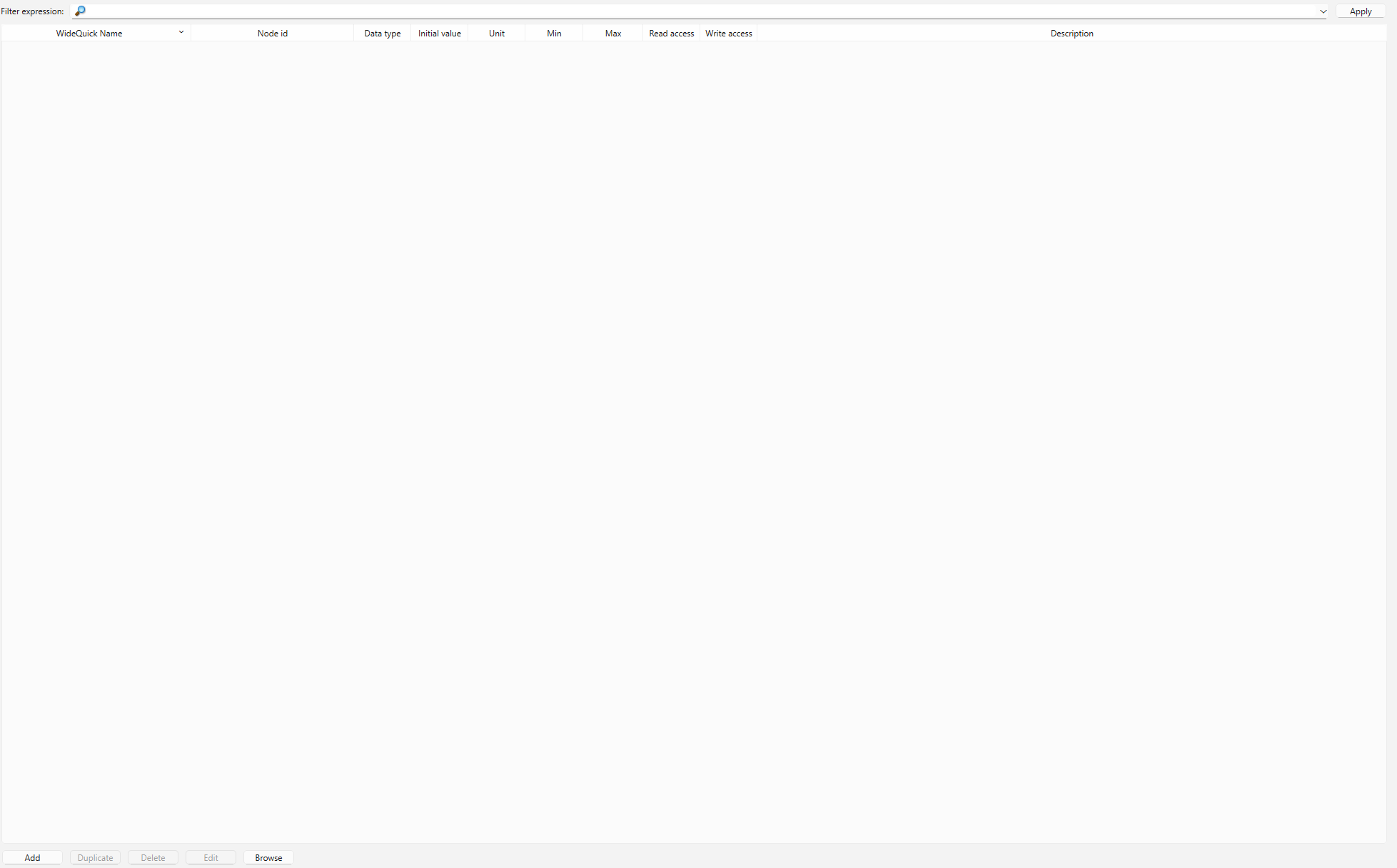
After adding fill in information, see below
- WideQuick Name - The tags name used in WideQuick®
- Node id - OPC UA item's id
- Data type - Data type of the tag
- Initial value - Value used until connected to the OPC UA Server
- Unit - Unit of the variable
- Min. - Minimum value allowed
- Max. - Maximum value allowed
- Read - Assign that the value of this variable will be updated on connected OPC clients and remote systems when the value changes on the local system
- Write - Assign that connected remote systems will write the value of this variable to the local system when it changes on remote systems
More information
For a more specific guide on what to put in each box from adding server to adding variable, see "Helper" in WideQuick Designer®