Themes
Requirements
In order the use Themes the following scripts are required:
- scThemes
WideQuick Modular Frameworks allows change of themes from defaults to custom ones. To create custom themes look here. This allows user to create their own personlized themes to fit their usage.
Selecting theme
In order to run a specific theme with WideQuick Runtime® the user has to have it select in WideQuick Designer®. This is done by opening the "Themes" branch in the project tree. This will display the currently installed themes. Right clicking the desired theme and selecting "Set as start theme" will make WideQuick Runtime® run that theme as default.
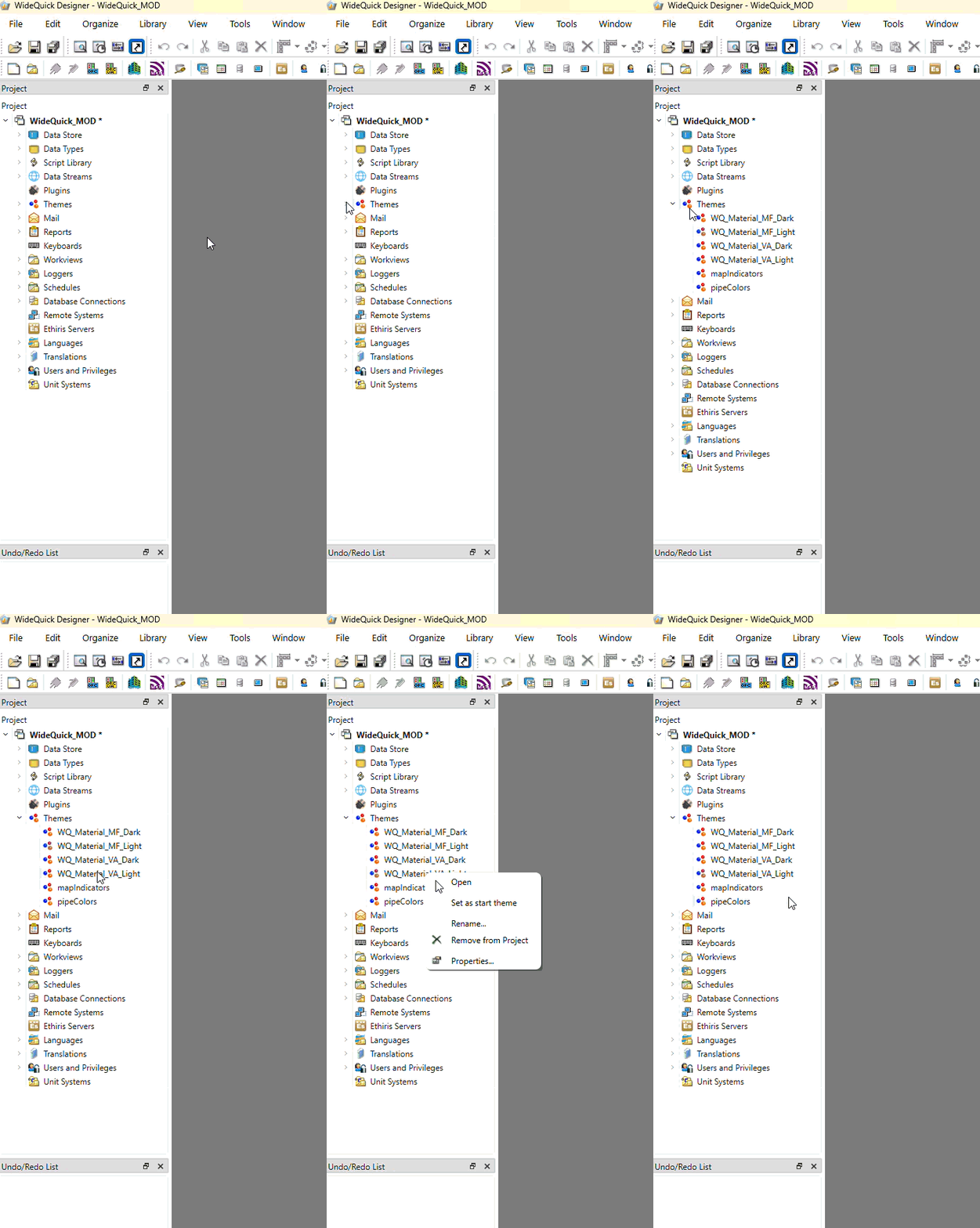
Importing Custom theme
In order to import custom theme the Theme Builder can be used to combined Theme.kdat with the xml file of the custom theme. The Themes.kdat can be found in WideQuick_MOD folder.
Finding Themes.kdat
The folders in which Themes.kdat is located in corresponds to the name of the project
By using the "Theme Builders Parse function", it updates the old Themes.kdat with the new theme and returns a new Themes.kdat. Rename the new file to Themes.kdat and have it replace the old one in the folder. If WideQuick Designer® was open during this, it needs a restart. The new theme can be located in the project tree under the "Themes" tab.
Changing specific color in a theme
To change a specific color in a theme. Select the theme in which the changes are to be made in and double click. This will bring up the following:
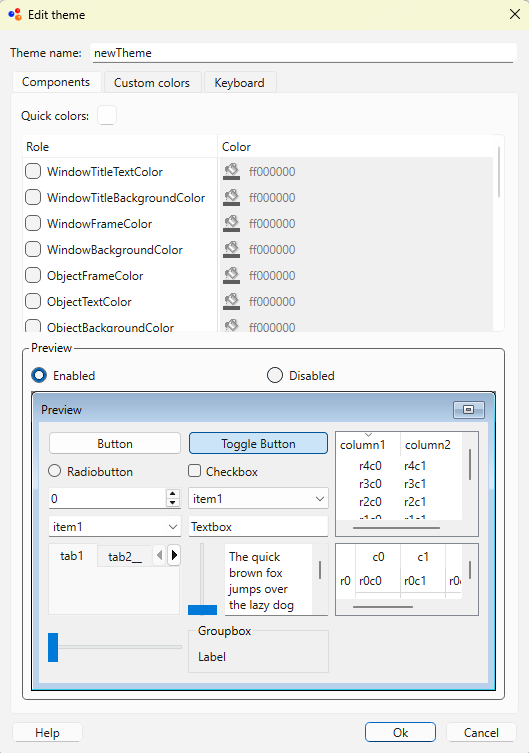
In this window specific colors can be changed, however it's recommended to use the Theme Builder if making larger changes to the overall theme. The tab "Custom colors" allows the user to design their own colors as well as make changes to the predefined colors in the default themes. These custom colors can be used in WideQuick Designer® by using the following code
| Using custom colors | |
|---|---|
1 | |