Reports
Requirements
In order the use Reports and Report Scheduler the following scripts are required:
- scReports
- scReportScheduler
- scAlert
In WideQuick Modular Framework the user can create reports containing alarm log over a selected duration. These logs can be converted directly to pdf or xlsm file. The user can also schedule these reports to get recurrent reports. WideQuick also allows for custom reports templates, which enables the user to create their own template for reports.
Create Reports
In order to manage reports in WideQuick Runtime® go to "Rapporter" --> "Rapporter - Lista". A list of all created reports can be found here. This list consists of two columns, "Report" and "Timestamp". Under the column "Report" the reports name is located, it's defaulted as "Alarm Report START TIME OF RECORDING". "Timestamp" represents the date and time of which the recording ends. On this page the user is able to create a new report, remove a report and send a report as an email.
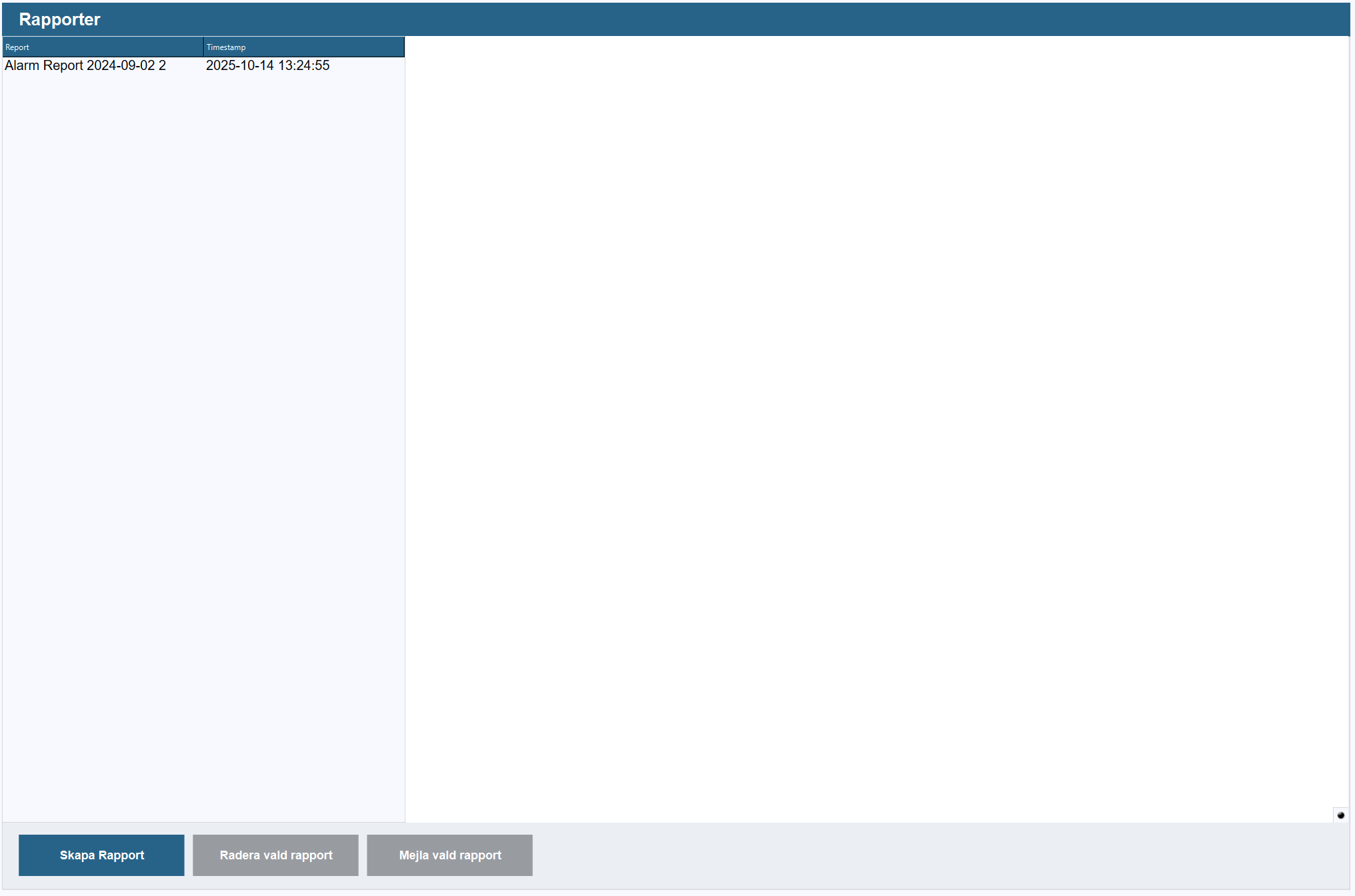
To create a new report click "Skapa Rapport" , this will open a menu to the right.
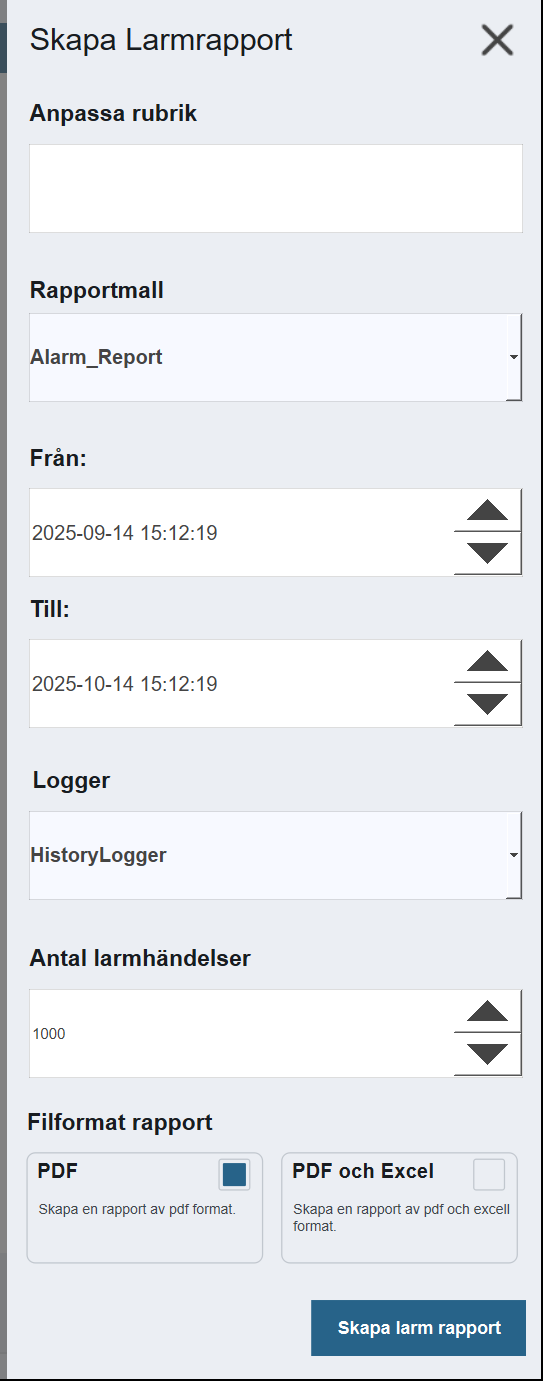
Below is a description of each option in the menu
-
Anpassa rubrik - Specify the title of the report, which will appear on the front page of the report
-
Rapport mall - What type of template to be used. By default it's Alarm_report. A guide to create a template can be found here
-
Från - Specifies the start time of recording
-
Till - Specifies the stop time of recording
-
Logger - Choose logged values
-
Antal larmhändelser - Maximum number of alarm events
-
Filformat rapport - Formatting of the report, either pdf or pdf and xlsm
Once a report is created, it will be added to the list of reports. Here the user can preview the report.
Scheduling Reports
To schedule a report go to "Rapporter" --> "Schemalägg - Larmrapport". This will bring up the following page
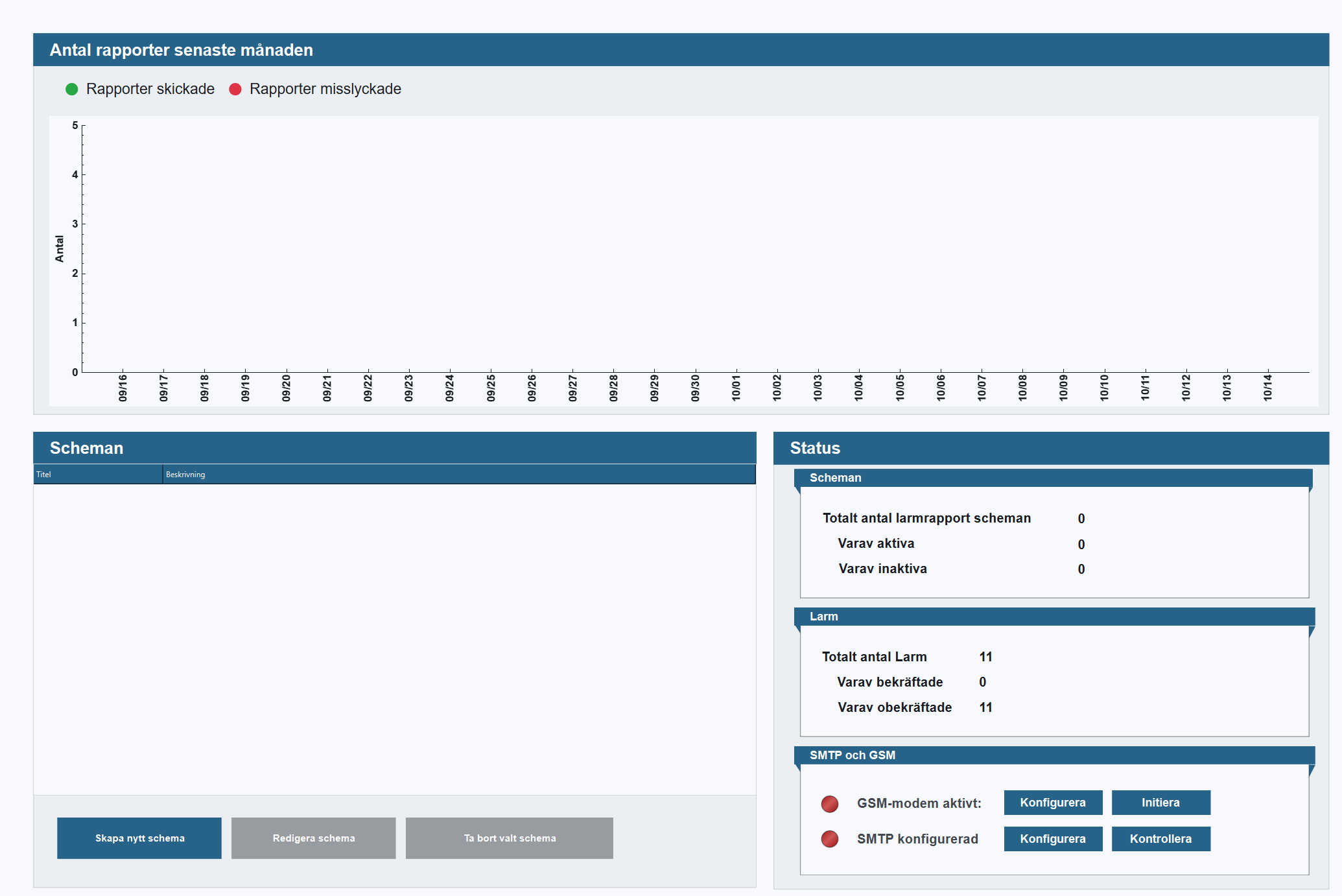
Here press "Skapa nytt schema" to create a new report schedule, this will bring up a menu to the right
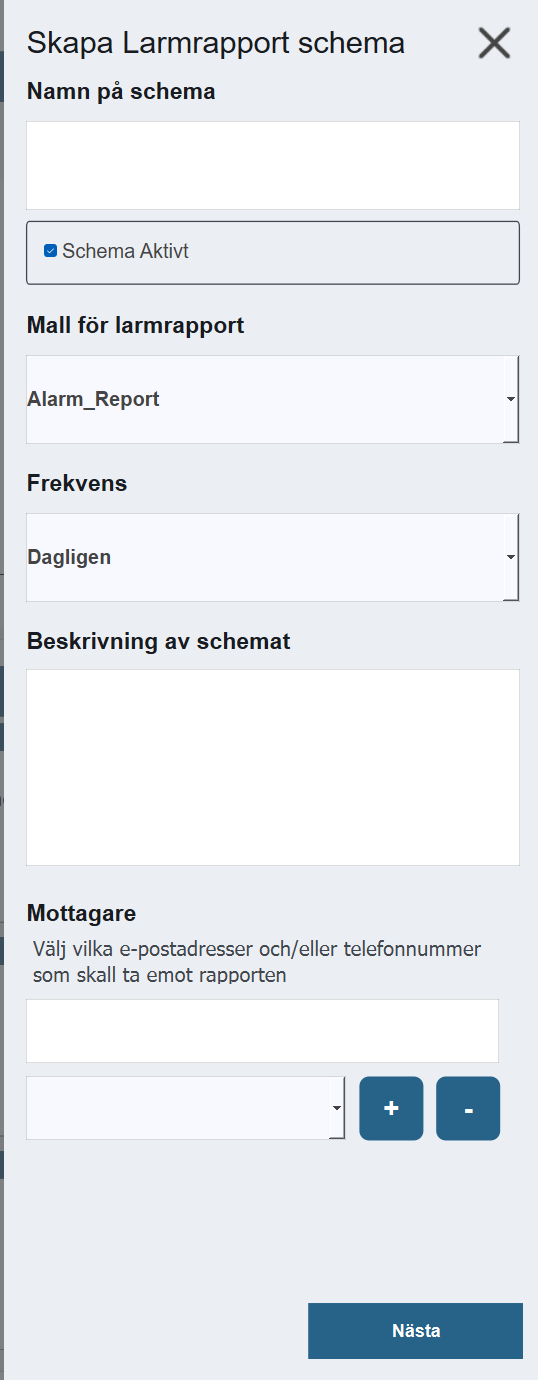
Below is a description of each option in the menu
-
Namn på schema - Name of the schedule
-
Schema Aktivt - Toggles wether the reports is sent or not
-
Mall för larmrapport - What type of template to be used. By default it's Alarm_report. A guide to create a template can be found here
-
Frekvens - Sets how frequent the report should be made. Options consists of daily, weekly, monthly, quarterly or yearly
-
Beskriving av schemat - Description of schedule
-
Mottagare - Recipient of report, here the user is able to enter an email or a telephone number to whom the report is sent. Multiple recipients can be chosen by entering one email and pressing "+"
Create Report template
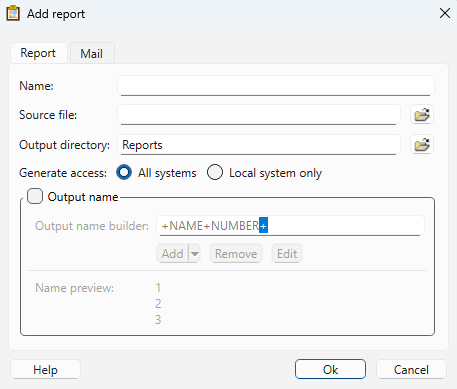
WideQuick Modular Framework comes with its own report template which can be found under "Reports" in the project tree. If the user wants to create or import their own template this can be done through WideQuick Designer®. In order to create a new template right click reports in the project tree and select "add report" this will bring up the following window.
-
Name - The name of the report
-
Source file - Here the user can import their premade template by clicking the folder icon. In order to source a new empty template see gif below.
-
Output directory - This is the folder where the reports will be placed once generated, as default they are placed in the reports folder. If the user wants the reports to be placed in a specific folder, click the folder icon and select the desired folder.
-
Generate access - Here two options are given, either "All systems" or "Local system only", by default it's "All Systems"
-
Output name - Allows for customization of the reports name. With the use of "Output name builder" the user can create the naming of their report correctly, a preview of the names can be seen in the "Name preview"
Importing Report template
When importing a Report template, make sure the file is a .xlsx(excel)
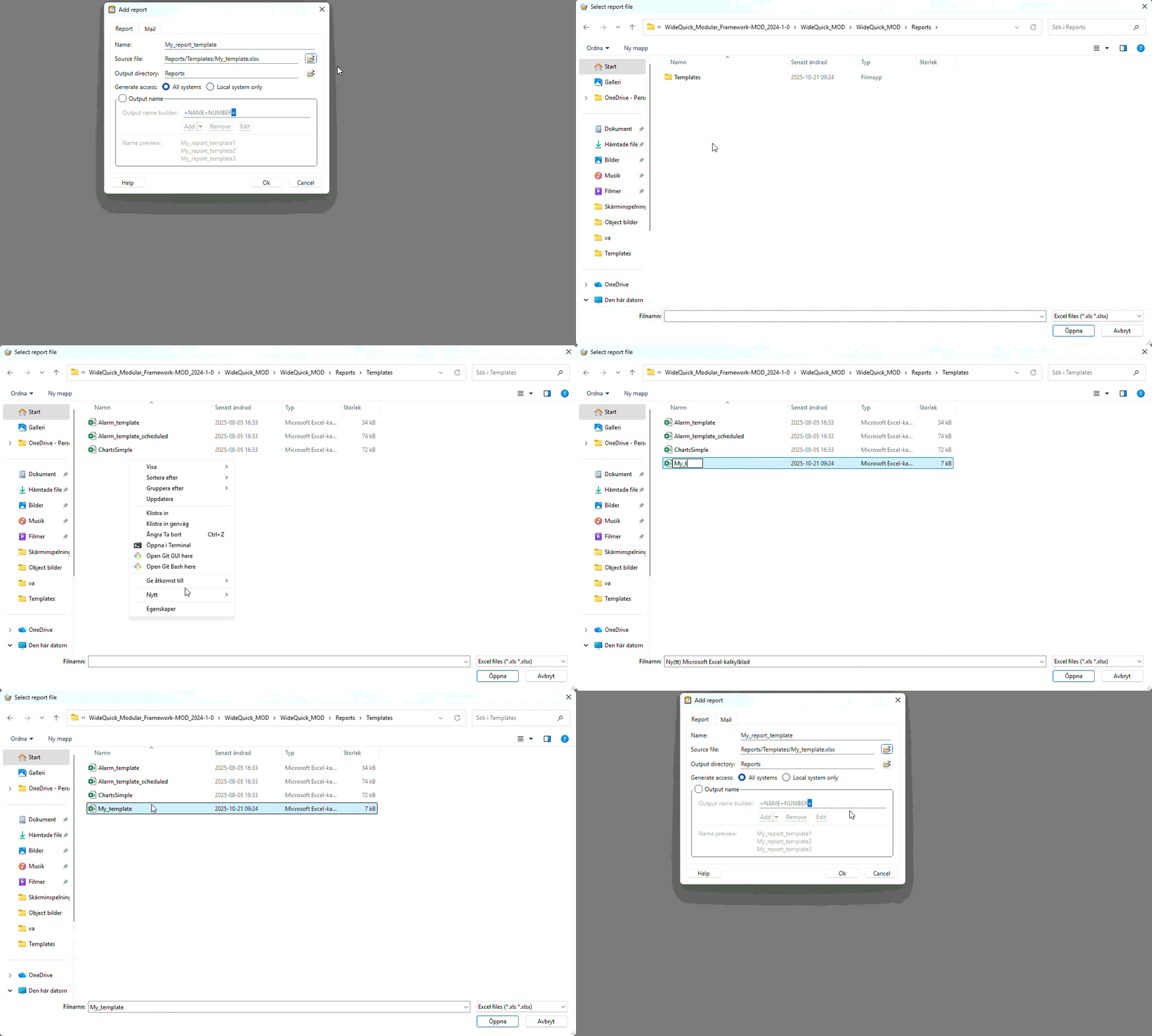
Now the template can be found under "Reports" in the project tree. Here changes can be made to the template to display the desired information.