Users & Privileges
In WideQuick the user is able to create user profiles with certain privileges. This enables the user to have profiles for certain purposes and limitations on availability.
Add/Edit Users
WideQuick allows for creation and editing of user profiles, this can be done in either in WideQuick Designer® or WideQuick Runtime®. Both will be explained below
Designer
In the project tree, double click "Users and Privileges". Either right click "Users" and select "Add Users..." or double click "Users" and right click the user that is getting edited and select "Properties...".
Modular Framework Runtime
In the main menu select "Inställningar" -> "Inställningar". Under "Användare och Privilegier" press Ändra Användare. To add a new user click Add... and to edit an already existing user, click the user and then Edit....
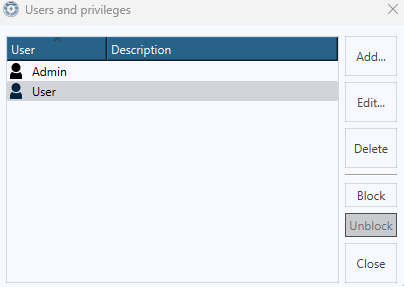
Settings User
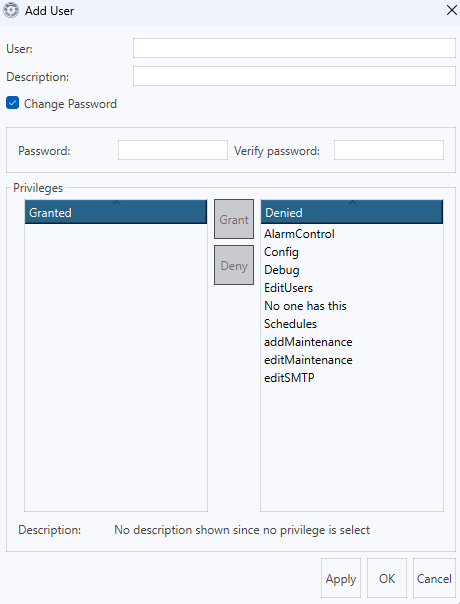
- User - Name of the user
- Description - Info about the user (Optional)
- Password and Verify password - Gives the user a password (Optional)
- Grant and Deny privileges by either double click a privilege or press it and then click either Grant or Deny.
Add/Edit Privileges
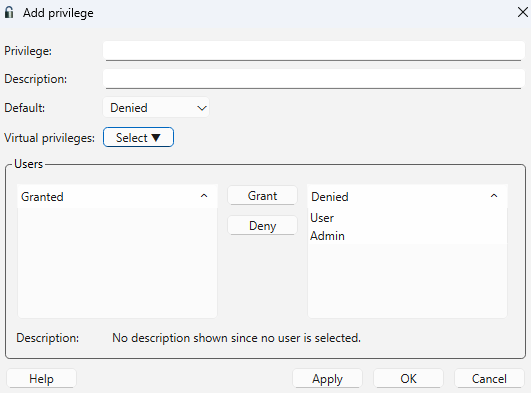
In the project tree, double click "Users and Privileges". Either right click "Privileges" and select "Add Privilege..." or double click "Privileges" and right click the privilege that is getting edited and select "Properties...".
- Privilege - Name of the privilege
- Description - Info about the privilege (Optional)
- Default - Denied/Granted
- Virtual privilege - If a user is granted the current privilege, then they will also grant privilege to all selected here.
- Grant and Deny users by either double click a user or press it and then click either Grant or Deny.
- OK - Finish by pressing here
Modular Framework
In order to restrict access to cretan Workviews depnding on privilegs. This can be configured in WideQuick Runtime® by selecting "Inställningar" -> "Arbetsvyer" -> "Arbetsvyer - privilegie" in the main menu. This will bring up the following window
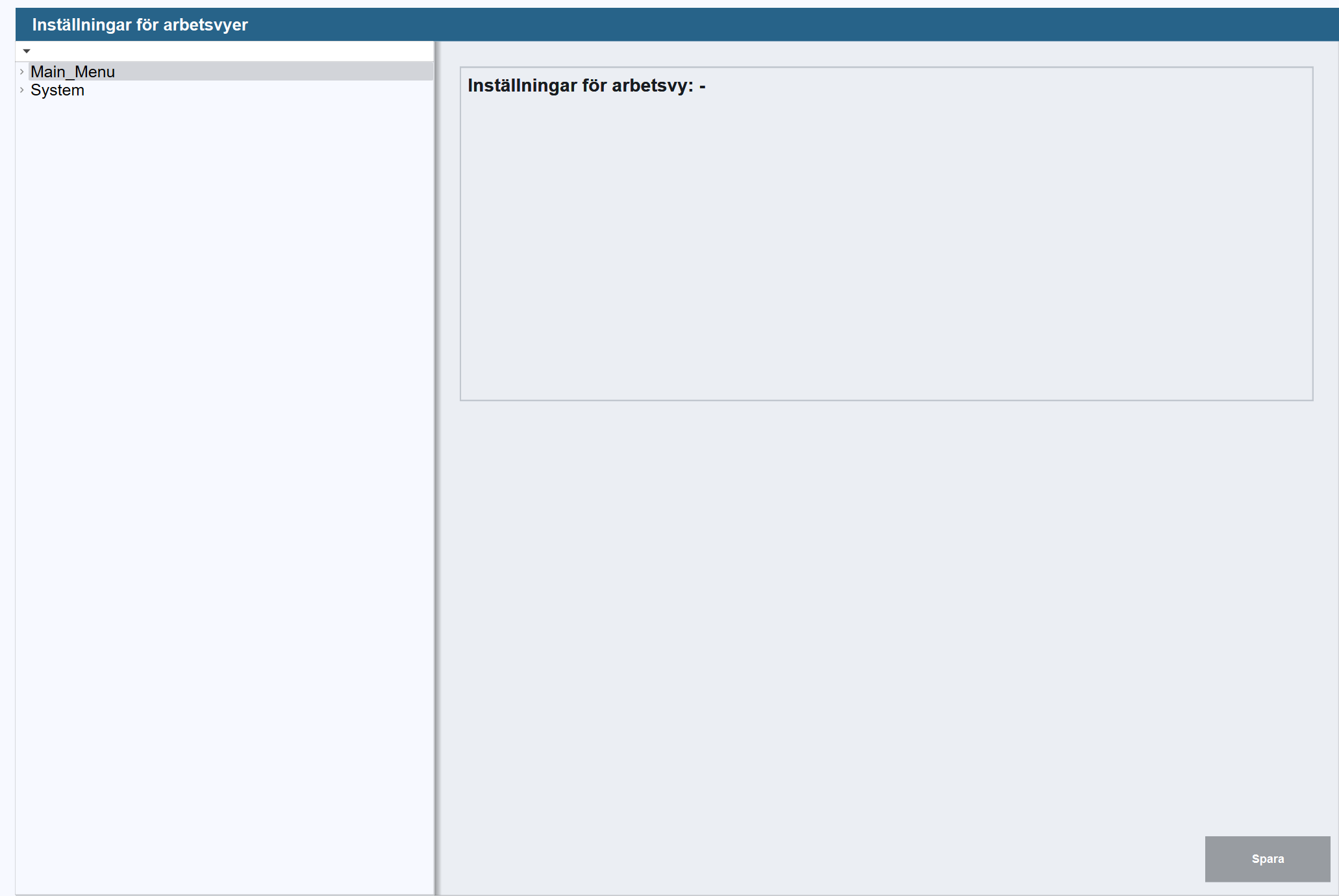
In this window, open up the workview where the restriction is to be placed. When the workview is selected, it will bring up configuration options on the right side.
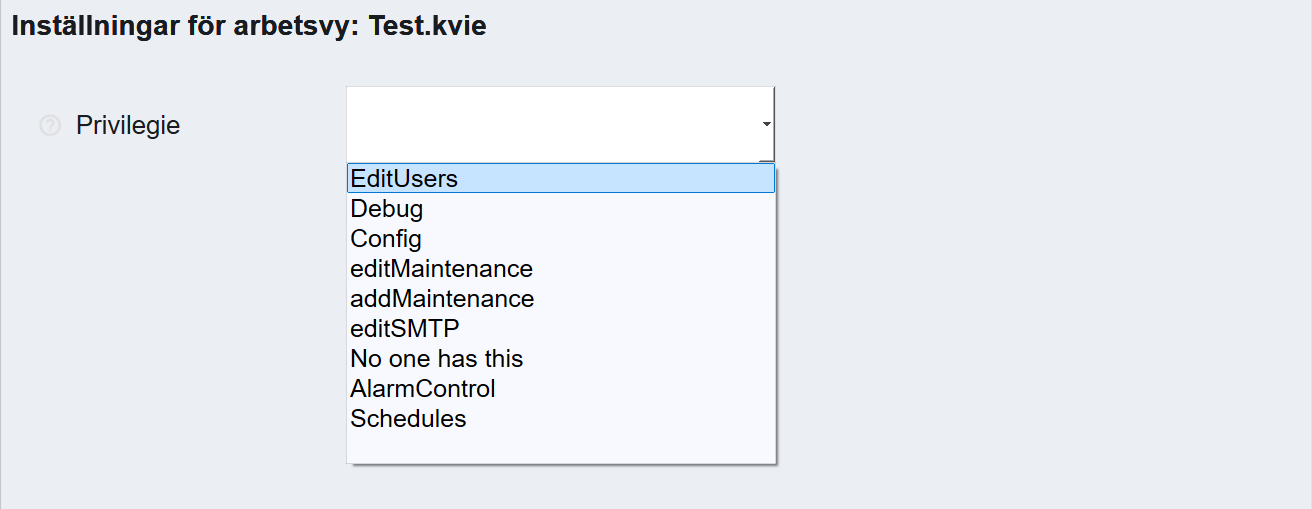
Here the user sets the privileges requirement for that workview. The dropdown menu will display the available privileges, select the desired one and press Spara to save the change.