Remote Systems
Requirements
In order the use Remote Systems the following scripts are required:
- scRemoteSystems
- scAlert
Remote Systems in WideQuick is a crucial feature that allows a WideQuick Application to connect to another WideQuick Runtime instance. They enable you to monitor and control remote applications from a centralized location such as your SCADA environment.
Connecting Remote Systems
To connect a WideQuick application to another you first need to configure a Remote System. This can be done before the application is put into a production environment via WideQuick Designer® or it can be added into an already shipped application through WideQuick Runtime®.
Connection Port Required
For a Remote System to accept a connection from a another WideQuick Runtime® application a connection port needs to be set in the Project Properties, as per default we use port 2122:
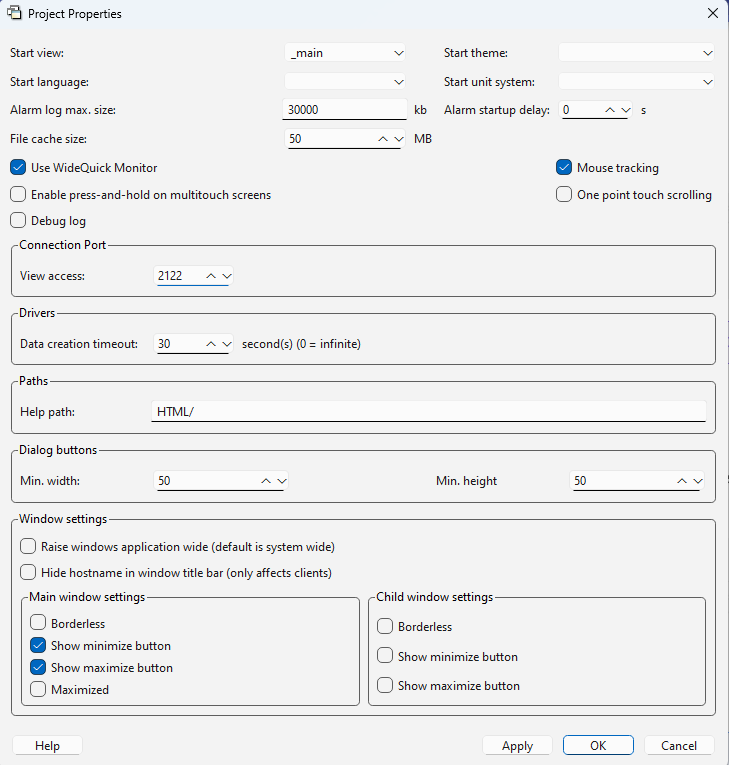
Connecting a Remote System via WideQuick Designer®
Remote Systems are managed under the Remote Systems node of the project tree:

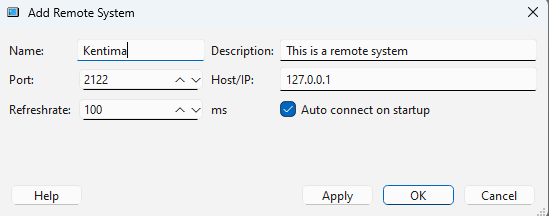
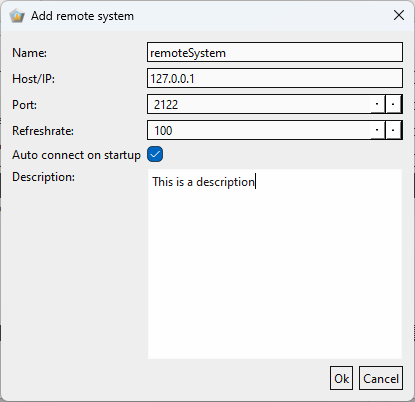
To add a System right click the Remote Systems note and press Add Remote Systems... To configure the remote system input relevant values to each input field:
- Name: Name of the Remote System. This will be the given name in the graphical interface, as shown in the screenshot below
- (Optional) Description: Descriptive text of the Remote System. This will shown in the graphical interface, as shown in the screenshot below
- Port: The given connection port. This must correspond with the connection port on the remote system project properties.To function properly the firewall settings must allow for communication over the given port.
- Host/IP: IP-address of the Remote System. To function properly the systems must have network access to each other. You can debug this by pinging the ip from the host device for the application you add this remote system to.
- Refreshrate: The refresh rate specifies how often to get variable updates from this remote system. If you indicate a high value, dynamics connected to variables from this remote system will respond slowly. A low value, on the other hand, will mean that the dynamics respond quickly to changes from the remote system. Note, however, this will mean a greater strain on the system.
- Auto connect on startup: When true this function allows WideQuick to connect the two applications automatically. This is crucial for maintaining a aggregated alarm list in for example your scada environment.
Example configuration:
Connecting a Remote System via WideQuick Runtime®
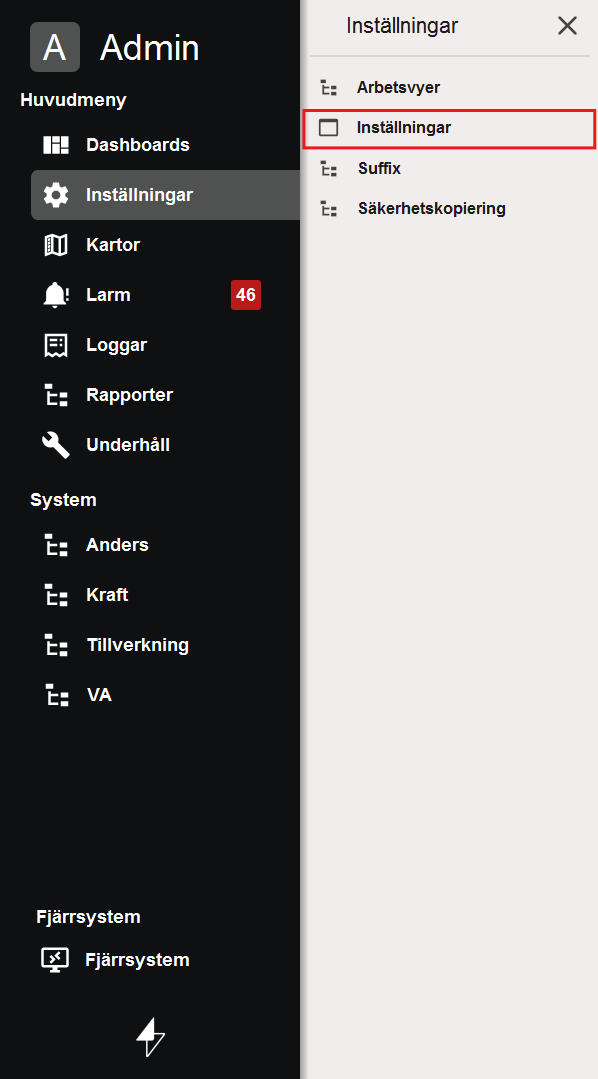
To connect or edit a remote system from WideQuick Runtime®, navigate to the setting/inställningar workview located under Settings/Inställningar in the Main Menu:
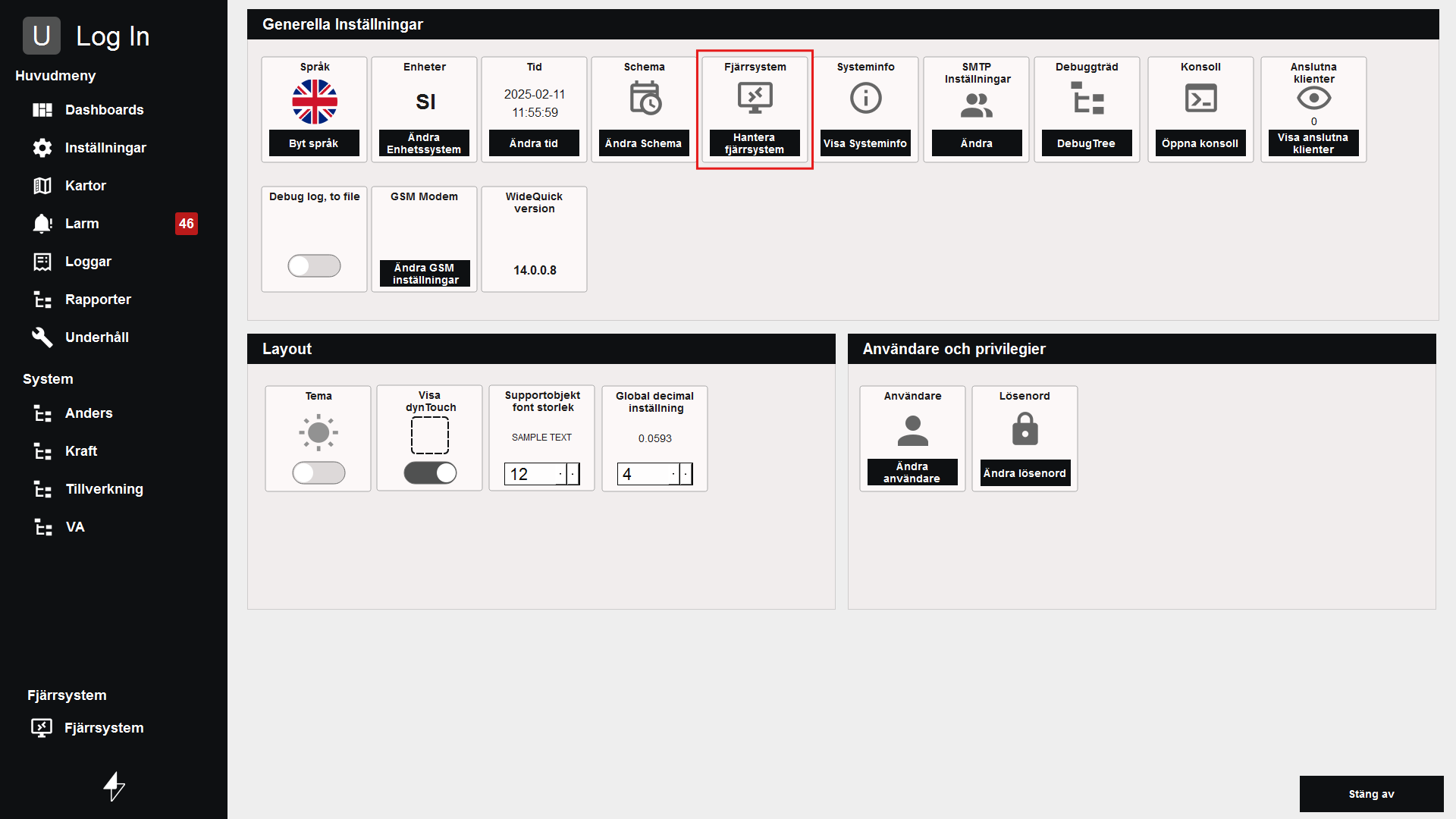
On this page navigate to the Edit Remote Systems/Hantera fjärrsystem option and press the button:
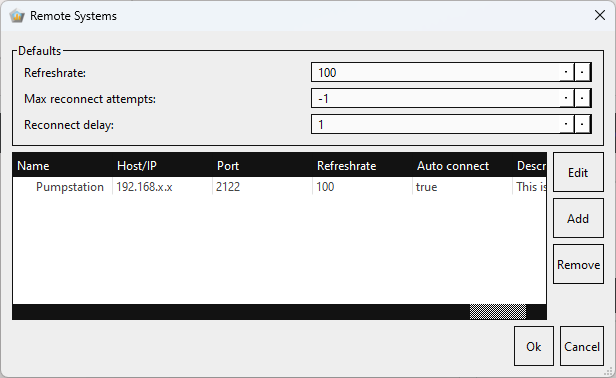
You will be presented with options to add, delete or edit Remote Systems to your application:
To add a system press the add button and input relevant configuration to the following fields:
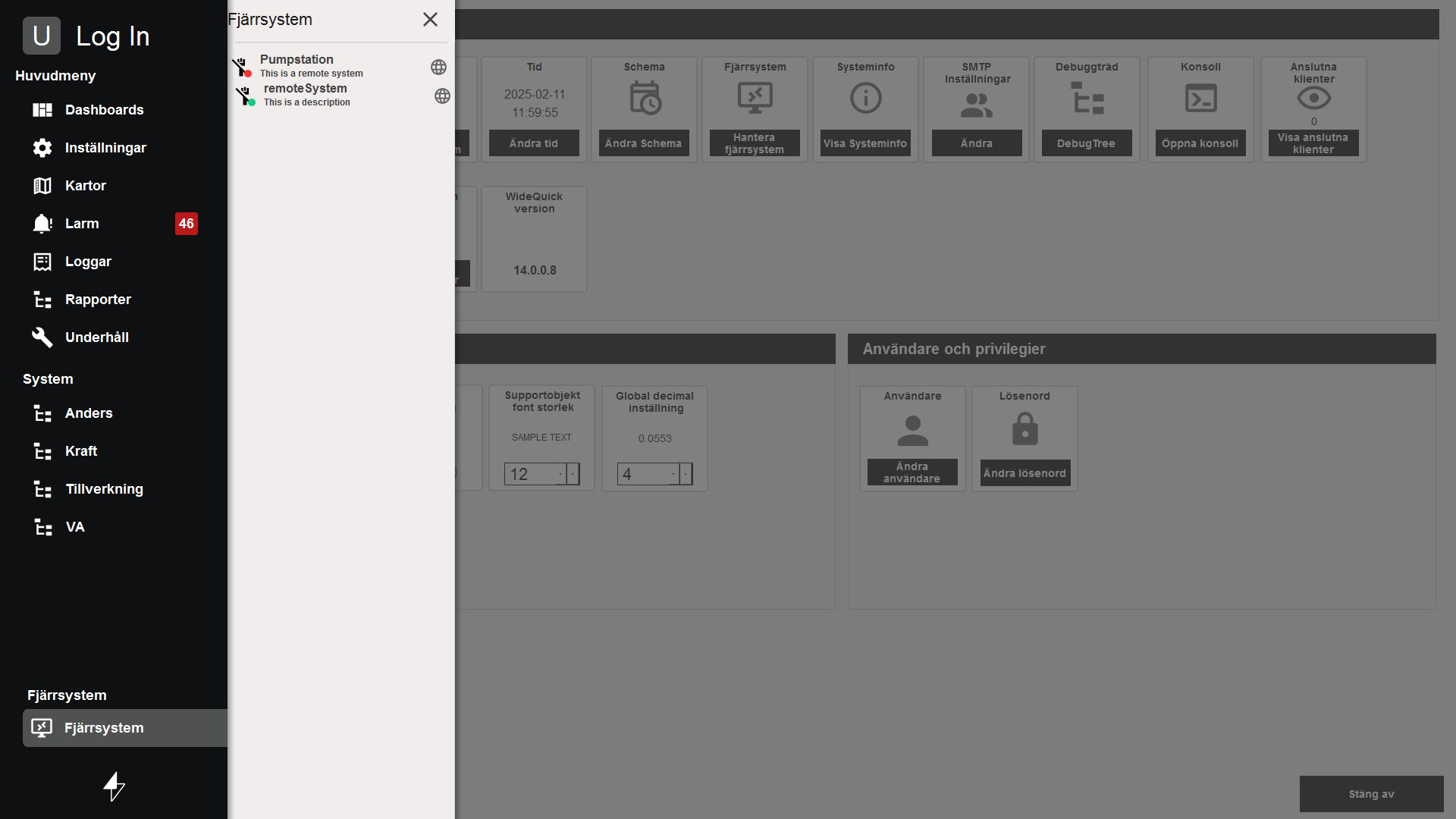
Once added the system should appear in the list of Remote Systems/Fjärrsystem menu:
Remote Alarms
Remote Alarms is a feature in all Modular Framework based WideQuick application that allows for a centralized alarm list spanning all interconnected systems. When using multiple Modular Framework based applications the remote alarm collects the respective alarms from the interconnected systems, this requires the alarm to be read access or write access.
Collecting alarms from remote system
In order for WideQuick to to retrieve an alarm list from remote system the following scripts are required:
- scAlert
- scRemoteSystem
- scRemoteAlarms
Connecting a non modular framework based application to the collective alarm list
This can be done through establishing a connection to a remote system, which is explained Here. Once a remote system is connected and the connection is establish, the script "scRemoteAlarms" will retrieve the alarms from the remote system. * Förstår inte hur denna ska skrivas
Connection types
When connecting to a remote system you have two options on how to connect to the system. Via Remote Client or via the web client. To access the system via remote client press the menu item in the Remote Systems/Fjärrsystem menu. To access the web client press the globe icon on the menu item.
Web Client requirement
For the Web Client to work a wec client service has to be configured on the target system.