Create Alarm
In the WideQuick Designer® the user is able to create their own alarms and configure the severity as well as what triggers the alarm. Below is a guide on how to set up a alarm and how to configure it.
Create a new alarm group
Before creating a new alarm, an alarm group has to be added to the project. This is done in the project tree, under "Data Store". Start by right clicking "Alarms" and press "Add Group...". This will open the window as seen below.
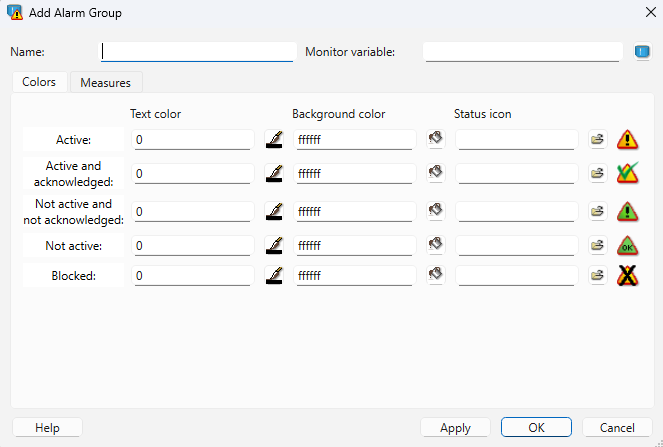
In the top left corner the user can select a name for the group. The monitor variable, should be a boolean. This variable will be true if any of the alarms in the group is active. When creating a new alarm the default colors on all levels of the alarm are white background and black text, but this can be changed here by pressing the pencil and color bucket or simply by typing in the desired color. By pressing the "Folder"-icon the standard icons can be adjusted by uploading an own icon. Here it's also possible to set a standard measure for the group. If a single alarm in the group later gets its own measure this one will be ignored. Press OK and a blank list will appear.
Create a new alarm
A new alarm is created by pressing Add at the bottom row.

Fill in the boxes as described below:
- Name - Name of the specific alarm in the group.
- Severity - Can be used to rank the importance of the alarm. Could for example be done either by numbers or letters.
- Ack rule - There are three different options. Normal -> can be acknowledge at any time. Strict -> can only be acknowledged when alarm is inactive. Auto -> Acknowledged automatically when it goes inactive, can be done manually before that.
- Text - This text can be displayed with the alarm in a list or a log. Could be used to describe the issue like "Motor is overheating".
- Details - Enter a description of the alarm which will be displayed in a dialog which in turn will be displayed as a help text when you click on an alarm in the alarm log
- Activation - Double click activation and set what the alarm should be triggered by. Can also add a delay for the alarm before it's triggered.
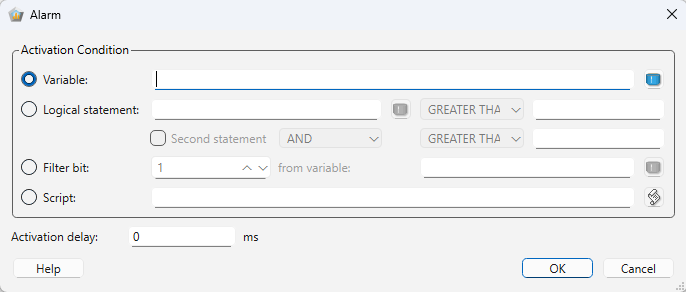
- Block type - None/Manually/Automatic. Manual blocks can be blocked by the user during running. With automatic it's also required to add what variable should be used as block under block variable.
- Block variable - If this variable is true the alarm will not go off. Can be used to prevent alarm to trigger each other.
- Colors - If one of the alarm in the group should not use the standard colors for the group, this could be added here. If this is left blank it will use the color of the group.
- Activation monitor - Here a boolean variable can be chosen that then shows wether or not the alarm is active.
- Acknowledge monitor - Same as above but the variable shows if the alarm has been acknowledged or not.
- Read access - Assign that the value of this variable will be updated on connected OPC clients and remote systems when the value changes on the local system.
- Write access - Assign that connected remote systems will write the value of this variable to the local system when it changes on remote systems. OPC clients will also be able to write values to the variable.
- Measure - Double click the box and then the user can add what they want the measure for the specific alarm should be.
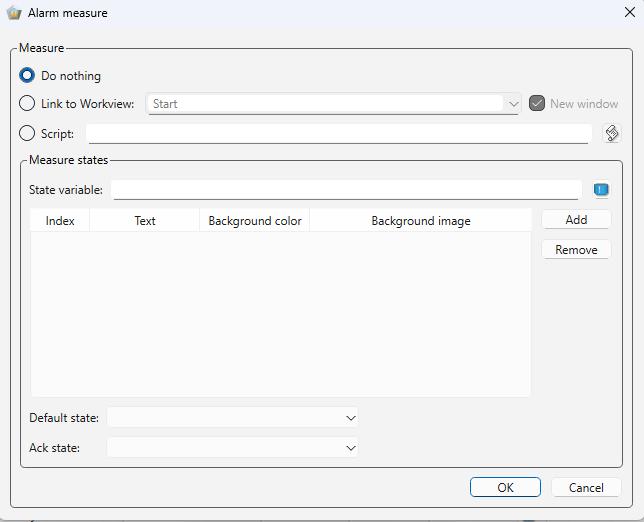
- Description - Add info that can be good to know about the alarm. This will not be displayed in a list or a log during runtime.