MQTT
Description
WideQuick MQTT driver supports MQTT versions v3.1, v3.1.1 and v5
WideQuick allows for interaction with MQTT client. A connection to a MQTT server allows WideQuick to subscribe to specific values as well as publish to the MQTT server. This can be setup in WideQuick Designer®
Add a MQTT Client
In order to add a MQTT client right click "Data Store" in the project tree and select "Add MQTT Client..."
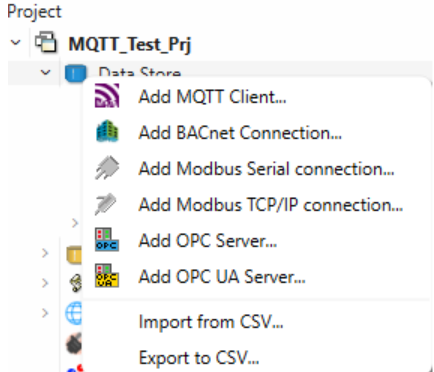
This will bring up the following window
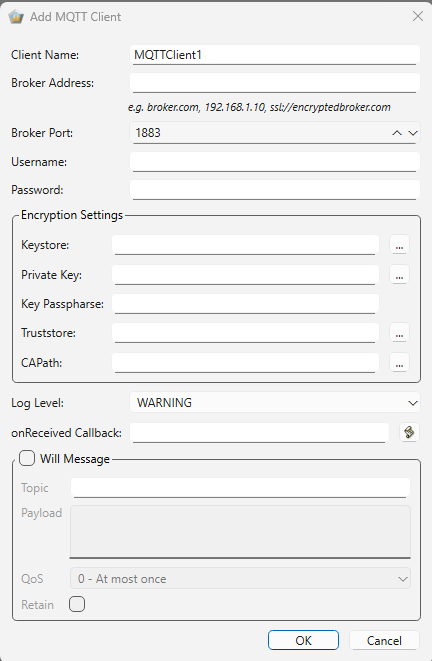
In this windows there are several options for configuration a description for each can be found below
- Client Name - Specify the clients name, must be unique
- Broker Address - The MQTT broker's address (URL or IP)
- Broker port - The port number to connect to
- Username - The username for authentication (optional)
- Password - The corresponding password (optional)
- Keystore - Certificate chain of the client (optional)
- Private key - Client authentication (optional)
- Truststore - Path to the public digital certificates trusted by the client (optional)
- CAPath - Direction containing CA certificates in PEM format (optional)
- onRecived Callback - The MQTT Client callback function (optional)
With the configuration set, press Ok to add the MQTT client. A more in-depth guide and explanation can be found in the WideQuick Manual
Add groups
When a MQTT Client is added in WideQuick Designer® the user is able to create groups, in order to manage variables to be subscribed/published. In order to do this, right click the MQTT client in the project tree and press "Add Group"
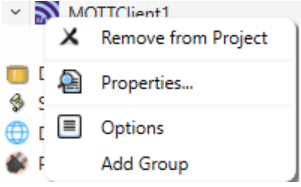
This will open the following configuration window
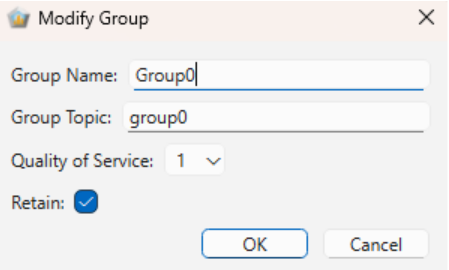
In this window the user can name the group and give the group a topic. The group name must be unique. Once the configuration is done, press OK to create the group. This will add a empty group which can be located in the project tree as a sub category to the MQTT client. The empty group will look like this.
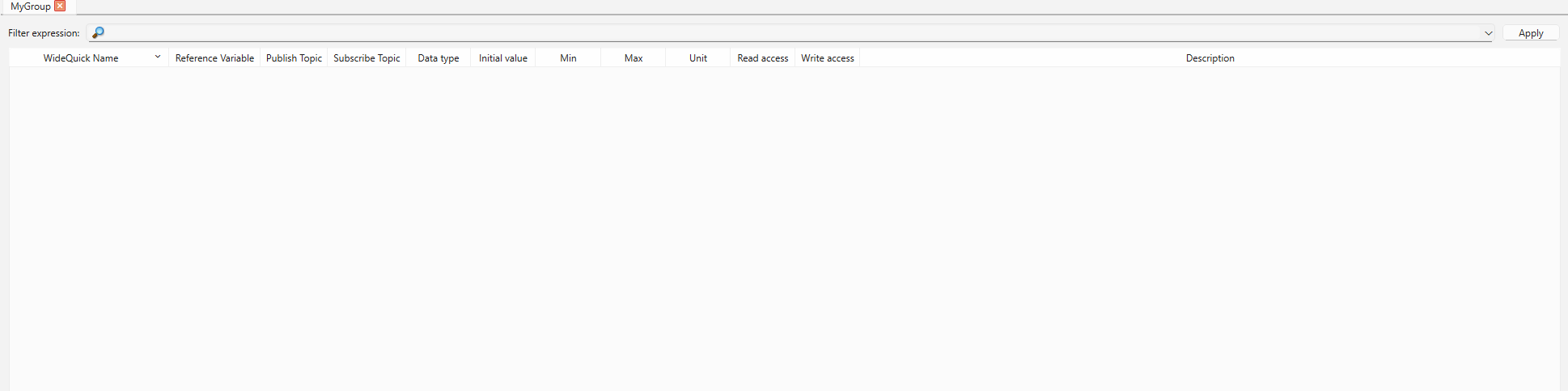
In this window the user is able to add variables to the group and make appropriate configurations for their variables.