Database connection
Setting up a Database Connection in WideQuick Designer® is simple. Just right click "Database Connections" in the project tree and select "Add database connection..." this will bring up the following window
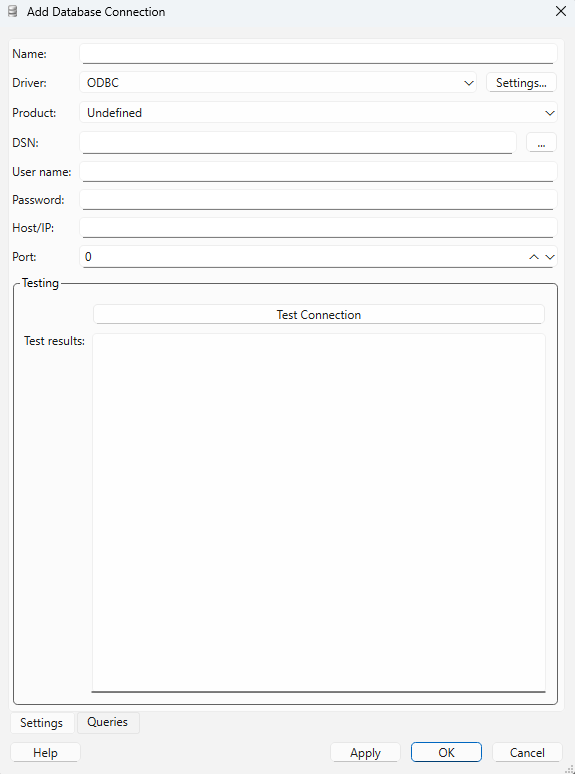
The setup of the database varies depending on which driver is used.
- Name - Name use to identify the connection in WideQuick Designer®
- Driver - The ODBC driver can be configured by clicking Settings... which will open the administrative tool for ODBC
- Product - If the database will be used with a logger, the correct database and version must be selected to work properly
- DSN - Type the name of the DSN connection, or select from the available by clicking ...
- User name - Which user should be used to log into the database. If the selected database takes care of authentication, leave this field blank
- Password - Enter the password, which is needed to log in to the database. If the selected database takes care of authentication, leave this field blank
- Host/IP - Enter the host name or IP address for the connection
- Port - Enter the port for the database connection
- Name - Name use to identify the connection in WideQuick Designer®
- Driver - SQLite
- File - Select the SQLite file that the driver should connect to. This can be done by clicking ... and select the desired SQLite file
- User name - Which user should be used to log into the database. If the selected database takes care of authentication, leave this field blank
- Password - Enter the password, which is needed to log in to the database. If the selected database takes care of authentication, leave this field blank
- Host/IP - Enter the host name or IP address for the connection
- Port - Enter the port for the database connection
- Name - Name use to identify the connection in WideQuick Designer®
- Driver - MySQL/MariaDB
- Database name - Specify the name of the MySQL/MariaDB database
- User name - Which user should be used to log into the database. If the selected database takes care of authentication, leave this field blank
- Password - Enter the password, which is needed to log in to the database. If the selected database takes care of authentication, leave this field blank
- Host/IP - Enter the host name or IP address for the connection
- Port - Enter the port for the database connection
You can test the connection by clicking Test Connection , here the user can see if the database connection is working properly