Configuring a Logger
A logger defines when data should be stored and where it should be saved. Loggers are configured in WideQuick® Designer and write data to a connected database, which can then be used by the History view, Reports, and other modules that rely on historical data.
Multiple loggers can share the same database connection. To create a logger, right-click Loggers in the project tree and select Add Logger.

Logger settings
Logger type
The logger type determines what triggers data to be stored.
| Type | Description |
|---|---|
| Cyclic | Logs all variables at a fixed time interval. |
| Change | Logs each time a variable value changes. Changes are queued to avoid delays and flushed at the configured interval. |
| Trigger | Logs all variables when triggered by a script using Loggers._LoggerName_.trigger(). |
| Alarm | Logs alarm status changes. Database storage only. Supports wildcards — for example alarmgroup.* logs all alarms in a group. |
| Event | Logs system events triggered by System.logEvent(). Database storage only. Filterable by context using ; separated values. |
| User | Logs all user system events such as logins and user modifications. |
Note
When using Change or Trigger with File storage type, values are stored with 16-bit precision. Ensure the variable's min and max are correctly configured and that the difference between them does not exceed 65535.
Storage type
Select Database or File as the storage destination.
Tip
Database is strongly recommended. File storage is less reliable, scales poorly, and has reduced precision when used with Change or Trigger logger types.
Interval
Sets how frequently data is logged, configurable in seconds and milliseconds. The
minimum interval is 0s 100ms and the maximum is 3600s.
Enable variable
An optional boolean signal that enables or disables the logger. When the signal is
false the logger is paused. Useful for limiting logging to specific time periods
or conditions.
Database settings
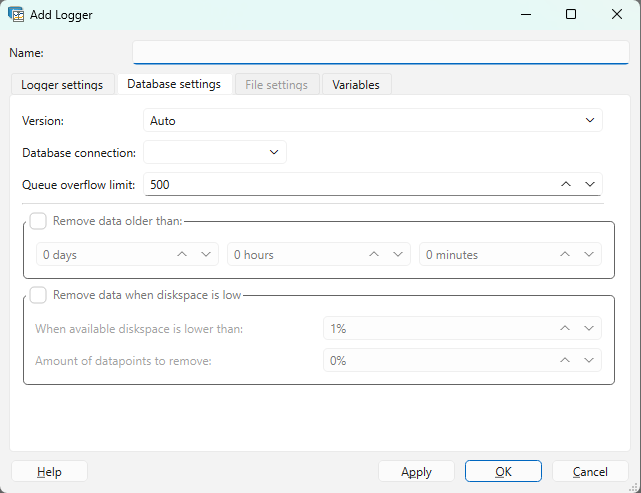
Version
Select version 1 or 2. Version 2 is recommended as it is more storage efficient, using binary blob encoding to reduce database size.
The key differences between the versions are:
- Version 1 cannot log variables of type
Int64orUInt64 - Version 1 creates two tables named after the logger, while Version 2 creates multiple auto-generated tables depending on the number of variables logged
- Version 2 stores all data in binary format (database blobs), while Version 1 stores data as their corresponding database types
Note
To retrieve data from a Version 2 logger, use Logger.data() rather than
querying the database tables directly.
Database connection
Selects which database connection the logged data is stored in. Multiple loggers can share the same database connection.
Remove data older than
Automatically removes logged data older than the configured threshold, set in days, hours, and minutes. This is the recommended approach for managing database size over time.
Remove data when diskspace is low
Warning
This option is not recommended. Use Remove data older than to manage database size instead.
Variables

The Variables tab defines which signals are logged. Signals can be added in two ways:
- Browse — opens the Data Store browser to select a specific signal
- Add — adds an empty row where a signal name can be entered manually
Wildcard suffixes are supported. For example *_kWh logs all signals ending in
_kWh, making it easy to capture a group of related signals without listing each
one individually.
The Hysteresis column is available for numeric signals and defines the minimum change in value required before a new entry is logged. This is useful for reducing noise in logged data.