Shared module
This page is part of the WideQuick Modular Framework. The documentation below is the canonical version maintained in MOD.
Settings
The Settings view in WideQuick® Runtime provides access to all system configuration options. Navigate to Settings in the main menu and open the Settings view.
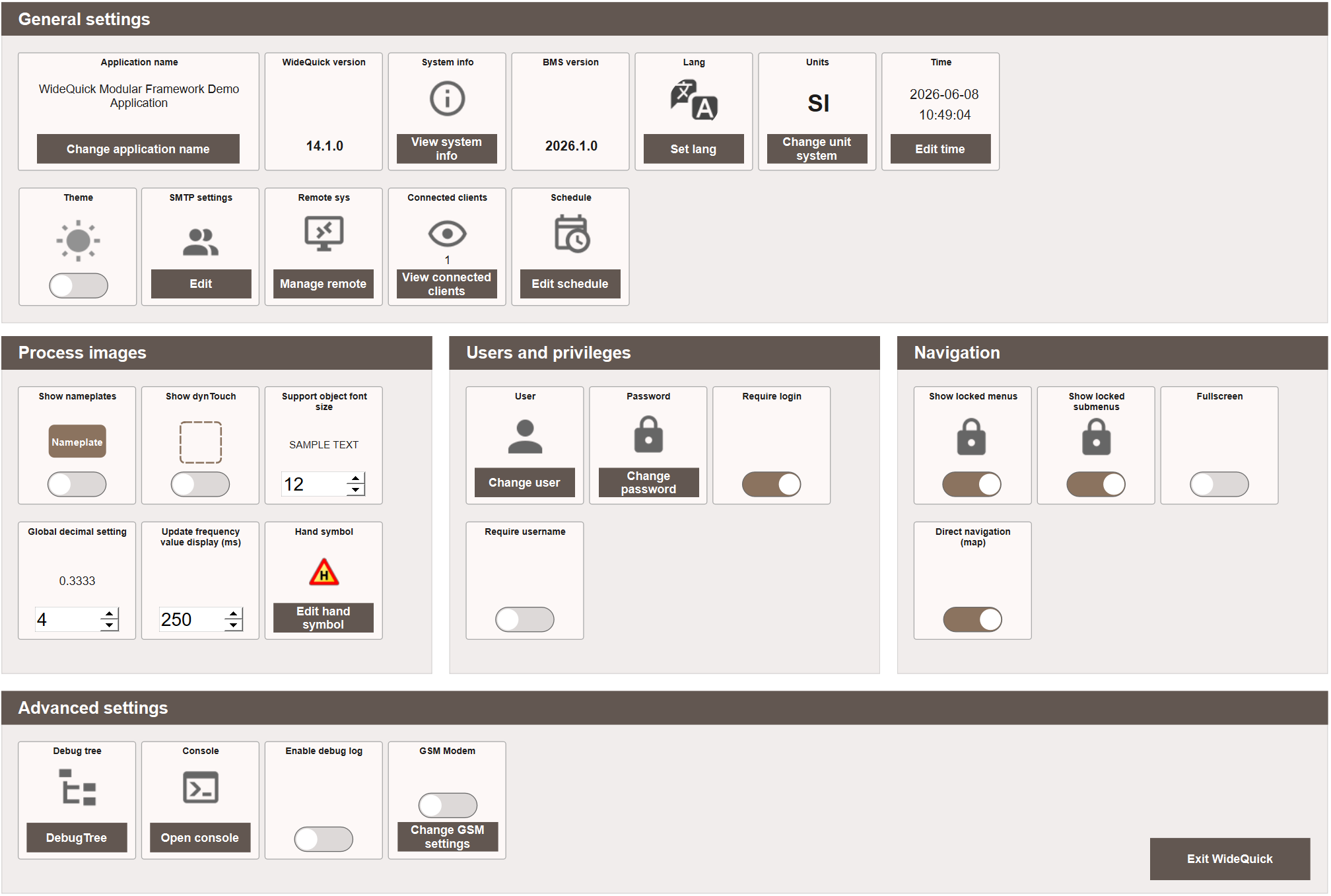
General settings
Application name — the name of the application displayed in the title bar. Click Change application name to update it.
WideQuick version — displays the currently installed version of WideQuick®. Read-only.
System info — displays connection information for the current system. Click View system info to open the dialog, which shows the server and client Runtime name, IP address, and port.
XXX version — displays the currently installed concept of WideQuick®. Read-only.
Lang — the display language of the application. Click Set lang to change the language. See here for more information.
Units — the unit system used for value displays, for example SI. Click Change unit system to switch between unit systems.
Time — displays the current system date and time. Click Edit time to adjust it.
Theme — toggles between the available application themes, for example light and dark mode.
SMTP settings — configures the SMTP server used for sending email notifications. Click Edit to open the configuration dialog. See Alarms — Extending for more information.
Remote sys — manages connections to remote WideQuick Runtime instances. Click Manage remote to add or configure remote systems. See here for more information.
Connected clients — displays the number of currently connected remote clients. Click View connected clients to see a list of active connections.
Schedule — WideQuick's built-in scheduling system, checked every 5 minutes to trigger configured scheduled tasks such as report generation. Click Edit schedule to configure schedules.
Process images
Show nameplates — toggles whether object nameplates are visible in the process view.
Show dynTouch — toggles whether DynTouch object boundaries are visible,
useful for debugging object placement in WideQuick® Designer.
Support object font size — sets the font size for support objects such as value displays. Enter a value or use the arrows to adjust.
Global decimal setting — sets the number of decimal places shown for numeric values across the application. Enter a value or use the arrows to adjust.
Update frequency value display (ms) — controls how frequently value displays refresh, in milliseconds. Lower values update more frequently but require more processing. Enter a value or use the arrows to adjust.
Hand symbol — the symbol displayed when an object is in manual mode. Click Edit hand symbol to change it.
Users and privileges
User — displays the currently logged in user. Click Change user to switch to a different user account. See here for more information
Password — click Change password to change the password for the current user.
Require login — when enabled, users must log in before accessing the system. When disabled, the login screen is bypassed and the user enters as unauthenticated. See Login configurations for more information.
Require username — when enabled, users must type their full username when logging in. When disabled, a combobox showing all available users is displayed instead. See Login configurations for more information.
Navigation
Show locked menus — toggles whether menu items that require a privilege are visible to unauthenticated users. See Navigation — Configuring for more information.
Show locked submenus — toggles whether submenu items that require a privilege are visible to unauthenticated users. See Navigation — Configuring for more information.
Fullscreen — toggles whether the navigation runs in fullscreen mode.
Direct navigation (map) — when enabled, clicking a pin object on a map navigates directly to its linked Workview. When disabled, an information panel is shown first allowing the user to choose whether to navigate. See Maps — Configuring for more information.
Advanced settings
Debug tree — click DebugTree to open the debug tree, which displays the full Data Store variable hierarchy. Useful for troubleshooting tag connections.
Console — click Open console to open the script console, which displays script output and errors at runtime.
Enable debug log — when enabled, a detailed debug log is written to disk. Useful for diagnosing issues in production environments.
GSM Modem — configures the GSM modem used for SMS alarm notifications. Click Change GSM settings to open the configuration dialog. See Alarms — Extending for more information.