Alarms - Extending
Email notifications
To send alarm notifications by email, an SMTP server must be configured. This can be done in WideQuick® Designer before deployment or in WideQuick® Runtime on a running system.
Configuring SMTP in WideQuick® Designer
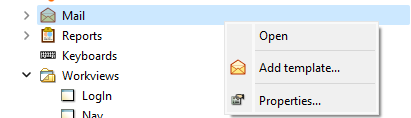
- In the project tree, right-click the Mail node and select Properties....
- Enter the server details.
Configuring SMTP at runtime
Click Configure in the SMTP section of the Alarm - Schedule status panel, or call System.mailManager.edit() from a script or button action.
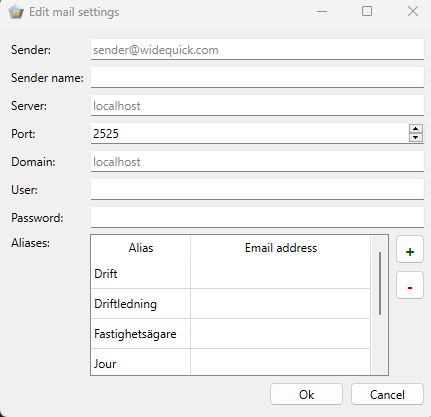
| Field | Description |
|---|---|
| Sender | Sender email address |
| Sender Name | Display name for the sender |
| Server | SMTP server address or IP — for example smtp.gmail.com |
| Port | Server port |
| Domain | Server domain |
| User | Account username |
| Password | Account password |
Email aliases
The alias system maps a short keyword to one or more email addresses. Aliases can be selected when adding recipients to a notification schedule, making it easier to manage recipient groups centrally.
Aliases are managed in the Edit mail settings dialog alongside the SMTP configuration.
Customize emails
The email notification is built as a plain text message. The layout and content can
be customized by editing the writeMail() function in the scAlarmSender script.
The default email format looks like this:
---------------------------------------------------------------------------
| Schedule: My Schedule
| Subject: My Subject
---------------------------------------------------------------------------
| ------------------------------------------------------------------------
| | Name: AS01.VS10_PV01_IO
| |
| | Timestamp: 2026-05-29 12:00:00
| |
| | Alarm class: 1
| |
| | Description: My alarm description
| ------------------------------------------------------------------------
|
---------------------------------------------------------------------------
Each line in the email is built by adding text to a message variable using +=.
This means the integrator can change the labels, add new lines of plain text, or
remove lines they do not need. For example, to change the Alarm class label to
Priority, locate the following line in the writeMail() function:
msg += "| | Larmklass: " + alarm.severity + "\n"
And change it to:
The four available alarm fields that can be included in the message are:
| Field | Description |
|---|---|
alarm.name |
The name of the alarm |
alarm.timestamp |
The date and time the alarm was triggered |
alarm.severity |
The alarm class |
alarm.text |
The alarm description |
Plain text can also be added freely anywhere in the message. For example, to add a footer, add the following line before the closing separator:
SMS notifications
SMS notifications are sent via a modem connected to the WideQuick host over a serial COM port. This can be a traditional GSM modem or a 4G router — any device that accepts AT commands over a serial connection is compatible.
Configuring the modem
The modem is configured in WideQuick® Runtime. Navigate to Settings → GSM Settings to open the configuration dialog.
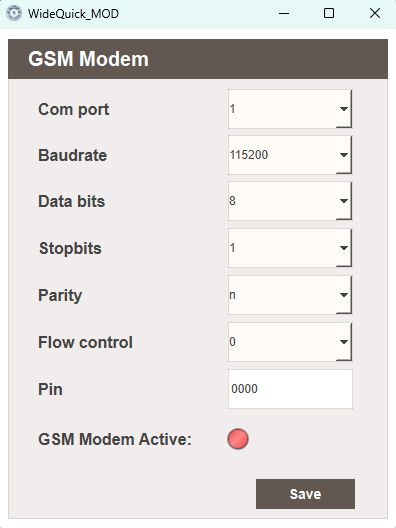
Enter the connection parameters from the device's data sheet:
| Field | Description |
|---|---|
| Com port | Serial port the modem is connected to |
| Baudrate | Communication speed |
| Data bits | Number of data bits |
| Stopbits | Number of stop bits |
| Parity | Parity setting |
| Flow control | Flow control method |
| Pin | SIM card PIN, if required |
Enable GSM Modem Active and click Save. If the configuration is correct the indicator turns green.
Requirements
SMS notifications require scModem to be running in addition to scAlarmSender.
Customize SMS
The SMS notification follows the same pattern as the email and can be customized by
editing the writeSMS() function in the scAlarmSender script. The same four alarm
fields are available — alarm.name, alarm.timestamp, alarm.severity, and
alarm.text — and labels can be changed or plain text added in the same way.
The default SMS format looks like this:
Schedule: My Schedule
Subject: My Subject
Name: AS01.VS10_PV01_IO
Timestamp: 2026-05-29 12:00:00
Alarm class: 1
Description: My alarm description
For example, to change the Name label to Signal, locate the following line
in the writeSMS() function:
And change it to:
Note
Keep SMS messages short. Most GSM modems have a character limit per message, and long messages may be split into multiple parts or truncated.
Remote alarm aggregation
Alarms from connected remote systems can be aggregated into the local alarm list. See Remote Systems — Remote Alarms for setup instructions.