Documents - Get Started
Requirements
The following scripts are required to use Documents and all related functionality covered in the Documents guides:
scDocscLinkingscSubNavscObjectFinderscPrototypesscSuffixscThemesscUsersscAlert
The Documents module is available under Documents & Logbook -> Documents in the main menu. The Documents - List view is the main entry point — it lists all documents available in the system and lets you add, preview and manage them.
Files view
The view is split into two panels. The left panel shows a file tree with two categories: Local files and Online files. Local files are stored on the server; online files are links to external URLs. The right panel shows the preview for the selected file. On WideQuick Web®, a third category appears for files that cannot be opened in the browser.
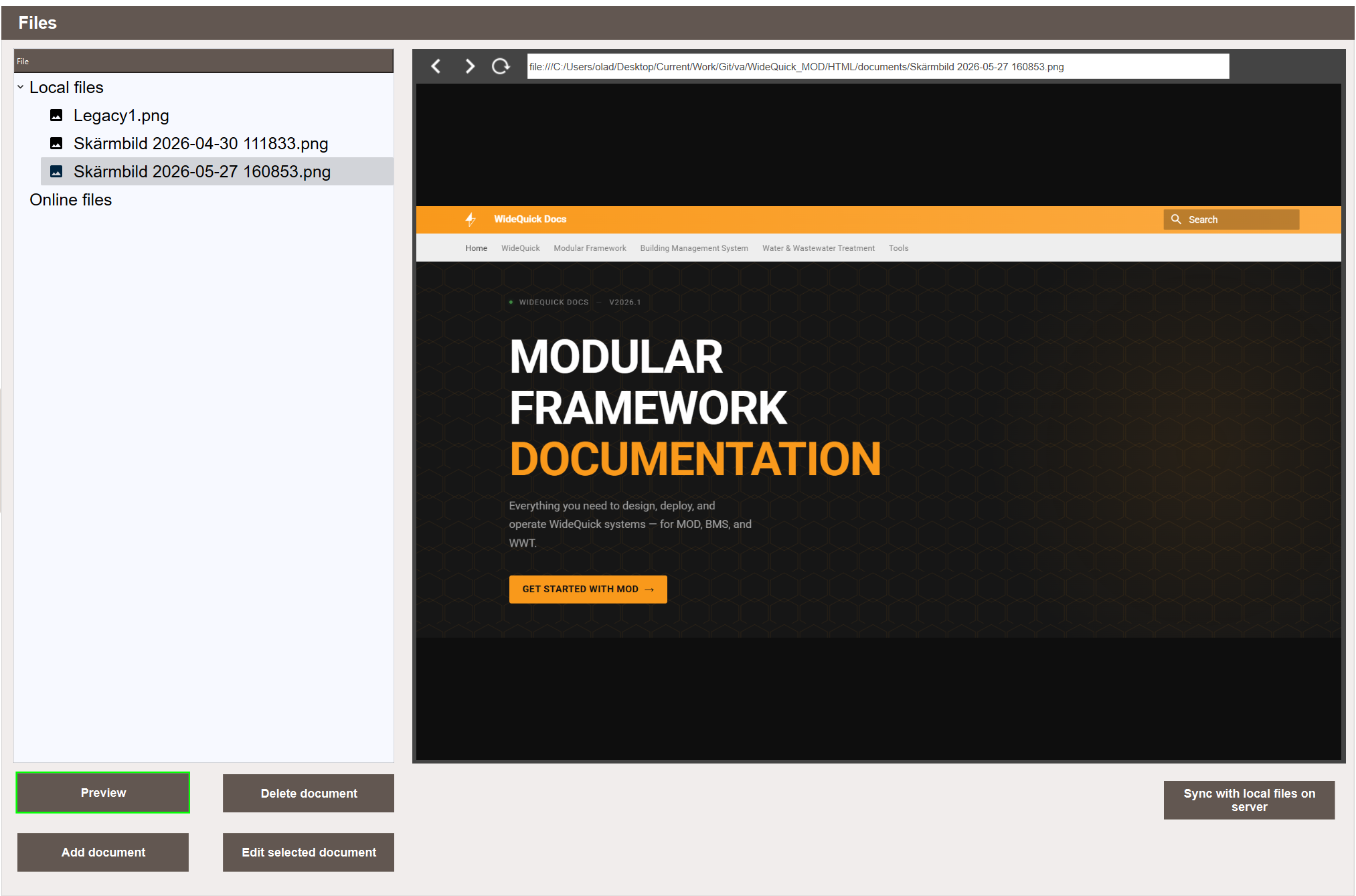
The following actions are available at the bottom of the view:
- Preview — opens the selected file in the preview panel.
- Add document — opens the upload dialog to add a new document.
- Delete document — permanently removes the selected document.
- Edit selected document — rename the selected document.
- Sync with local files on server — scans the documents folder on the server and updates the list to match. See Syncing with the filesystem.
Uploading a local file
- Click Add document.
- Select the Upload file tab.
- Click the drop zone or drag files into it to add them to the queue.
- Optionally click a file name in the queue to rename it before uploading.
- Click Upload files.
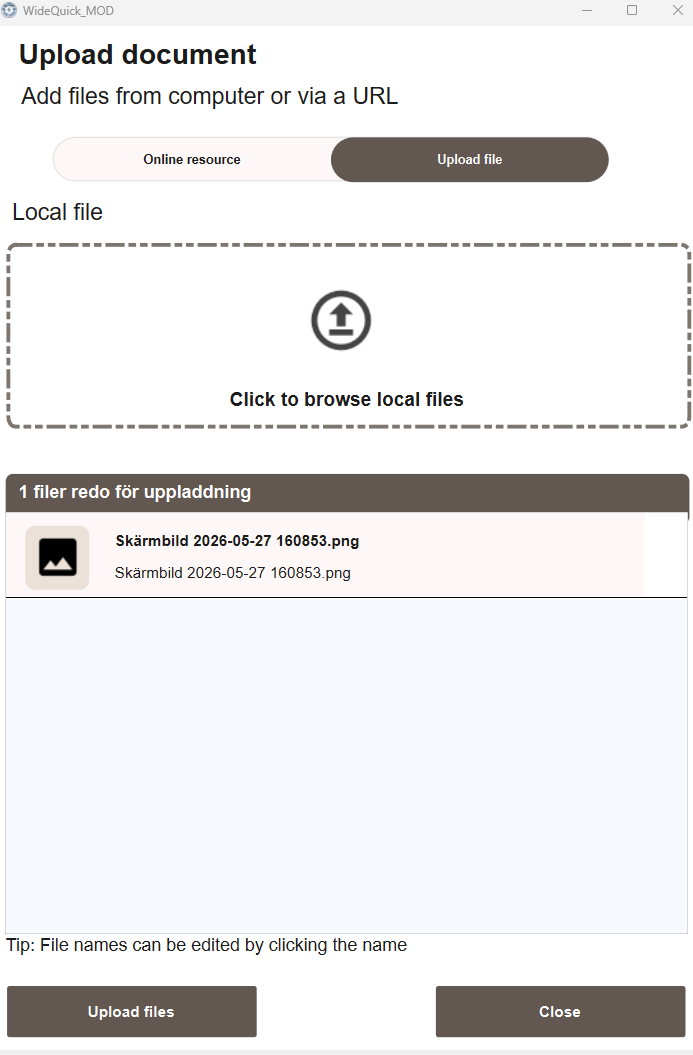
The files are copied to the server and added to the document list under Local files.
Adding an online resource
- Click Add document.
- Select the Online resource tab.
- Enter the URL in the Document URL field.
- Enter a display name in the Document name field.
- Select the file type using the icon selector.
- Click Add.
- Click Upload files.
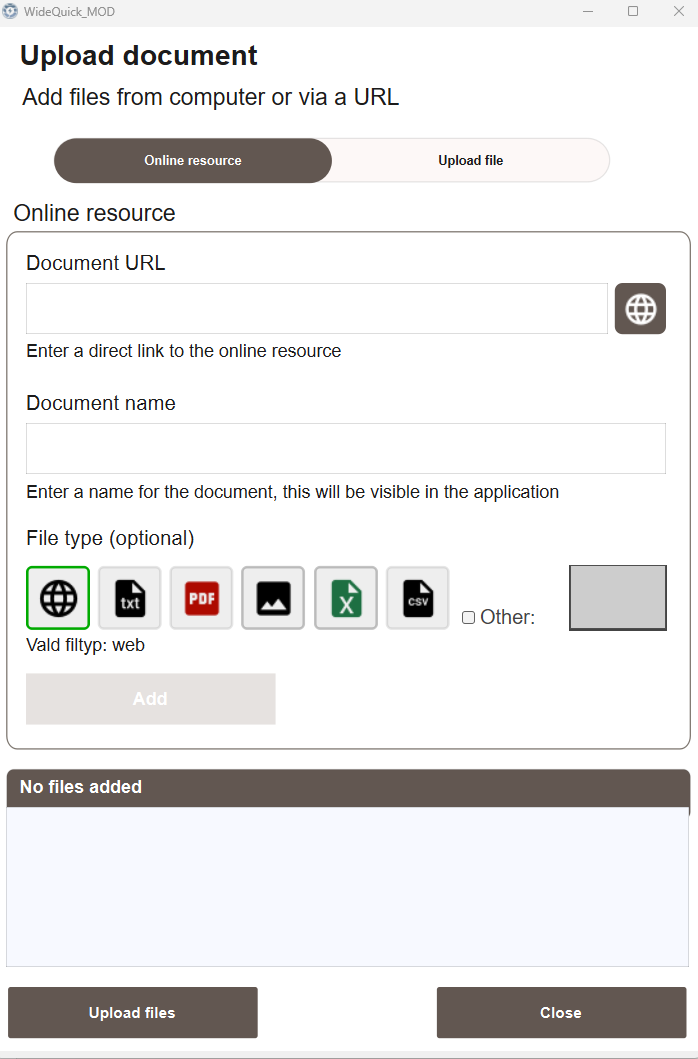
The resource is added to the document list under Online files. The URL is stored — no file is downloaded to the server.
Previewing a document
Select a file in the left panel and click Preview to load it in the preview panel.
Most file types can be previewed inline — images, PDFs and web pages render directly. On WideQuick Web®, Office files (Word, Excel, PowerPoint) are not previewable in the browser and are grouped separately in the file tree.
Next Steps
- Configuring — linking documents to objects and keeping files in sync
- Extending — privilege reference