Backup and Restore - Configuring
Restoring a Backup
Navigate to Settings → Backup → Restore.
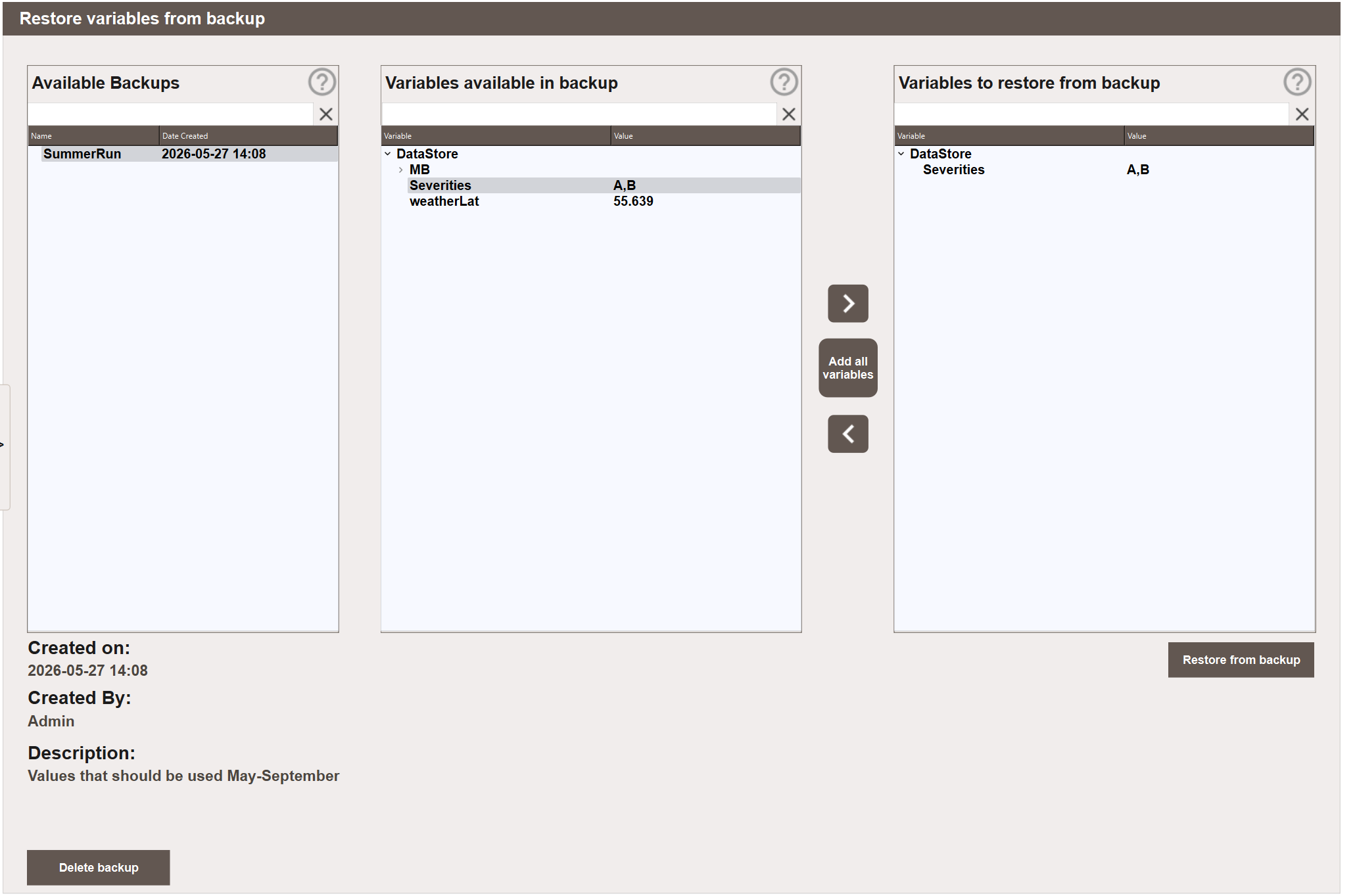
The view has three panels. The left panel lists all saved backups with their creation date. Selecting a backup shows its metadata below the panels and populates the middle panel with the variables stored in that backup.
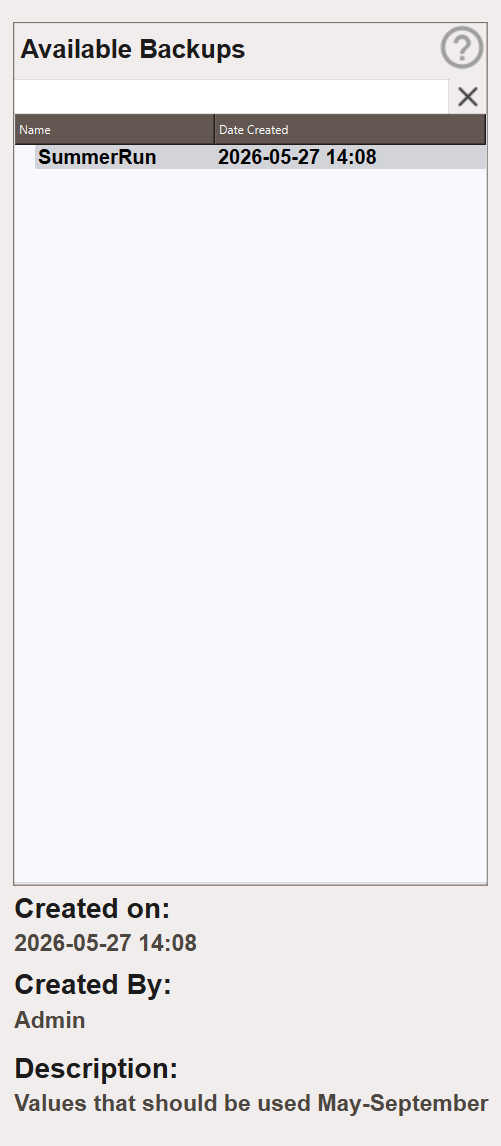
- Created on — the date and time the backup was created.
- Created By — the user who created the backup.
- Description — the description entered at the time of creation.
The middle panel supports the same filter as the create view. Type in the filter field to narrow the variable list.
- Select a backup from the left panel.
- Browse or filter the middle panel to find the variables to restore.
- Double-click a variable, or select it and click >, to move it to the right panel. To add all variables at once, click Add all variables.
- Click Restore from backup. The stored values are applied immediately.
Deleting a Backup
- Navigate to Settings → Backup → Restore.
- Select the backup to delete from the left panel.
- Click Delete backup and confirm. The backup and all its stored values are permanently removed.