Maps & Indicators - Extending
This section covers how to extend the Maps & Indicators module with custom functionality. This includes connecting an Alarm object to a Map View for live alarm filtering, and creating custom map indicators with zoom navigation, linking, and status awareness.
Before getting started, make sure you are familiar with the basics of the Maps & Indicators module. If not, see Maps & Indicators — Get started.
Connecting Alarm to Map View
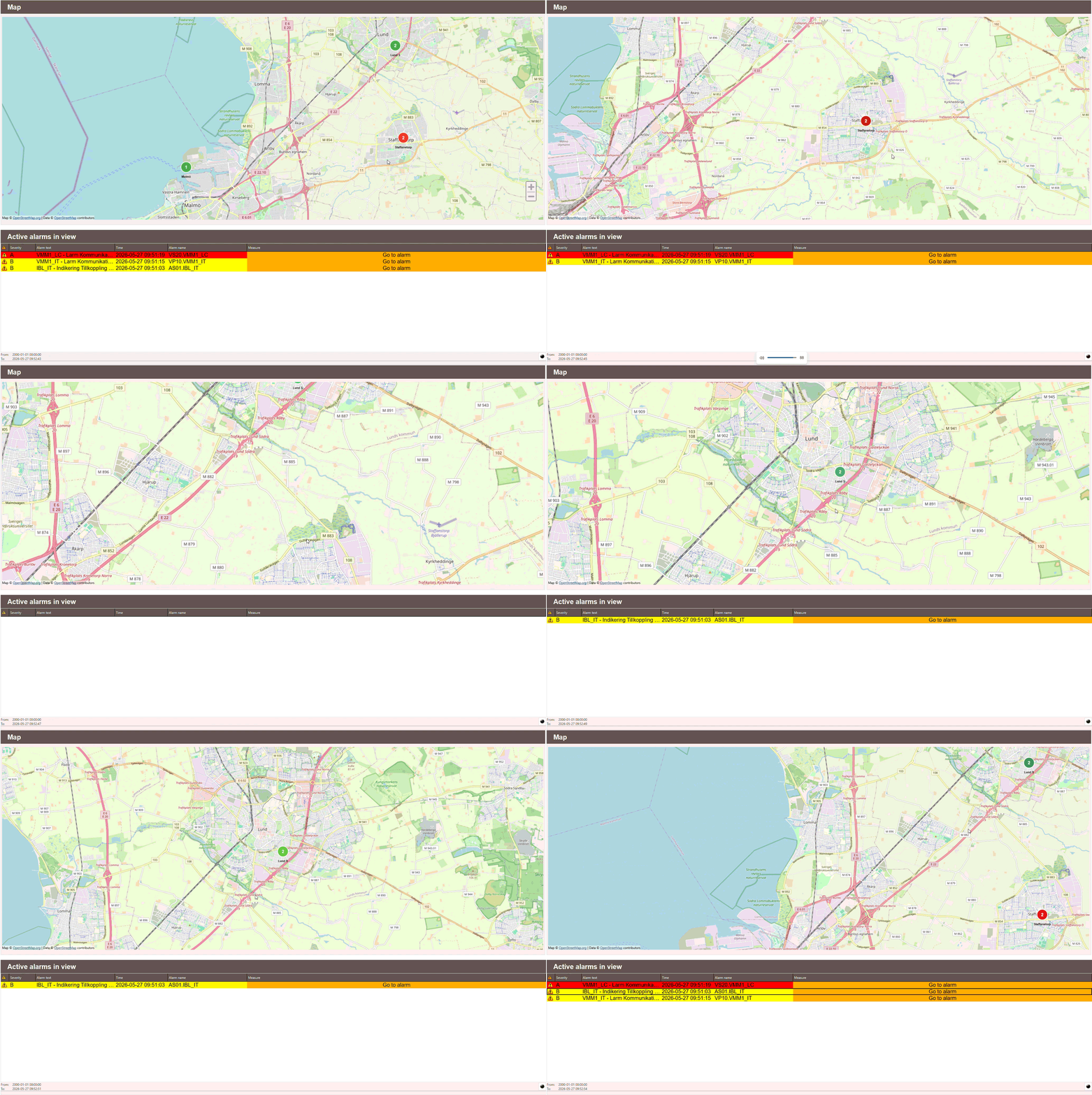
An Alarm object can be connected to a Map View so that it filters alarms based on which status pins or cluster pins are currently visible. This gives the user both a full system overview and station-specific control.
First, add the following onLoad script to the Workview containing both the Map View and the Alarm object. This enables all system alarms in the alarm list:
var local = alarmNames.split(",");

for (var index = 0; index < local.length; index++) {
    this.view.Alarm1.addGroup(local[index]);
}

app.alarmView = this.view;
scMap.alarmList = this.view.Alarm1;
scMap.updateAlarmList(scMap.mapView, scMap.alarmList);
Note
Replace Alarm1 with the name of the Alarm object placed in the view.
alarmNames is an internal Data Store variable containing a comma-separated
string of all alarm group names in the system. It does not need to be configured
manually.
Next, the Map View onLoad script already handles alarm list updates if an
scMap.alarmList is set. Make sure the Map View onLoad script is configured
as follows:
scMap.mapView = this;
scMap.initClusters(this);
if (scMap.alarmList) scMap.updateAlarmList(this, scMap.alarmList);
The Alarm object is now fully linked to the Map View and will display active alarms based on what is currently visible on the map.
Creating custom map indicators
The following sections explain the key concepts behind the built-in indicators and how to apply them when building custom ones. Rather than documenting a specific object, the focus is on the underlying patterns — zoom navigation, linking, status awareness, and clustering — so that the integrator can apply them freely to any custom indicator.
Tip
For complex indicators such as status pins and cluster pins, it is strongly recommended to copy the existing object and modify it rather than building from scratch. This preserves all existing logic while allowing full visual customisation.
Zoom levels and navigation
Map View objects support zoom ranges, which control at which zoom level each object is visible. This is a powerful tool for reducing clutter — objects at a higher level can guide the user to more detailed views at lower zoom levels by setting a target zoom level on click.
To implement this, add a zoomTarget property to your custom indicator and use the following onClick script:
var mv = this.geo.mapView;
mv.zoomLevel = this.zoomTarget || 15;
mv.latitude = this.geo.latitude;
mv.longitude = this.geo.longitude;
This script does three things when the indicator is clicked:
- Sets the map zoom level to the value of zoomTarget. If no value is set, it
defaults to
15. - Centers the map on the latitude of the indicator.
- Centers the map on the longitude of the indicator.
By combining zoom ranges with a zoomTarget property, indicators at higher zoom levels can act as navigation aids — clicking them zooms in and reveals the more detailed indicators beneath.
Tip
A good practice is to set the zoomTarget of a higher level indicator to the minimum zoom level at which its child indicators become visible. This creates a seamless navigation experience.
Linking
Custom indicators can be linked to a Workview, a directory, or a specific object depending on the use case. This is controlled by adding a linkedView or targetObject property to the indicator.
Linking to a Workview
To link an indicator to a Workview, add a linkedView property and set its
value to the path of the desired Workview ending in .kvie. Then add the
following onClick script:
Linking to a directory
To link an indicator to a directory, add a linkedView property and set its value
to a directory path such as System/Videdal. When clicked, the Fullscreen Menu will
open at that directory, allowing the user to navigate to the desired Workview.
var _parts = this.linkedView.split("/");
var root = _parts[0];
var dir = _parts[_parts.length - 1];
app._subNavTarget = { root: root, dir: dir };
Note
Directory linking requires the Fullscreen Menu to be available. See Navigation — Get started for more information.
Linking to a specific object
To link an indicator directly to a specific object, add a targetObject property and set its value to the name of the target object. Then add the following onClick script:
This will navigate to the Workview containing the target object and highlight it. For more information about GoTo, see Navigation — Extending.
Tip
Use linkedView with a .kvie path to navigate to a specific Workview,
use linkedView with a directory path to open the Fullscreen Menu at that
location, and use targetObject when you want to bring the user directly to
a specific object such as a sensor or control element.
Pin Status
The PinStatus object is the most complex of the built-in indicators. It does two
things automatically when linked to a Workview:
- Alarm counting — queries the database for all alarms connected to the linked
Workview and listens for changes. The result is reflected in the
alarmCountproperty of the pin. - Status colour — queries all objects in the linked Workview and maps their
suffix signals to a status level using the
scSuffixscript. The pin circle colour updates automatically to reflect the highest active status:
| Status | Colour |
|---|---|
| Alarm / Error | Red |
| Warning | Yellow |
| Active / OK | Green |
| No status | Grey |
The status mapping is configured in the scSuffix script through the
suffixObj.Views object, which defines which object suffixes correspond to which
status category. This does not need to be modified when creating a custom indicator.
Recommendation
Rather than building a custom status indicator from scratch, it is strongly
recommended to copy the existing PinStatus object and modify it to fit your
needs. The script is tightly coupled to the scSuffix script and the database
structure, making it complex to replicate correctly. Copying ensures all the
existing logic is preserved while allowing full visual customisation.
Cluster awareness
The clustering system in Map View is driven entirely by the scMap script's
initClusters() function. It identifies objects by scanning for two specific
properties:
- An object with a
roiproperty — treated as a cluster - An object with a
statusproperty — treated as a pin and potential child
This means any custom indicator can participate in the clustering system simply by having the right property present. There is no requirement for a specific object name or type.
Note
initClusters() must be called in the Map View onLoad script for clustering
to work. See Maps & Indicators — Get started.
Making a custom indicator cluster-aware
For a custom indicator to be picked up as a child by the clustering system, it needs
a status property. For the built-in PinStatus object this is managed automatically
by its script — status is updated by a DataStoreListener whenever the linked
Workview changes state.
For a custom indicator, status must be maintained by a script. The value should
follow the same status hierarchy used by the built-in indicators:
| Value | Meaning |
|---|---|
3 |
Alarm / Error |
2 |
Warning |
1 |
Active / OK |
0 |
No status |
Recommendation
Rather than building a custom cluster from scratch, it is strongly recommended
to copy the existing cluster object and modify it to fit your needs. The
clustering logic is handled entirely by the scMap script — copying ensures
your object is correctly identified by initClusters() while allowing full
visual customisation.