Tag Structure
WideQuick Modular Framework utilizes a flexible tag structure to simplify configuration and reduce time to market for WideQuick applications. This tag structure makes it possible to connect a large number of tags to an object without having to manually connect each tag to said object.
This ease of use also makes it easy to import large numbers of tags and automatically connect them to objects, making it straightforward to add to and modify existing projects.
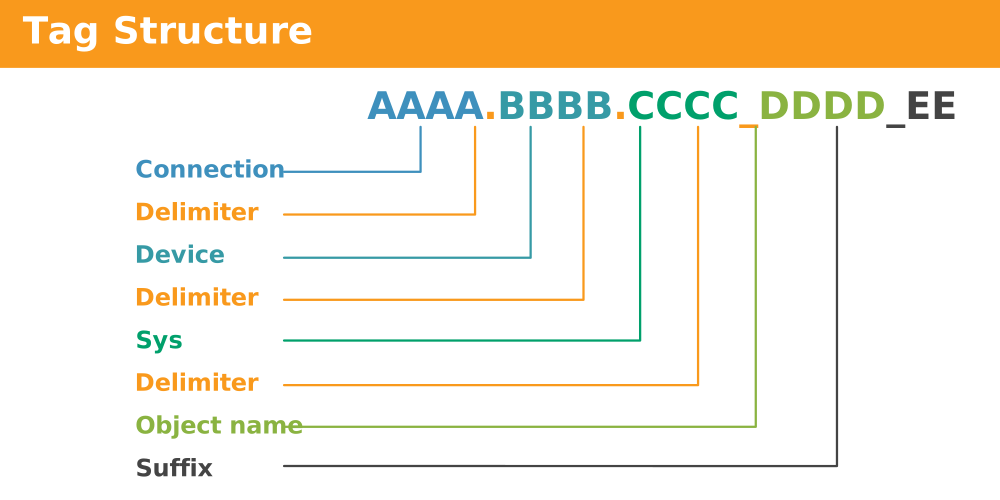
For a tag to conform to the tag structure in WideQuick it needs to consist of the following five parts:
- Connection
- Device
- System
- Object name
- Suffix
Tip
If you are uncertain if your variable name is correct, try using the text input below to confirm. It will turn green when the name is correct.
✅ Variable name is valid!
See the image below:
Connection
Connection represents the type of connection, such as Modbus, OPC, or the make and model of the PLC such as Siemens or SAIA.
Device
Device represents an electrical enclosure such as AS01 or similar.
System
System represents which system the tag belongs to, for instance LB01, Intake,
or Outlet.
Object name
Object name represents the name of the object itself, such as a temperature sensor
GT11, a motor M01, or a pump P23.
Suffix
Suffix represents what type of signal the tag represents, for instance a measurement value, a setpoint, or a status indicator.
Naming tags
These are just examples — tags can be named freely as long as they follow the
structure Connection.Device.Sys_Component_Suffix.
Example tags
Skane.Kallby.AS01_pump07_IO
Kentima.Staffanstrop.Skap03_GT11_MV
Modbus.AS01.Kallby_Motor01_LG
Configuring tags in OPC DA & OPC UA
Configuring OPC tags to follow the standard is straightforward. The tags simply need to be named according to the structure.

Configuring tags in Modbus Serial & Modbus TCP/IP
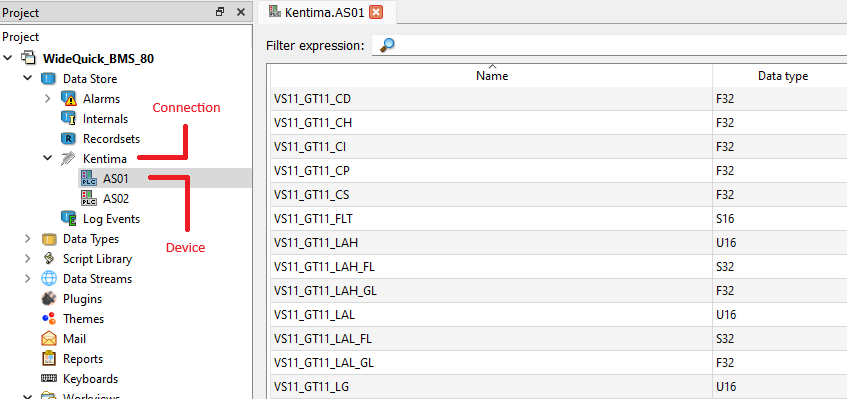
Modbus tags should also follow the same tag structure. However, both the
Connection and Device parts are retrieved from the connection name and device
name as shown in the image below. This means that the tag in the Tag Editor only
needs to contain Sys_Component_Suffix.
Connecting objects to tags
Before connecting tags to an object, an object must first be created. Please review Create Object here
Once an object is created, the DynTouch object needs to be connected to the tags.
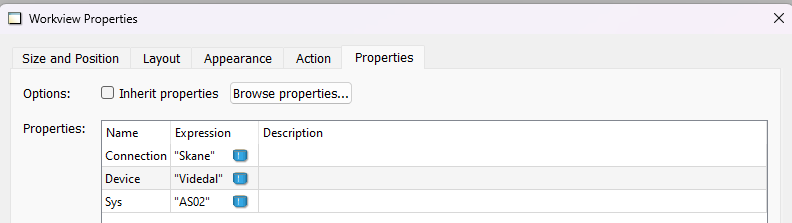
This is done by entering the tag information in the properties of the DynTouch
object, as shown in the image below. This allows WideQuick to automatically find all
tags connected to the object.

To speed up the process of connecting several objects to their tags, it is not
necessary to enter the same Connection, Device, and System information on
every object in the view. Instead, these properties can be set on the Workview
properties. If a DynTouch object is left empty it will try to retrieve the
information from the view instead.
Object name
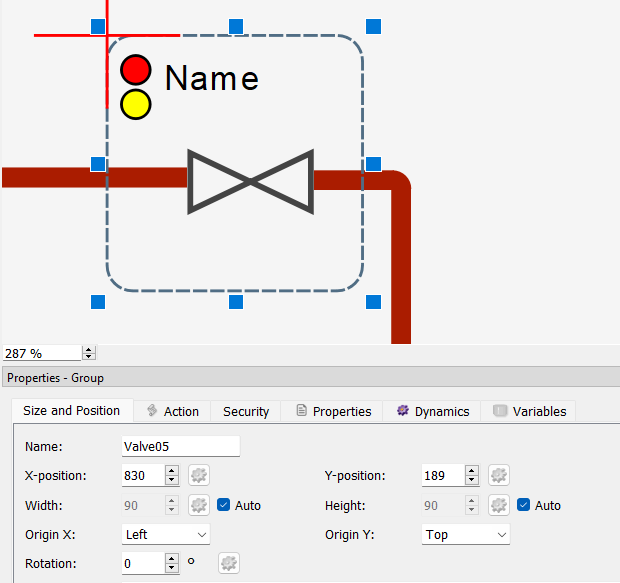
It is possible to skip entering the object name on the DynTouch object by
naming the object itself to the object name.
Suffix Alias
The suffix alias system allows suffixes to be mapped to human-readable alias names, which are used to automatically connect signals to the correct display elements on objects. This eliminates the need to manually assign signals to individual objects and makes it easy to adapt to different tag naming conventions system-wide.
This pattern applies to all dynamic objects across the standard object libraries — their value displays are named to match the suffix alias list, enabling automatic signal assignment when an object is connected to a tag.
For example, the analogDamper object in the Dampers object library has a
display element called analogOutputValue. If the suffix _R is mapped to the alias
analogOutputValue, WideQuick will automatically assign any signal ending in _R to
that display element when the object is connected to a tag.
This also means that if a project uses a different suffix convention — for example
_R2 instead of _R — the integrator simply updates the alias once and the change
is applied to all objects in the system.
Configuring suffix aliases
Suffix aliases are configured in WideQuick® Runtime by navigating to Settings → Suffix → Suffix Alias - Workviews.
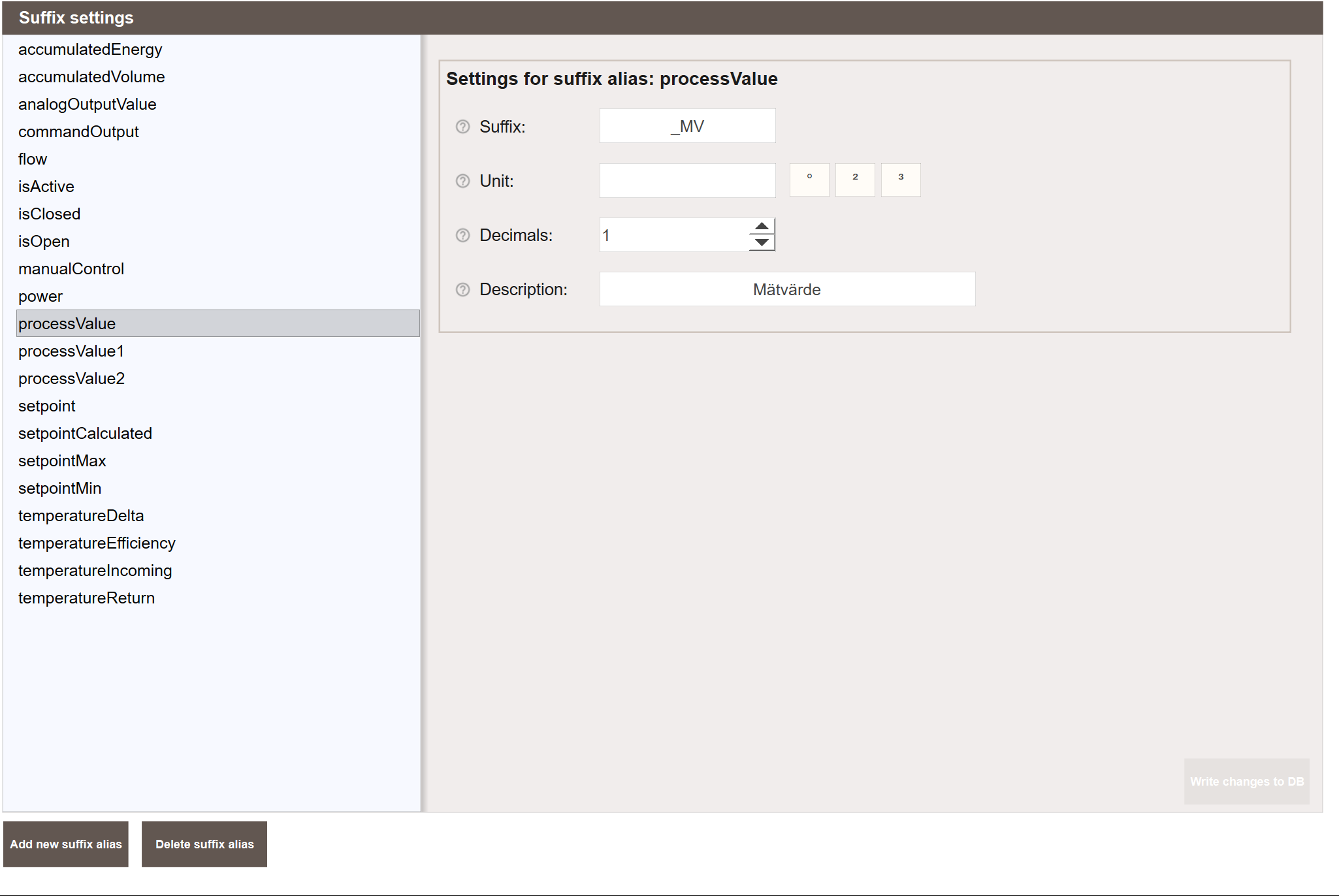
Each suffix alias has the following settings:
- Suffix — The actual tag suffix to map, for example
_Ror_E. - Unit — The unit displayed alongside the value, for example
kWhor°C. - Decimals — The number of decimal places shown for the value.
- Description — A human-readable description of what the suffix represents.
The Unit, Decimals, and Description settings are applied system-wide to any display element connected to a signal with that suffix.
Note
Similar alias systems exist for object animations and popups. See Workview Animations and Popups for more information.
Special properties on tags
It is possible to define tag-specific properties and descriptions for a tag, which will override the rules set for that tag in popups and other objects. See Create Popup for more information.
This is done by entering specific values in the description field of the tag in the Tag Editor.
The following values can be overridden:
- Description — Set by entering the description of the tag in the Description
field in the Tag Editor up to the first semicolon (
;). - Decimal places — Set by writing
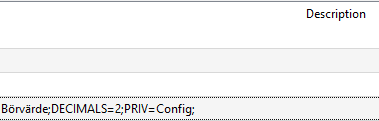
DECIMAL=X;whereXrepresents the number of decimal places to display. - Write privilege — Set by writing
PRIV=privilege;whereprivilegerepresents a privilege in the user system.
The example below sets the description to "Börvärde" with 2 decimal places and requires the privilege "Config" to edit:
Warning
The tag must contain a description for the override to work. It is not possible
to write only DECIMAL=3; without also providing a description.