Themes - Configuring
Changing a color
In WideQuick® Designer, open the Themes branch in the project tree and double-click the theme to edit. The Edit theme dialog opens with three tabs: Components, Custom colors, and Keyboard.
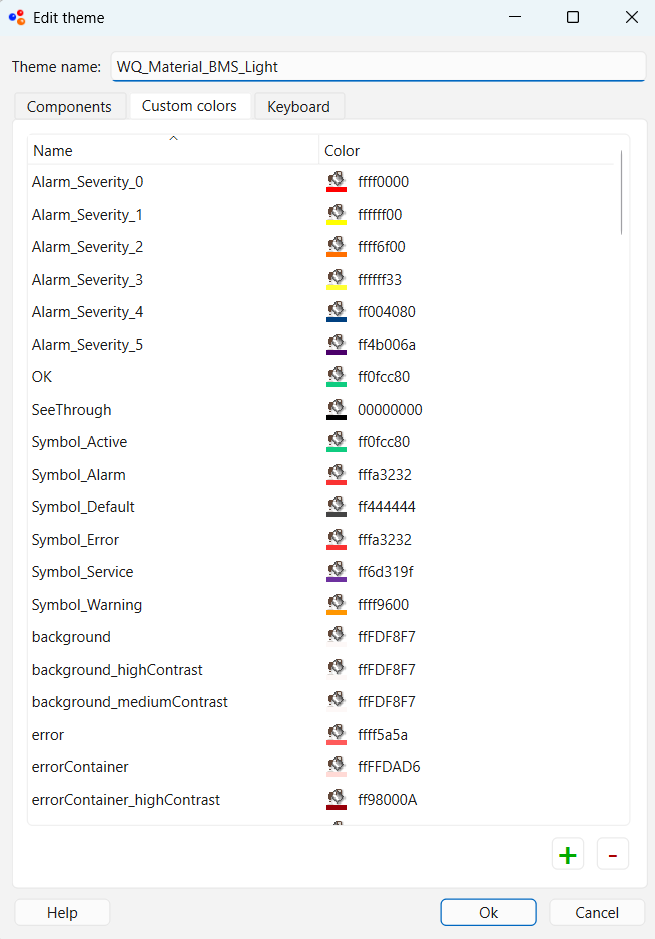
Navigate to the Custom colors tab and double-click a color code to change its value.
How colors are applied to objects
Colors from the active theme are applied to objects through scripts. An onLoad script or a dynamics expression calls System.themes.color() with the name of the color role:
this.brush.color1 = System.themes.color("surface")
this.pen.color = System.themes.color("onSurface")
To see which color role a specific object uses, check its onLoad script or dynamics. The name passed to System.themes.color() corresponds directly to an entry in the Edit theme settings.
Custom colors
The Custom colors tab contains project-specific colors alongside the standard roles — for example Symbol_Alarm, Symbol_Warning, and Alarm_Severity_0 through Alarm_Severity_5. These follow the same naming convention as standard roles and are used the same way in scripts:
To add a new custom color, click + at the bottom of the Custom colors tab (It will be added as ColorX), assign a name, and set a value. Use the same name across all themes so the color resolves correctly when switching between themes.
Module-specific color palettes
In addition to the M3 roles that make up the main theme, WideQuick MOD includes a number of separate color palettes used by specific modules. These palettes appear under the theme variant in WideQuick® Designer and can be edited the same way as other theme colors, but they are not affected by the light/dark toggle — they apply regardless of which theme is active.
| Palette | Module | What it controls |
|---|---|---|
| CalendarColors | Calendar | Colors per event category (ENERGY, SAFETY, HVAC, etc.) in calendar views |
| HistoryGraphColors | History | 13 colors automatically assigned to signal curves in trend charts |
| MaintenanceColors | Maintenance | Status and priority colors for maintenance orders |
| mapIndicators | Maps | Indicator colors for lines and status symbols on system maps |
| pipeColors | Pipes | Pipe medium colors (e.g. Rinse_Water, Sewage, Chemical) |
| ValueDisplay_dark | Value Display | BV, MV, and meter track colors in dark themes |
| ValueDisplay_light | Value Display | BV, MV, and meter track colors in light themes |
ValueDisplay_dark and ValueDisplay_light are the exception — the component automatically selects the correct variant based on whether the active theme name contains _Dark. The other palettes are static regardless of the active theme.
To edit a palette, open the Themes branch in the project tree, select the desired palette, and double-click a color code.
Next Steps
- Extending — creating a custom theme that follows a graphical profile
Tip
If you want to read more about M3: Material Design 3