Maintenance - Get Started
Requirements
The following scripts are required to use Maintenance and all related functionality covered in the Maintenance guides:
scMaintenancescDatabasescAlert
The Maintenance module is available through the main menu under Maintenance. From here there are three views for working with maintenance tasks.
Views
Maint. - List
The list view shows all maintenance tasks across all objects in the project. This is the primary view for day-to-day maintenance work.
- Select a task and click Open to view and update its details — deadline, description, status and assigned worker.
- Select a task and click Delete maintenance to remove it permanently.
- Click Create to create a new task.

Maint. - Templates
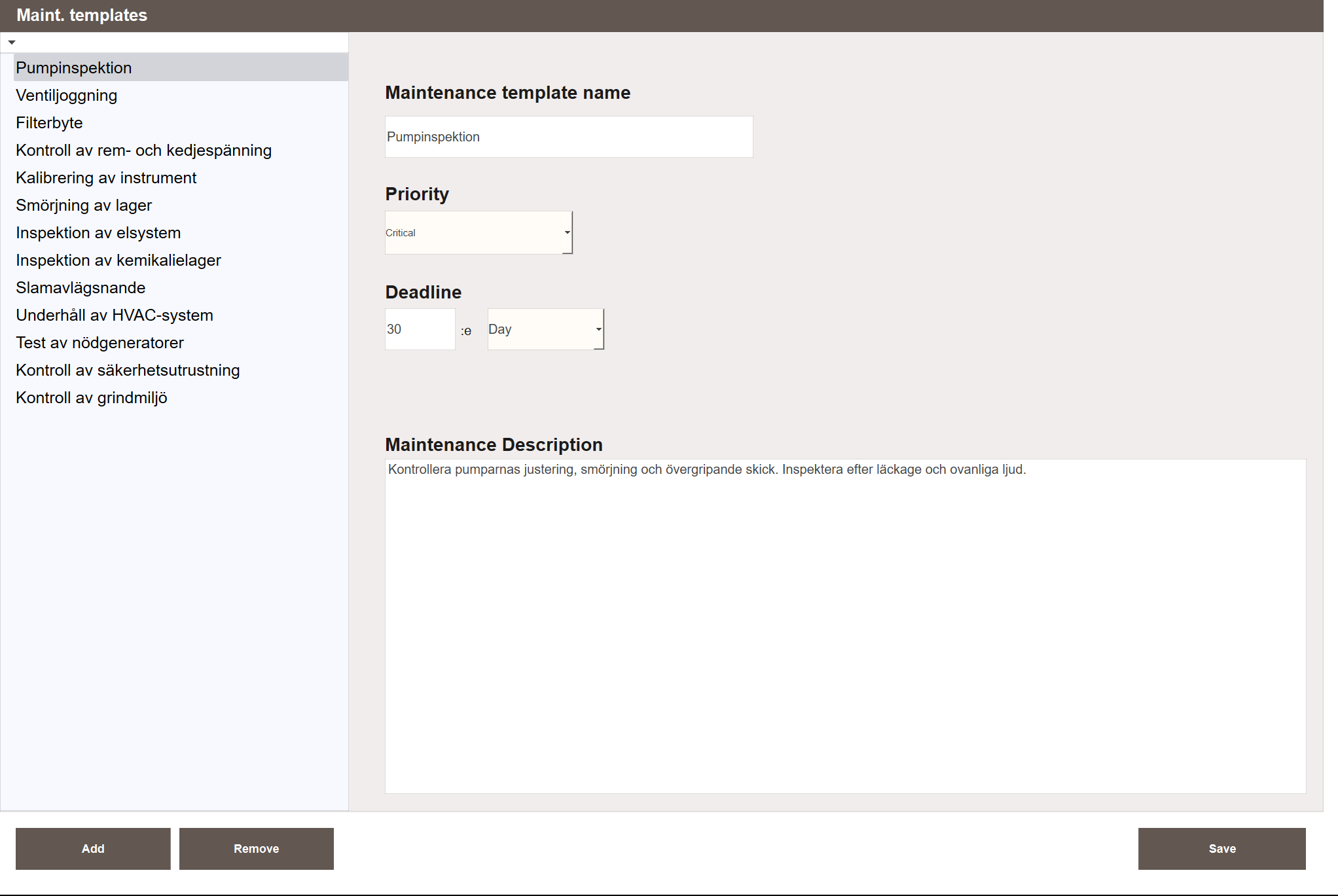
The templates view is used to create and manage maintenance templates. A template defines a reusable task type with a preset type, priority, interval and description. When creating a new task, a template can be selected to pre-fill the task fields.
Maintenance - Recurring
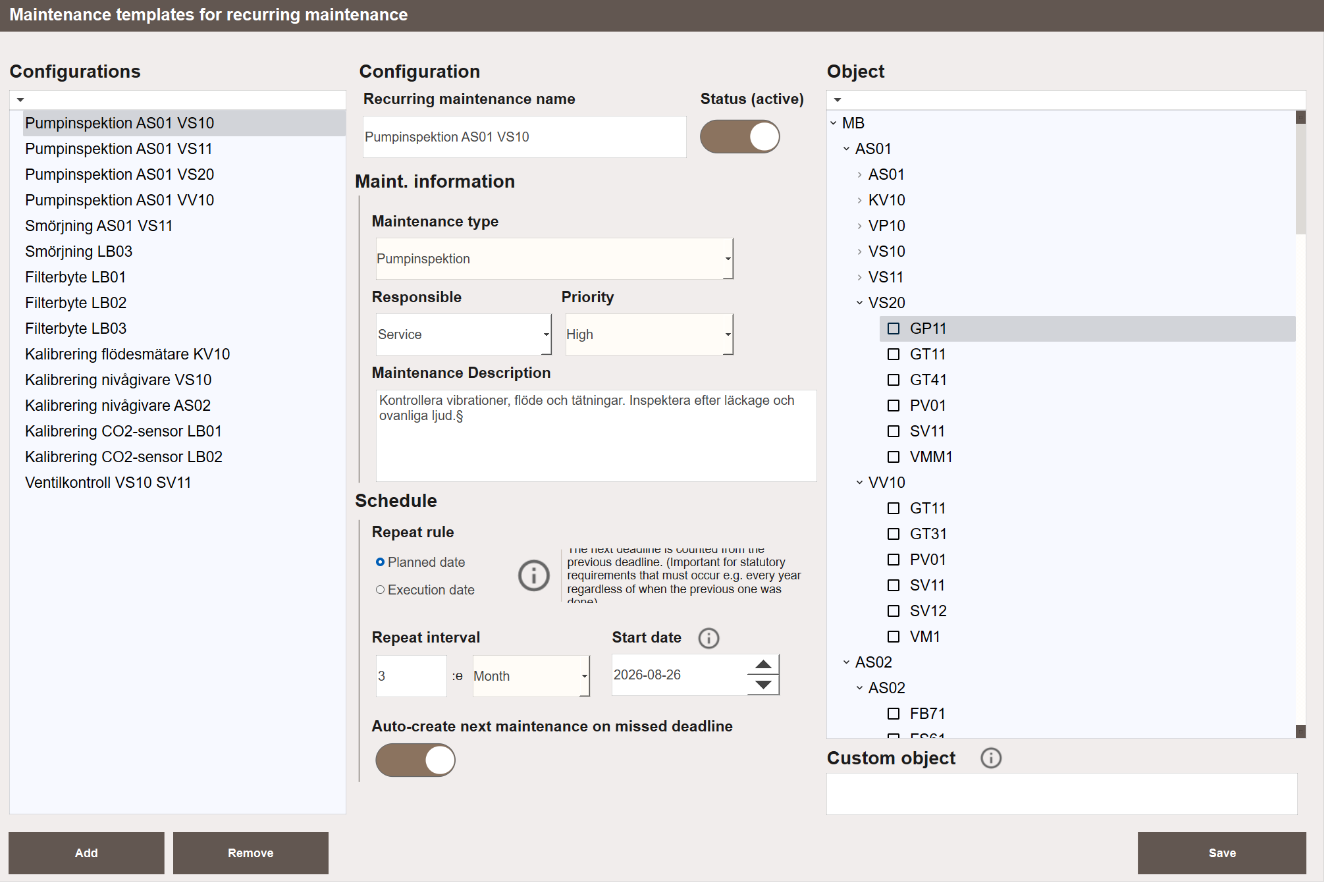
The recurring maintenance view manages automated maintenance configurations. Each configuration defines a schedule for one or more objects. The system generates and tracks tasks automatically based on the configured interval.
Object Popup
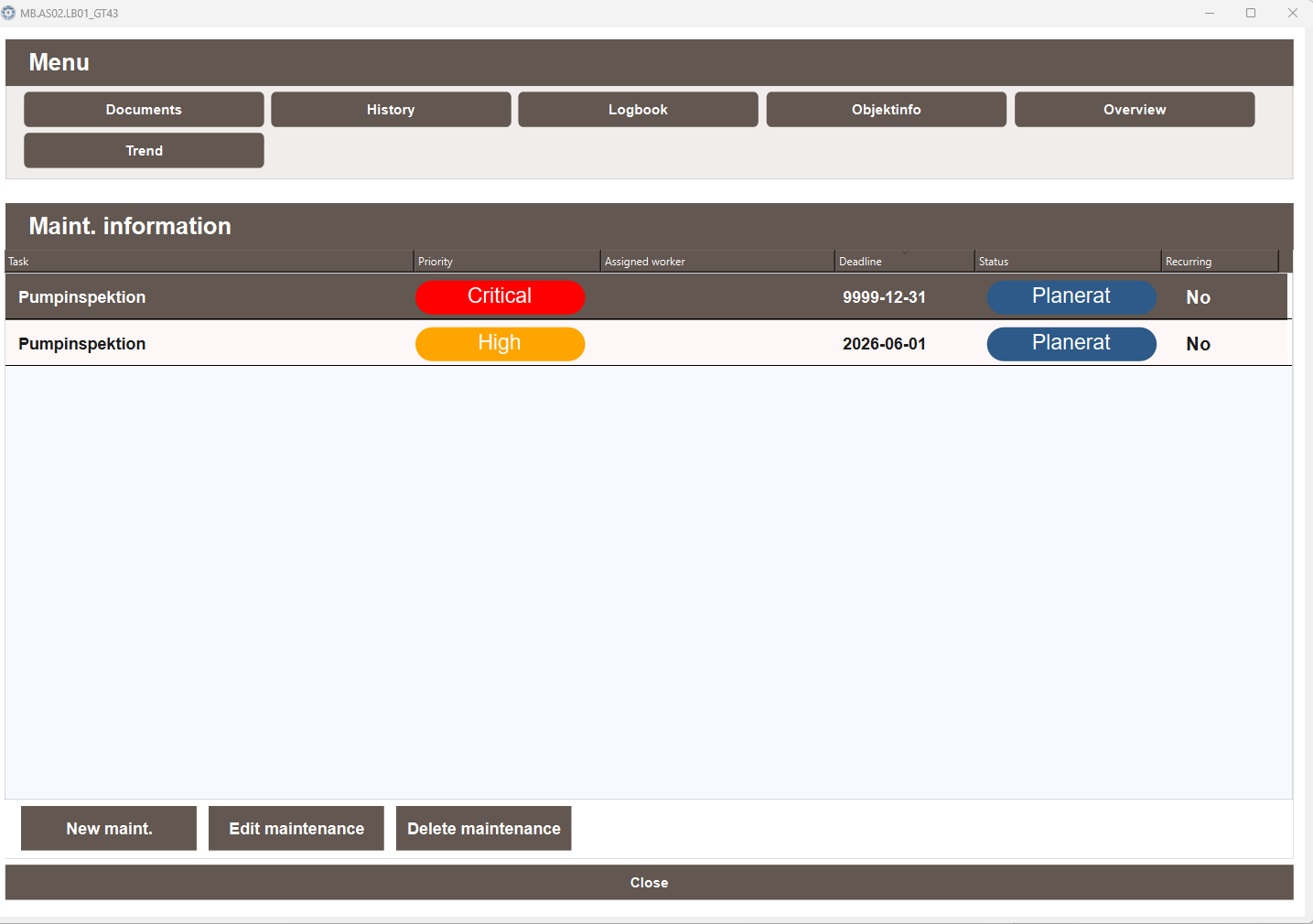
Every object in the project has a maintenance tab available through its popup. Open the popup by clicking on an object and selecting the Maintenance tab. This shows all maintenance tasks tied to that specific object. Use New maint., Edit maintenance or Delete maintenance to manage tasks without leaving the process view.
The Recurring column shows whether each task was generated by a recurring maintenance configuration. A value of Yes means the task is part of an automated schedule — completing it will automatically create the next instance. A value of No means the task was created manually as a one-off.
Creating a Task
New maintenance tasks can be created from both the Maint. - List view and the object popup.
From Maint. - List, click Create. From the object popup, click New maint.
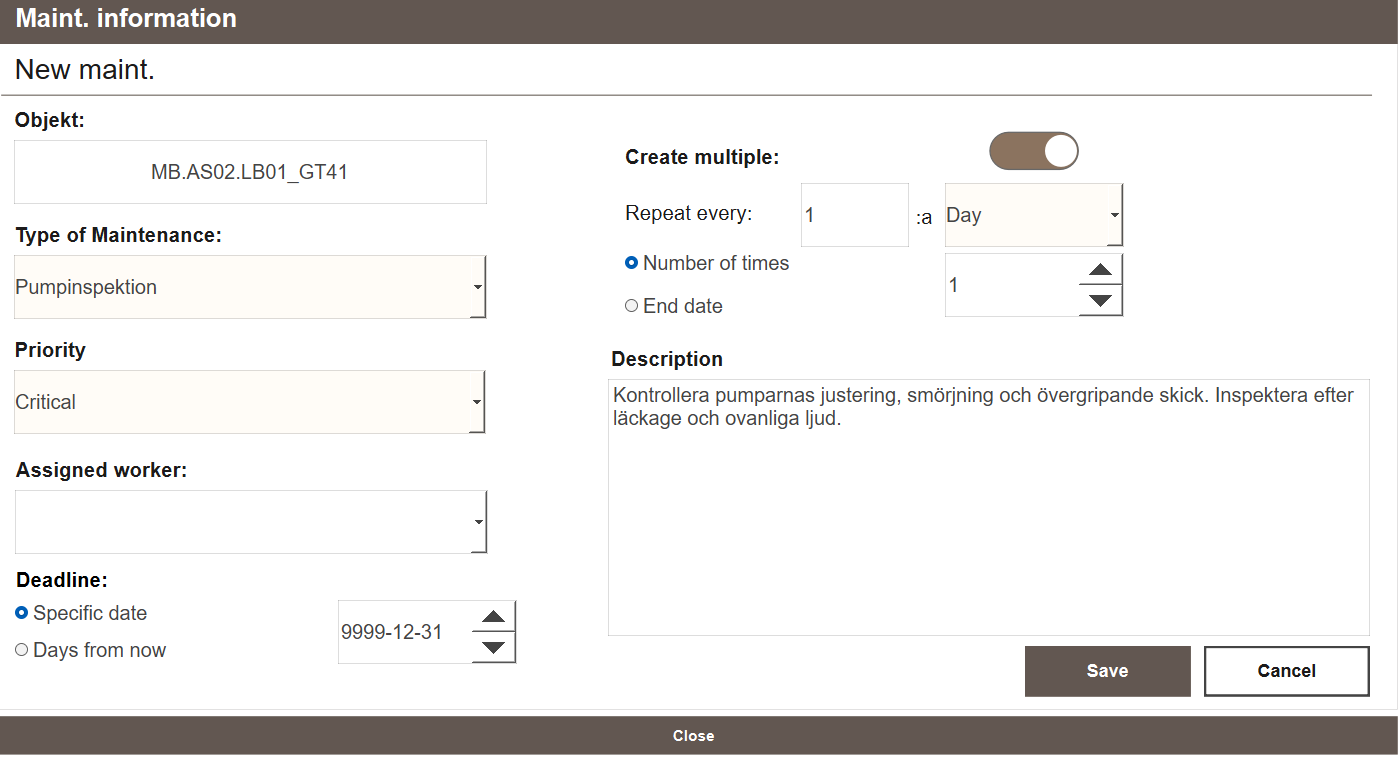
Fill in the following fields:
- Object — select the object this task belongs to from the dropdown. Pre-filled when opening from an object popup.
- Type of Maintenance — select a template to pre-fill priority, deadline and description. All fields can still be edited after selecting.
- Priority — Critical, High, Normal or Low.
- Maintenance deadline — either a specific date or a number of days from now.
- Create multiple — toggle on to create a series of tasks in one go, each spaced by a set interval. When enabled, two additional fields appear:
- Repeat every — the interval between tasks (number + unit: Day/Week/Month/Year).
- Number of times / End date — either set how many tasks to create, or an end date.
- Assigned worker — optionally assign the task to a responsible user.
- Description — pre-filled from the selected template. Can be edited freely before saving.
Click Save to save. The task is created with the status Planned. If Create multiple is enabled, all tasks in the series are created at once.
Completing a Task
- Navigate to Maintenance → Maint. - List.
- Select the task in the list and click Open.
- Change the Status field to Done.
- Optionally update the description or add a note before saving.
- Click Save. The task status updates immediately. If the task was part of a recurring configuration, the next scheduled task is created automatically.
Note
If the task was completed after its deadline, the system sets the status to Done - Delayed automatically. This cannot be set manually.
Next Steps
- Configuring — templates, recurring schedules and status reference
- Extending — calendar integration and troubleshooting