Create Object
There are two ways to create objects in WideQuick. The first is to build a process
object visually in WideQuick® Designer by combining components, support
objects and a DynTouch object. The second is to create objects dynamically at
runtime using the createObject() function. The visual approach is suited for
integrators building process views, while the script approach is better suited for
advanced use cases where the number of objects is not known at design time.
Creating a process object visually
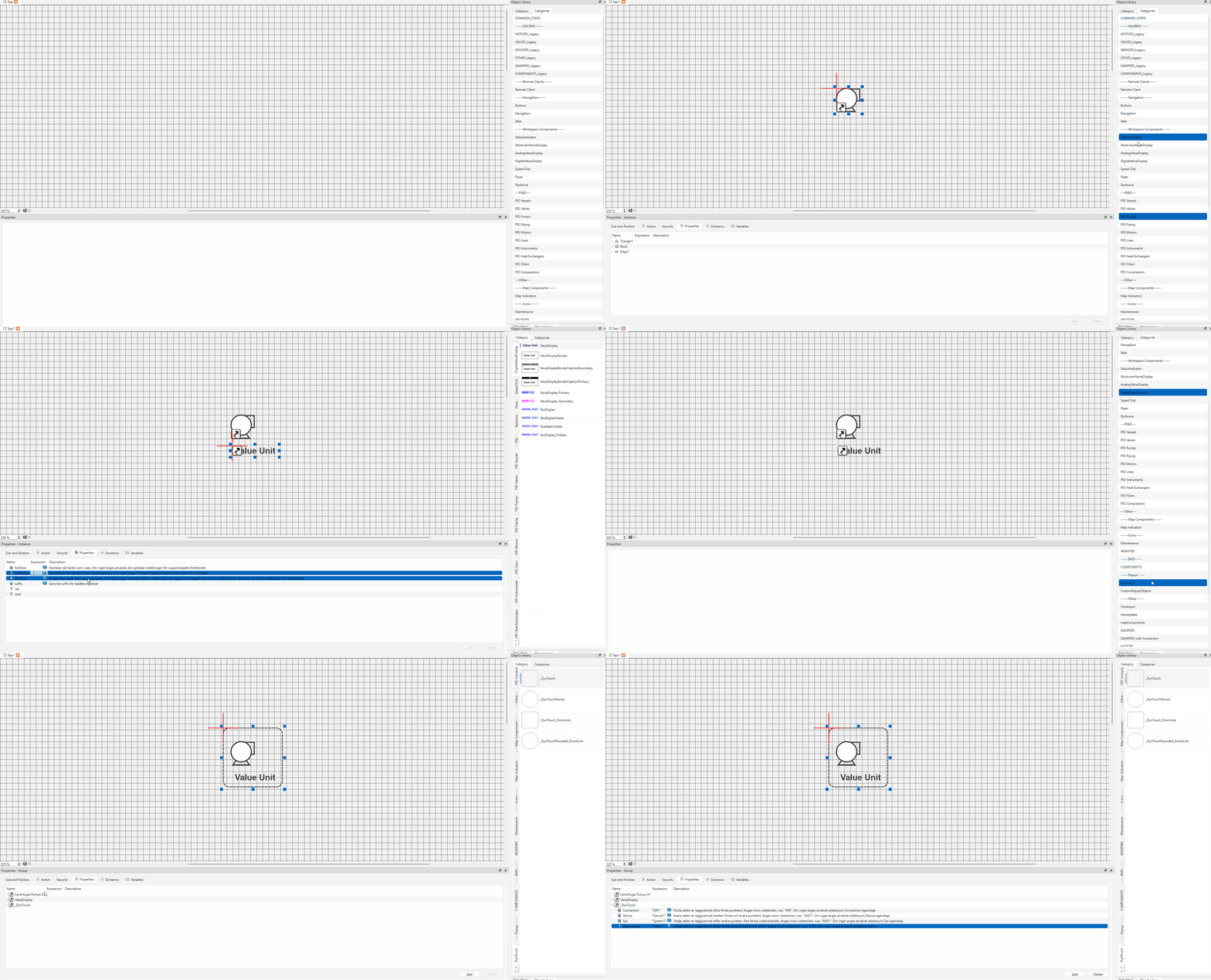
Creating a process object in a Workview consists of three steps:
- Selecting a component to represent the object visually
- Adding support objects to display tag values and status
- Grouping everything together with a
DynTouchobject
Once built, the object can be saved to the library and reused across the project.
Tip
Objects prefixed with dyn — for example dynMotorFanR_000 — already include
a pre-configured DynTouch object and animations. For these objects, only the
Connection, Device, Sys, and ObjectName properties on the
DynTouch object need to be filled in to connect them to their tags. No manual
grouping is required.
Icon
The first step is to select a component to represent the object visually in WideQuick® Designer. Any component from the object libraries can be used — the choice depends on what the object represents in the process view.
In this example, a Centrifugal Pumps 01 from the PID Pumps library under PI&D will be used. Drag the component into the Workview. It is possible to combine several components to represent more complex objects — for example, a pump with a valve. Do not group them yet.
All components designed to represent physical objects — such as pumps, fans, and valves — are compatible with the Workview Animation system, which means they can change color to reflect the object's current state — active, alarm, warning, or under service.
Support objects
Support objects are added alongside the component to display additional
information about the object. In this example, a ValueDisplay object — found in
the Digital Value Display library under Workspace Components — will be added.
When configuring the ValueDisplay, enter analogOutputValue in the SuffixAlias
property. This connects the display to the signal mapped to that alias. For more
information on suffix aliases and how they work, see
Tag Structure — Suffix Alias.
Drag the relevant support objects from the library into the Workview and position them relative to the component. Do not group anything yet.
Finalize object
The final step is to convert the component and support objects into a grouped
object using a DynTouch object. The DynTouch object defines the clickable area
and ties all visual elements together.
Drag the DynTouch object from the library into the Workview and resize it so
that it covers the component and all support objects completely. Nothing should
be left outside the DynTouch object boundary — any element outside it will not be
part of the group and may cause issues with clicking and selection.
Once the DynTouch object is in place, select all elements — the component,
support objects, and the DynTouch object — and group them together with Ctrl+G.
Connect the object to tags
After grouping, the object needs to be connected to tags. Open the properties of the
DynTouch object and fill in the Connection, Device, Sys, and
ObjectName fields. These fields determine which tags the object and its support
objects will read from.
For more information on how tags are structured and how the suffix system works, see Tag Structure.
Tip
To learn how to build a fully custom object from scratch and apply animations, see the Workview Animations example.
Creating objects from script
WideQuick® Runtime allows objects to be created dynamically during runtime using
the createObject() function. This is useful when the number of objects is not known
at design time, or when it varies — for example, rendering one entry per data signal
instead of placing a fixed number of empty objects in the view. Unlike the visual
approach, this method requires scripting knowledge and is better suited for advanced
use cases.
createObject() is available in the Functions list under WorkView in
WideQuick® Designer, along with the ObjectType* constants.
Syntax
createObject() supports two calling conventions.
Positional arguments:
Config object:
The config object form also accepts custom properties alongside the standard ones:
All standard arguments are required. Custom properties in the config object form are optional.
| Argument | Description |
|---|---|
type |
Object type — either an ObjectType* constant or a string matching a library component name |
name |
Unique name for the created object within the view |
x |
Horizontal position in pixels |
y |
Vertical position in pixels |
width |
Width in pixels |
height |
Height in pixels |
Object types
Built-in type constants available on the view:
view.ObjectTypeBoxview.ObjectTypeEllipseview.ObjectTypeImageview.ObjectTypeInstanceview.ObjectTypeLineview.ObjectTypePolygonview.ObjectTypeTextview.ObjectTypeTriangle
Custom library components can also be instantiated by passing the component path as
a string: "/Library/ObjectName".
Properties
After creation, properties on the returned object can be set directly:
obj.brush.color1— fill color as an integer color valueobj.pen.width— border width in pixelsobj.font.color— text colorobj.value— display value for text objectsobj.onClick— click handler function
Example
// Positional arguments
var ell = view.createObject(view.ObjectTypeEllipse, "myEllipse", 20, 20, 40, 50);
ell.brush.color1 = colors[0];
ell.pen.width    = 0;

// Config object with custom property
var box = view.createObject(view.ObjectTypeBox, { name: "square", x: 20, y: 20, width: 20, height: 40, CustomColor: "#ff0000" });
box.brush.color1 = colors[1];
Tip
Object names must be unique within the view. Using a consistent prefix together
with an index avoids naming collisions when createObject() is called multiple
times in the same view.