Automatic Scaling
Requirements
The following scripts are required to use Automatic Scaling and all related functionality covered in the Automatic Scaling guides:
scWMscAlert
WideQuick MOD automatically scales the UI to fit any screen size or browser window. This means a project can run on different displays without requiring layout changes.
The scWM script handles all scaling. It monitors the main window every 500 ms and calculates a scaling factor based on a reference resolution of 1920×1080. The current factor is always available as scWM.scalingFactor.
Main View Scaling
The main view scales automatically — no configuration is needed. scWM continuously applies the correct zoom level as the window resizes. This also works on WideQuick Remote® clients and WideQuick Web® clients. Web clients scale relative to the browser window rather than the screen resolution.
Popup Scaling
Popups do not scale automatically. To scale a popup proportionally to the main view and place it on screen, call scWM.scaleAndPlacePopup() in the popup Workview's onLoad script. To find the onLoad script, right-click the Workview in the project tree in WideQuick Designer®, select Properties, open the Action tab and double-click load.
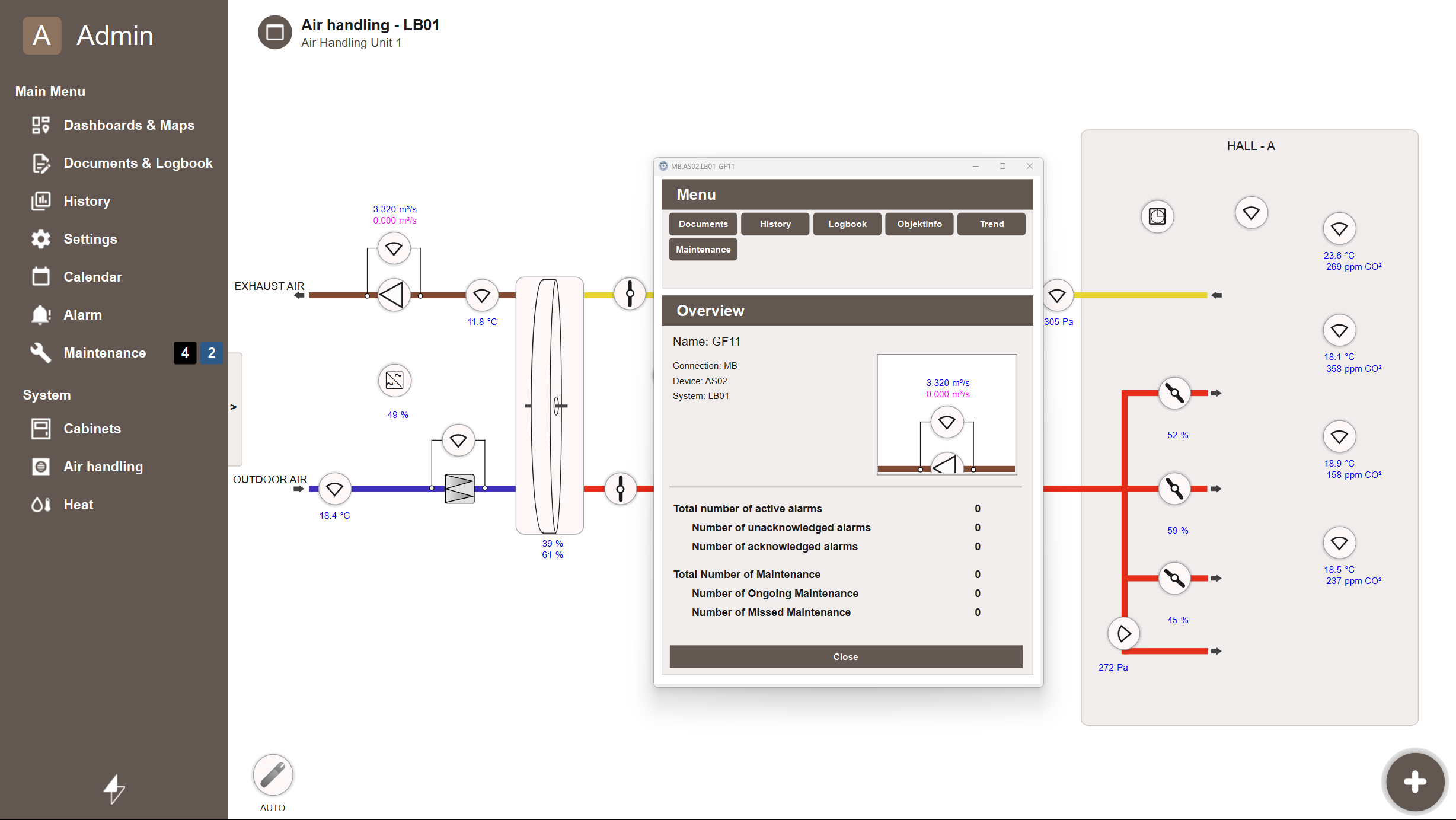
By default the popup is centered within the main content area, excluding the navigation menu. An optional alignment argument positions it along a screen edge instead:
| Alignment | Description |
|---|---|
| (none) | Centered on screen (default) |
"bottom" |
Anchored to the bottom of the screen |
"top" |
Anchored to the top of the screen |
"left" |
Anchored to the left of the screen |
"right" |
Anchored to the right of the screen |
Enabling Pannable/Zoomable
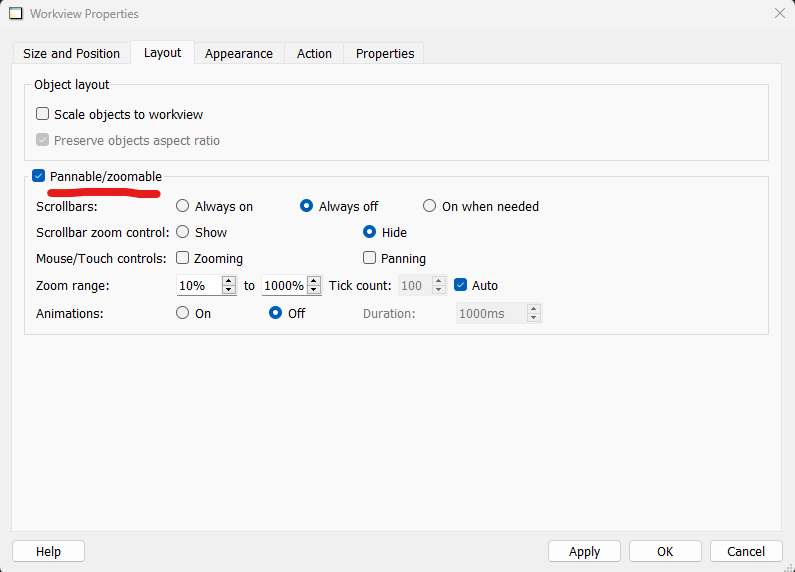
Popup scaling requires Pannable/Zoomable to be enabled on the popup Workview. In WideQuick Designer®, right-click the Workview in the project tree and select Properties. Open the Layout tab and check Pannable/Zoomable.
Placement Without Scaling
For smaller popups that do not need to resize, use scWM.placePopup() to center the popup without scaling it:
Reloading a View
To force a Workview to re-initialize, use scWM.reloadPage():
This briefly switches to a dummy view and back, forcing the target view to reload. Useful when a view needs to reflect configuration changes without navigating away manually.
Using the Scaling Factor in Custom Scripts
scWM.scalingFactor exposes the current scale as a number between 0 and 1 (or higher on large displays). Any custom script that needs to account for the current zoom level can read it directly:
This is used internally by the map scripts to recalculate element positions when the window resizes.