Dashboards - Get started
Requirements
The following scripts are required to use Dashboards and all related functionality covered in the Dashboards guides:
scDashboardscAlarmscHistoryscPrototypesscThemesscAlertscQuickSort
And the following Object Libraries:
Dashboard Widgets
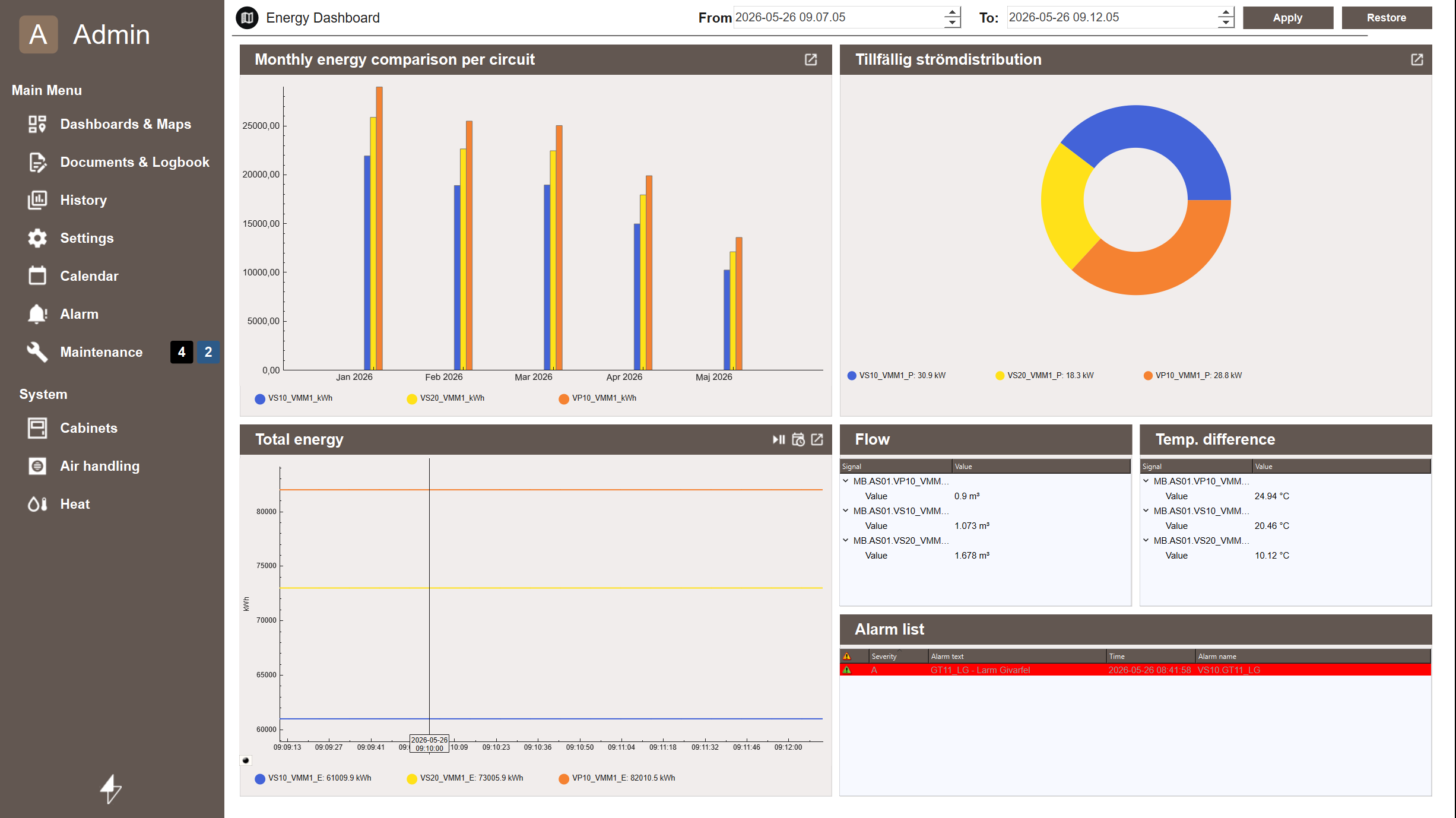
WideQuick MOD comes with three example dashboards that can be used as a starting point or modified to fit a project. New Dashboards can be created either from the template or from scratch depending on what the user wants.
Setting Up a New Dashboard
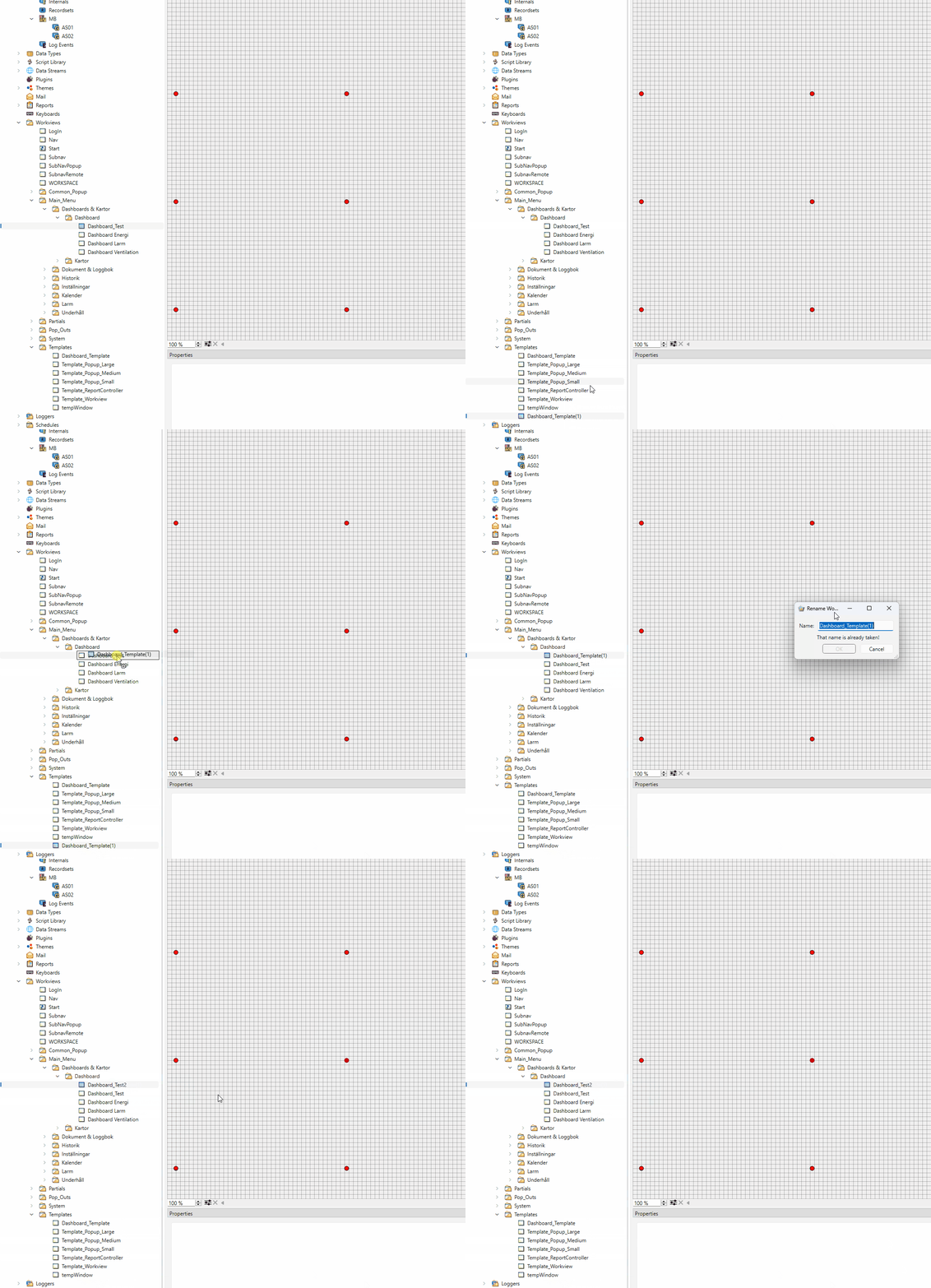
Duplicate the dashboard template in WideQuick® Designer by right clicking the template in the project tree and move it to the correct folder in the project structure.
Widgets - Pre-built Components for the Dashboard
Dashboards are built using pre-built widgets from the Dashboard Widgets library.
Each widget is designed for a specific type of data and can be placed and
configured directly without any custom development. Most widgets also exist in different sizes.

Grid Layout - Positioning Widgets in the Editor
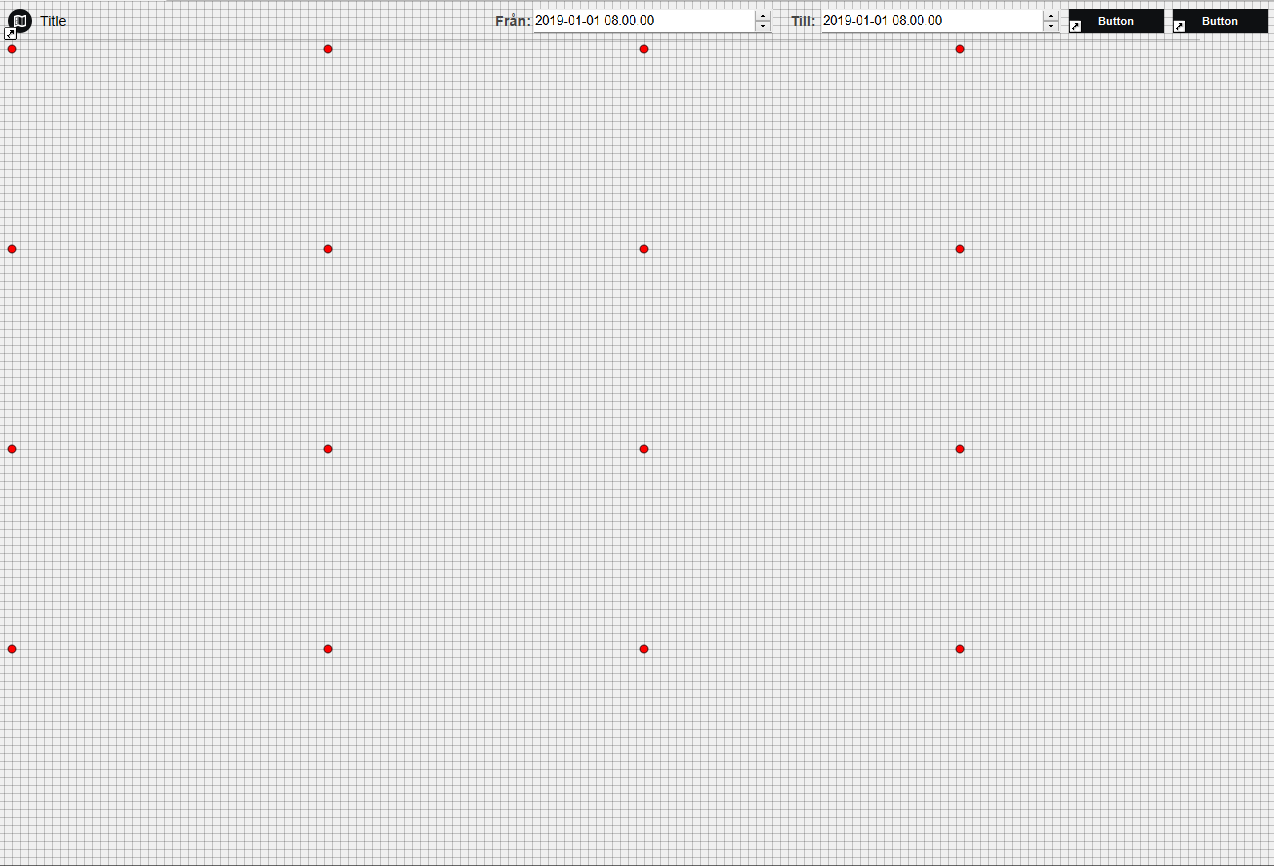
The dashboards in WideQuick® Designer uses a 4×4 grid to help with widget placement. Each grid position is marked by an ellipse that acts as a placement guide. These ellipses are not visible at runtime.
Adding a Widget
Add a widget by dragging it from the Dashboard Widgets library onto the dashboard, then fill in the relevant parameters in the properties panel. For a full list of available widgets and their parameters, see Configuring.

Next Steps
- Configuring — widget reference and parameter details
- Extending — custom widgets, design patterns and troubleshooting